Overview
When the government releases an amendment, add it to your proposal so GovDash can read what changed. GovDash summarizes the amendment, shows which earlier documents it replaces, and suggests outline changes for you to approve. Your outline and writing plans don't change until you approve a suggestion.
Click through the interactive walkthrough below to see how to add an amendment, review its outline changes and use the Amendments tab.
Add an Amendment
Open your proposal and select the Solicitation tab.
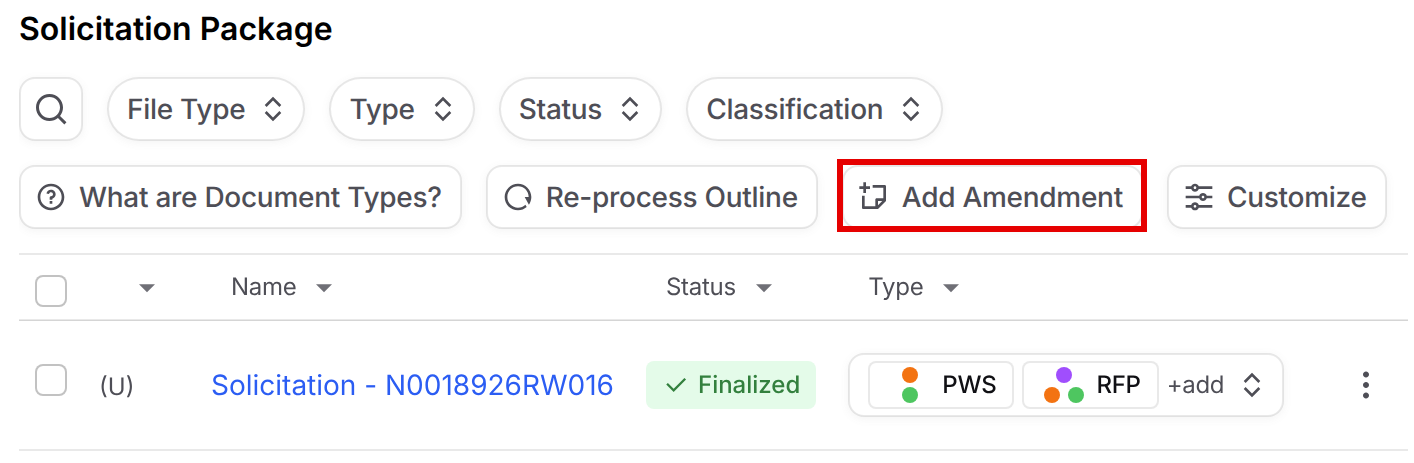
Click Add Amendment above the solicitation package. If the button says Please wait, GovDash is still processing the solicitation package or an earlier amendment.
Upload the amendment from your computer, SharePoint or Google Drive (up to 100 files, 500MB total), then click Confirm.
When GovDash asks Is this document a solicitation amendment?, select Yes.
In the Process amendment? dialog, click Process amendment.
While GovDash reads the amendment, the proposal status shows Processing Amendment. When it finishes, you get a notification that either links to the suggested outline changes or says no outline changes were needed. Documents you add here are also added to the parent opportunity.
Outline still generating?
If your outline is still generating or failed to generate, GovDash rebuilds the outline with the amendment included instead of suggesting changes.
Review Suggested Outline Changes
Open the notification or click Review Outline Changes to go to the Outline tab. Each suggested change is highlighted in yellow, with a short reason and the amendment it came from.
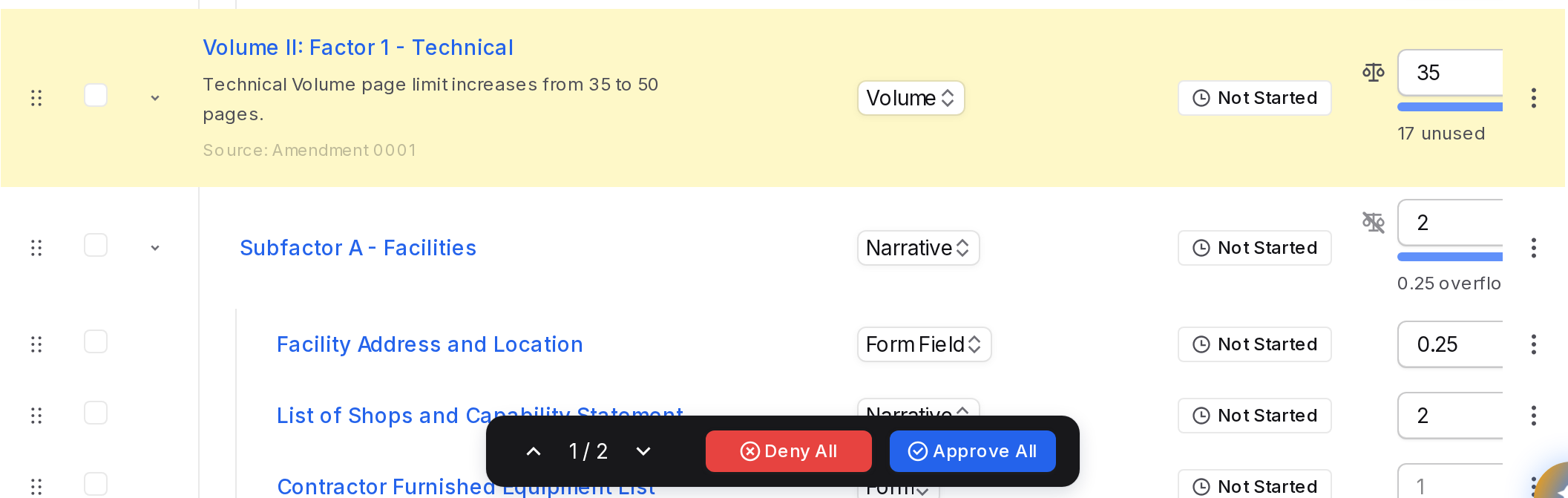
Move between changes: use the up and down arrows in the bar at the bottom of the outline.
Decide on one change: hover over the highlighted section and select Approve or Deny.
Decide on all changes: select Approve All or Deny All.
A suggested change can add, modify, move, copy or delete a section, for example raising a volume's page limit. Some amendments, such as ones that only extend the due date or answer questions, don't need outline changes. They still appear on the Amendments tab with their summary.
Review Amendments in the Amendments Tab
The Amendments tab shows every amendment in your solicitation package in one place. Open your proposal and select Amendments, between Solicitation and Compliance.
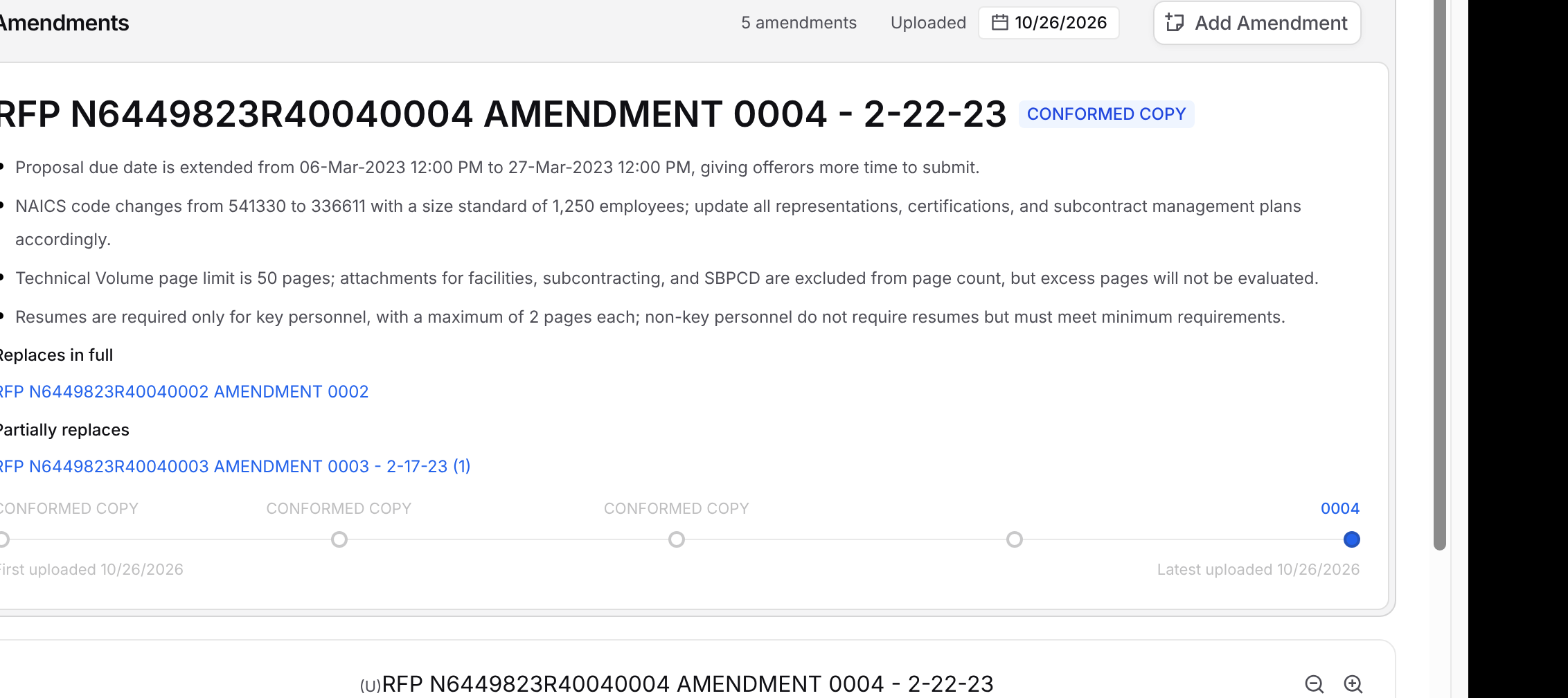
Summary: short bullets that describe what the amendment changes.
Replaces in full and Partially replaces: links to the earlier documents this amendment replaces.
Timeline: one point for each amendment, from first uploaded to latest uploaded. Click a point to view that amendment, or hover over it to see its file name and summary.
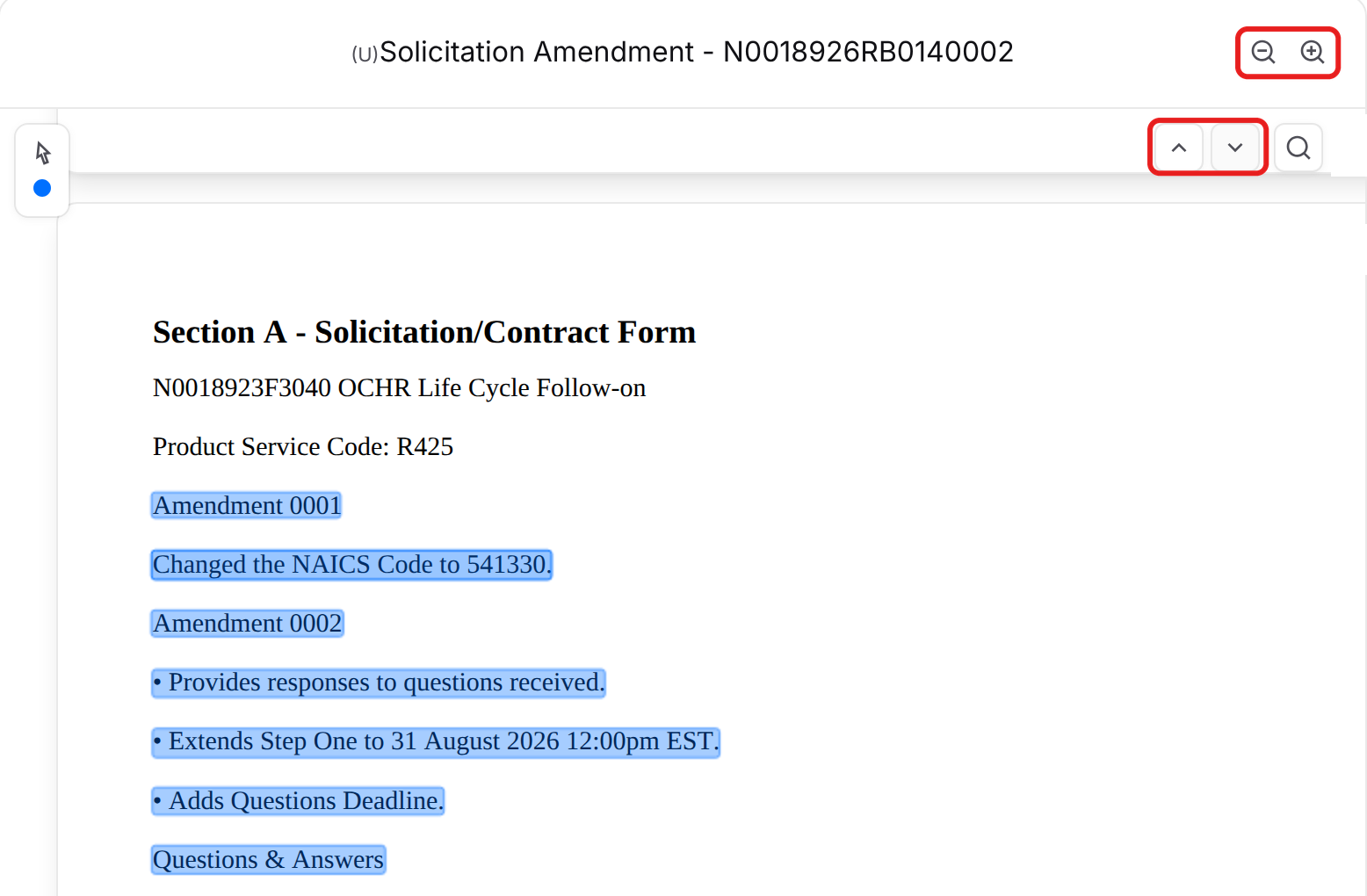
Document viewer: the amendment itself, with its changes highlighted. Use the up and down arrows to jump between changes.
Conformed Copies
A conformed copy is a full version of the solicitation with the amendments already applied. GovDash marks it with a CONFORMED COPY badge and a caption on its timeline point. Use it to find the current version of the solicitation quickly. When a conformed copy fully restates an earlier amendment, that amendment shows Restated in with a link that jumps to the conformed copy.
Troubleshooting
Problem | What to do |
|---|---|
An amendment doesn't appear on the Amendments tab | GovDash didn't recognize the file as an amendment. On the Solicitation tab, check that the document's Type includes Amendment. If it doesn't, add it and click Re-process Outline. Re-processing rebuilds your outline and removes your outline edits and writing plans. |
An amendment shows Failed | GovDash couldn't finish processing the file. Make sure it's readable (not a scanned image without text, and not password protected), then upload it again with Add Amendment. |
The Amendments tab shows Processing Amendment | GovDash is still reading the amendment. You'll get a notification when it finishes. |
No suggested outline changes appeared | Check your notifications. If GovDash found no outline changes, the notification says so, and the amendment's summary is still on the Amendments tab. |