Overview
Start every proposal by giving GovDash your solicitation. GovDash reads the package, builds your compliance matrix and creates an annotated outline you can start writing from. Setup takes a few minutes, and your outline is usually ready in 15 minutes or less.
Ensure you have…
Before starting a proposal, make sure you have the following ready to upload:
Solicitation Document (RFP, RFI, RFQ, etc.)
Performance Work Statement (PWS) or Statement of Work (SOW)
Supporting documents such as amendments or clarification notices
These documents help GovDash analyze the opportunity and generate a proposal outline tailored to the solicitation requirements.
Start a New Proposal
Go to Proposal and select Start a new proposal. Setup has up to three steps: Solicitation Package, Company Filters and Past Performance. Click Next to move between steps.

Step 1: Solicitation Package
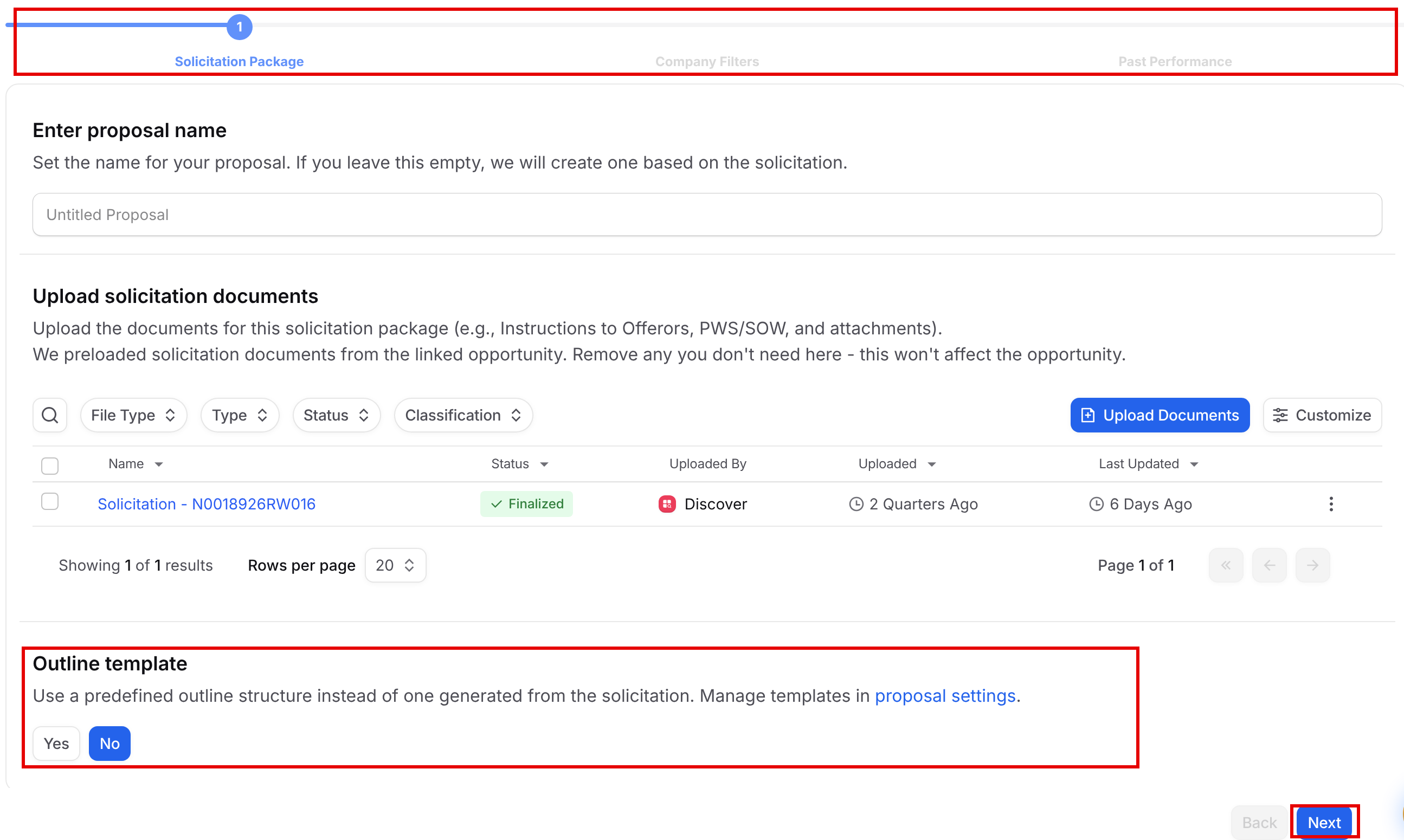
Enter proposal name: optional. If you leave it empty, GovDash names the proposal from your solicitation.
Upload solicitation documents: click Upload Documents to add your solicitation, PWS or SOW and attachments. If the proposal is linked to an opportunity, its solicitation documents are already added. Removing one here doesn't remove it from the opportunity.
Outline template: choose Yes to start from one of your team's outline templates, or No to have GovDash build the outline from the solicitation. To create outline templates, see Proposal Outline Templates.
Next stays unavailable until you add at least one document, and until you pick a template if you chose Yes.
Important: Outline Templates
Proposal outline templates are not your branded company templates. Proposal outline templates are purely for outline structure and do not influence the styling of the downloaded proposal (such as cover page, fonts, headers, and footers).
To learn more about uploading and selecting your branded company template, please see our support article here.
Step 2: Company Filters
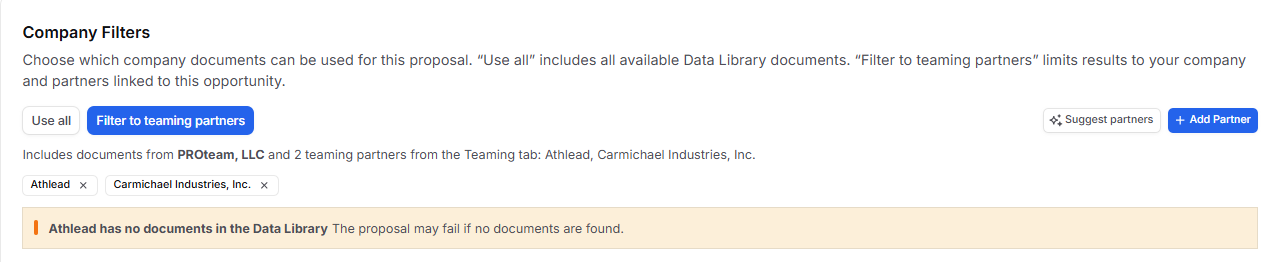
Company Filters control which Data Library documents GovDash can draw from when it writes content.
Use all: every document in your Data Library can be used. Best for a solo bid.
Filter to teaming partners: only documents linked to your company or a teaming partner on this opportunity are used, including past performance on their awards. Use this on teamed bids so GovDash doesn't pull content from a company that isn't part of the offer.
A summary line shows which companies are included. If a company has no Data Library documents, a warning appears. GovDash defaults to Filter to teaming partners when the opportunity already has teaming partners, and to Use all otherwise.

Add teaming partners without leaving setup: with Filter to teaming partners selected, click Suggest partners to see companies GovDash recommends, then Add as... to add one with a role. Or click Add Partner to pick companies from your database, or Create New Company. To remove a partner, click the x on its chip, then Yes, remove. Changes here also update the linked opportunity's Teaming tab.
Don't see the buttons?
The Suggest partners and Add Partner buttons appear only when your proposal is linked to an opportunity, and they're enabled once Filter to teaming partners is selected. You'll also need Capture permissions to view suggestions or to add and remove partners.
Step 3: Past Performance
This step appears only if your team has contracts in Contract. Choose whether to reference specific past performance:
Yes: pick the contracts you want from the list, or search for them. Select at least one.
No: the proposal won't reference past performance.
Select them for me: GovDash picks the most relevant contracts.
Updating your Contract Inventory
For help with adding new contracts to your contract inventory, please see our guide here.
Contract Greyed Out?
If your contract/past performance within the list is greyed out, this is because we require at least the main contract document and associated PWS/SOW to be uploaded to the contract before you're able to use it as past performance within your proposal.

Finish and Wait for Your Outline
Click Finish. GovDash analyzes your solicitation package, creates your compliance matrix and generates your annotated outline. You'll get an email when it's ready, usually in 15 minutes or less. Large packages can take longer.
Need to stop partway? GovDash saves your setup as a draft. To pick it up later, click Drafts on the main Proposal page. Drafts are listed newest first, and you can delete them at any time.

Start Your Outline with Dash
You can also ask Dash to start outline generation without stepping through setup.
Open Dash and turn on the Proposal source from the + menu.
Tell Dash which opportunity you're responding to, attach your solicitation documents, or both.
Optionally, tell Dash which outline template to use, whether to include past performance (or let GovDash pick it) and whether to filter to teaming partners.
Send your message. Dash shows Starting outline generation, then shares a link to your proposal.
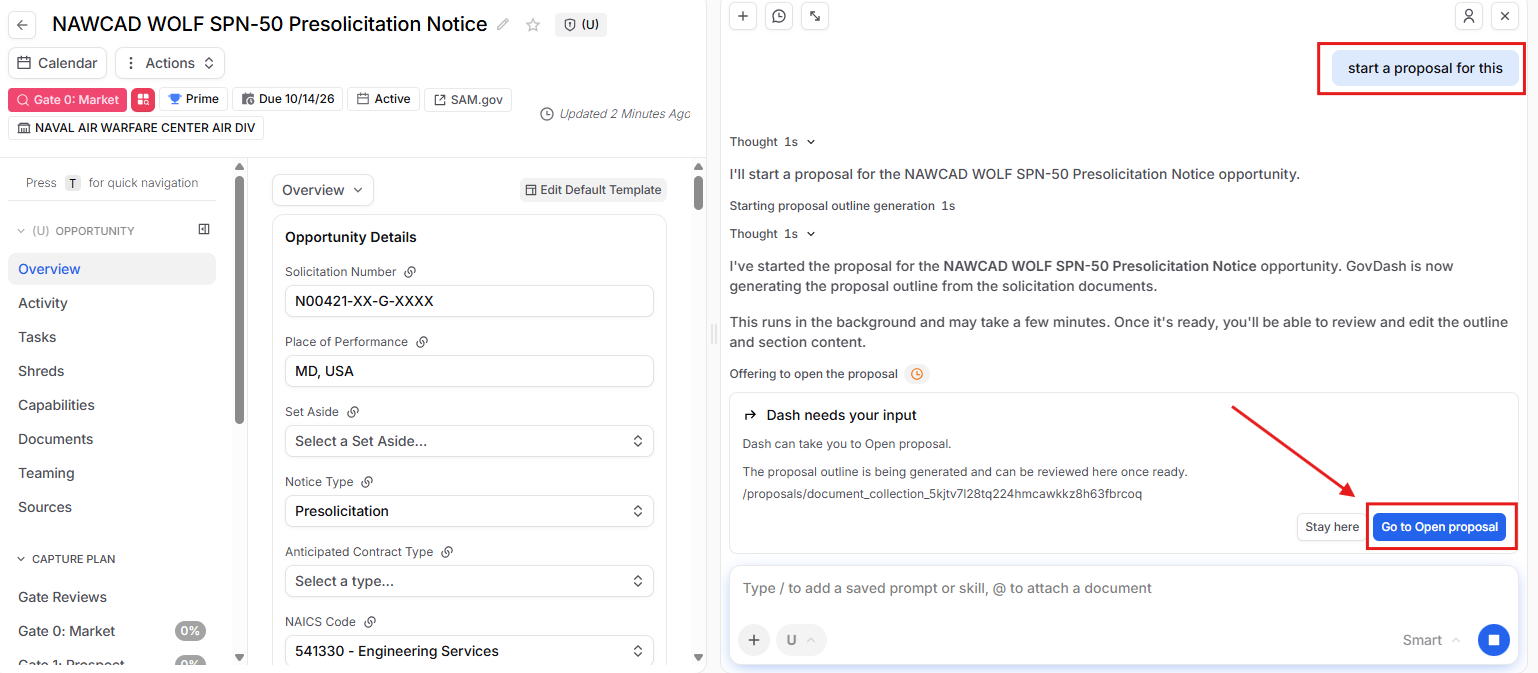
From an opportunity: its solicitation documents are included. If it already has a proposal draft, Dash uses that draft.
From attached files: Dash creates a new proposal from them, or adds them to the named opportunity's proposal.
Defaults: if you don't name a template, GovDash uses your team's default outline template. Choices already saved on your draft are kept unless you ask Dash to change them.
Check Document Types
GovDash gives each solicitation document a type, such as RFP, PWS or Amendment, and uses it to find instructions, task areas and evaluation criteria for your outline. You can check and fix types on the proposal's Solicitation tab.

Change a type: open the document's Type dropdown and add or remove types.
See how a document was read: hover over the colored dots under Sentence Classes to see whether GovDash found instructions, scope or evaluation criteria.
Apply your changes: click Re-process Outline, review the pending changes, then click Confirm.

Re-processing replaces your outline
Re-processing builds a new outline and removes all of your outline edits and writing plans. Change types before you start editing. To learn more, see Document Types.
Set Classification
When you upload a document, mark it (U) Unclassified or (CUI) Controlled Unclassified Information. GovDash carries a CUI marking to anything created from that document. For example, uploading a CUI focus document marks the proposal CUI, and a resume marked CUI makes its Key Personnel record CUI.

You can change a classification at any time. When you change it on a document, GovDash lists the related records created from it so you can update them too.

Important Note Regarding Classification
Your team is responsible for properly marking your data in GovDash. Correct classification ensures that sensitive information is handled appropriately and that properly labeled, sensitive data is protected on the GovDash platform.
FAQ
What documents do I need to prepare before starting a proposal in Proposal?
You need to have the Solicitation Document (RFP, RFI, RFQ, etc.), Performance Work Statement (PWS) or Statement of Work (SOW), and any supporting documents such as amendments or clarification notices.
Can I reference past performance contracts in my proposal?
Yes, you can reference past performance contracts found within Contract. You can select relevant contracts or let GovDash choose them for you.
What should I do if my contract is greyed out in the past performance list?
If your contract is greyed out, it means that the main contract document and associated PWS/SOW need to be uploaded before you can use it as past performance in your proposal.
How can I save my draft proposal in GovDash?
GovDash automatically saves your work as a draft, which you can access by clicking Drafts at the top of the main Proposal page.
How long does it take for GovDash to generate the proposal outline after submission?
It usually takes 15 minutes or less. Large solicitation packages can take longer.
Can I add or remove teaming partners while creating a proposal?
Yes! If your proposal is linked to an opportunity, select Filter to teaming partners in the Company Filters step, then use Suggest partners or Add Partner. Any partner you add or remove there is also added to or removed from the linked opportunity.
Why can't I continue after selecting Filter to teaming partners?
If there are no companies to filter to, GovDash shows a No companies to filter to warning and keeps Next and Finish unavailable. Add a teaming partner with Suggest partners or Add Partner, or select Use all to use all of your Data Library documents. If your proposal isn't linked to an opportunity, Filter to teaming partners may be unavailable, since teaming partners come from the linked opportunity.