Overview
The Proposal dashboard is home base for every proposal on your team. From here you can start a new proposal, find any proposal with search and filters, change how the list looks, track review phases and move finished bids to the Archive.
Open the Proposal Dashboard
Click Proposal in the left navigation. The Active Proposals page opens with a list of every proposal your team is working on. Click a proposal name to open it.
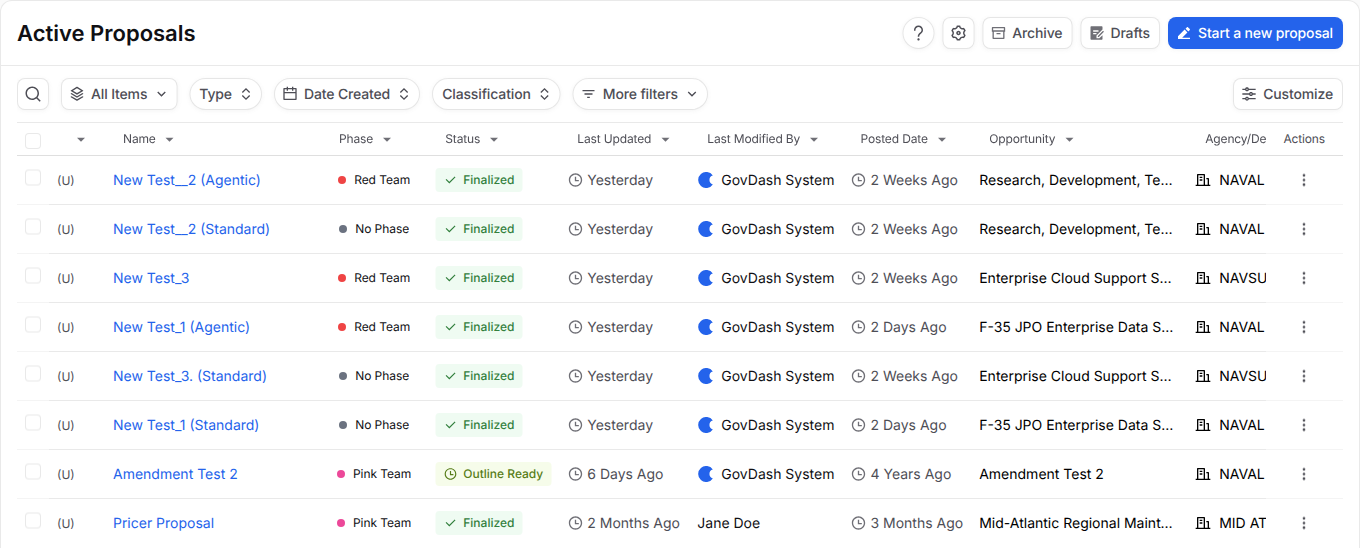
Use the buttons at the top right to get around:
Button | What it does |
|---|---|
Start a new proposal | Starts a new proposal from a solicitation. See Generate a Proposal Outline. |
Drafts | Opens Proposal Drafts, the proposals you started but haven't finished setting up. Click one to pick up where you left off. |
Archive | Opens Archived Proposals, the proposals you marked with an outcome. |
Find a Proposal
Use the bar above the list to narrow it down:
Search (magnifying glass): search your proposals.
All Items: switch between saved views. Click Manage Views to rename, delete or set a default view.
Type, Date Created and Classification: quick filters for the most common needs.
More filters: filter by Agency, Phase, Response Date, Post Date, Solicitation Number, NAICS, PSC, Set-Aside, Notice Type, State, Anticipated Contract Type, Primary Offeror, Primary Offeror Relationship, Last Modified By or Created By.
Customize the List
Click Customize to change how the list looks.
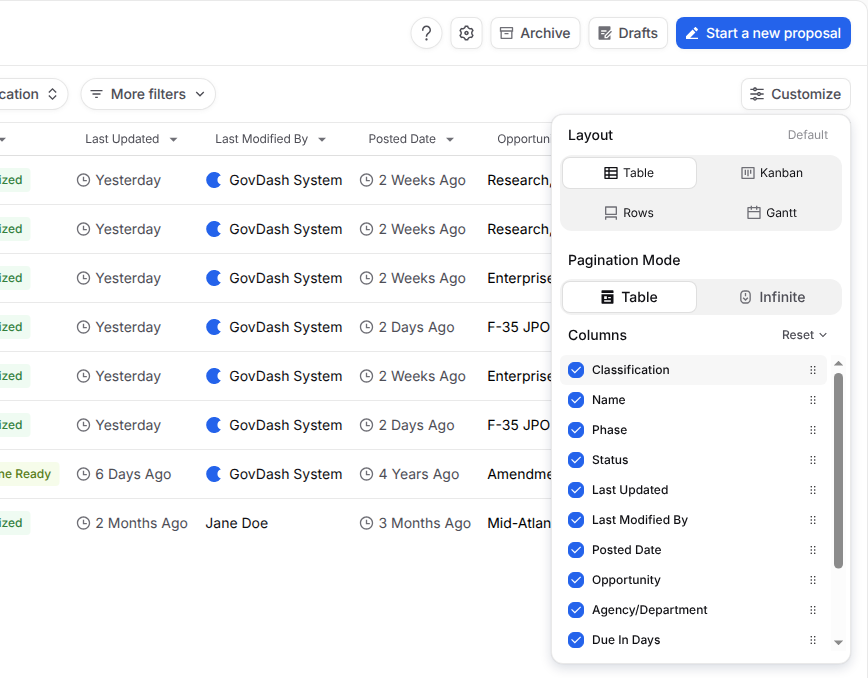
Layout: show proposals as a Table, Kanban board, Rows or a Gantt timeline.
Pagination Mode: choose Table to page through results or Infinite to keep scrolling.
Columns: check or uncheck columns such as Phase, Status, Due In Days and Agency/Department. Drag a column to reorder it, or click Reset to go back to the default.
Proposal Phases
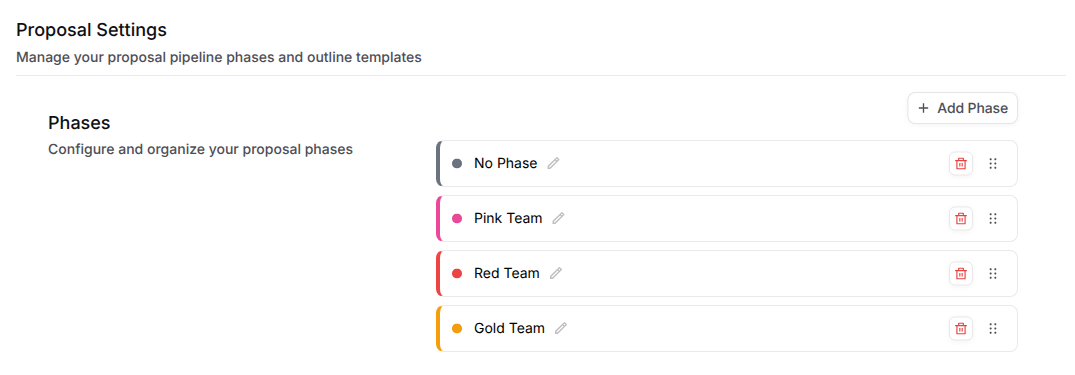
Phases show where each proposal is in your review process, such as Pink Team, Red Team and Gold Team. Your team can name, color and order them to match how you work.
Turn on Phases
Phases is an optional preview feature. To turn it on, go to Settings > Configurations > Preview Features and switch on Customizable Proposal Phases.
Set Up Your Phases
Go to Settings > Proposal. Under Phases:
Click Add Phase, enter a Name and pick a Color.
Click the pencil next to a phase to rename it.
Drag the handle on the right to change the order.
Click the trash icon to delete a phase. Proposals in that phase move to another phase.
Use Phases on the Dashboard
On Active Proposals, click a proposal's Phase and pick the new phase. To see only proposals in certain phases, click More filters > Phase.
Archive a Proposal
When a bid is done, click the three dots in the Actions column and choose an outcome, such as Mark as 'Submitted' and hide or Mark as 'Won' and hide. The proposal moves off Active Proposals and into the Archive, grouped by outcome. The same menu also has Delete Proposal.
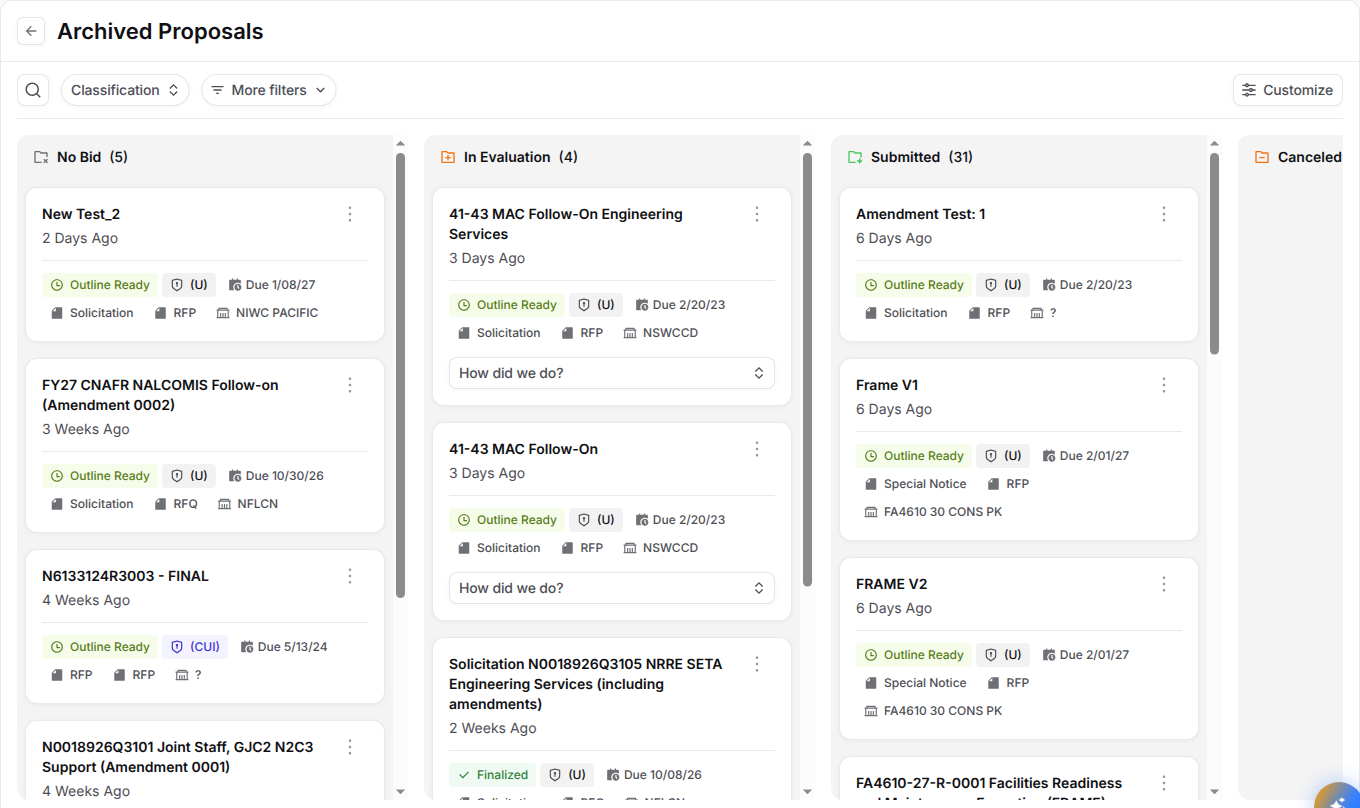
To learn about outcomes and feedback, see Proposal Archiving and Outcome Tracking.
FAQ
Where did my proposal go?
If it was marked with an outcome, it's in the Archive. If you didn't finish setting it up, it's in Drafts. Also check that no filters or saved views are hiding it.
Why don't I see the Phase column?
Phases has to be turned on first. See Turn on Phases above. If it's on, click Customize and make sure Phase is checked under Columns.