Overview
Creating a proposal in Proposal is simple and intuitive. This guide will walk you through the process step-by-step, ensuring that your team can easily get started with outline generation and proposal development.
Ensure you have…
Before starting a proposal, make sure you have the following ready to upload:
Solicitation Document (RFP, RFI, RFQ, etc.)
Performance Work Statement (PWS) or Statement of Work (SOW)
Supporting documents such as amendments or clarification notices
These documents help GovDash analyze the opportunity and generate a proposal outline tailored to the solicitation requirements.
Creating a Draft
To begin generating your outline, start by creating a draft by navigating to Proposal in GovDash and selecting Start a new proposal.
.png)
Building Your Solicitation Package
Setup has up to three steps: Solicitation Package, Company Filters and Past Performance. Click Next to move to the next step.
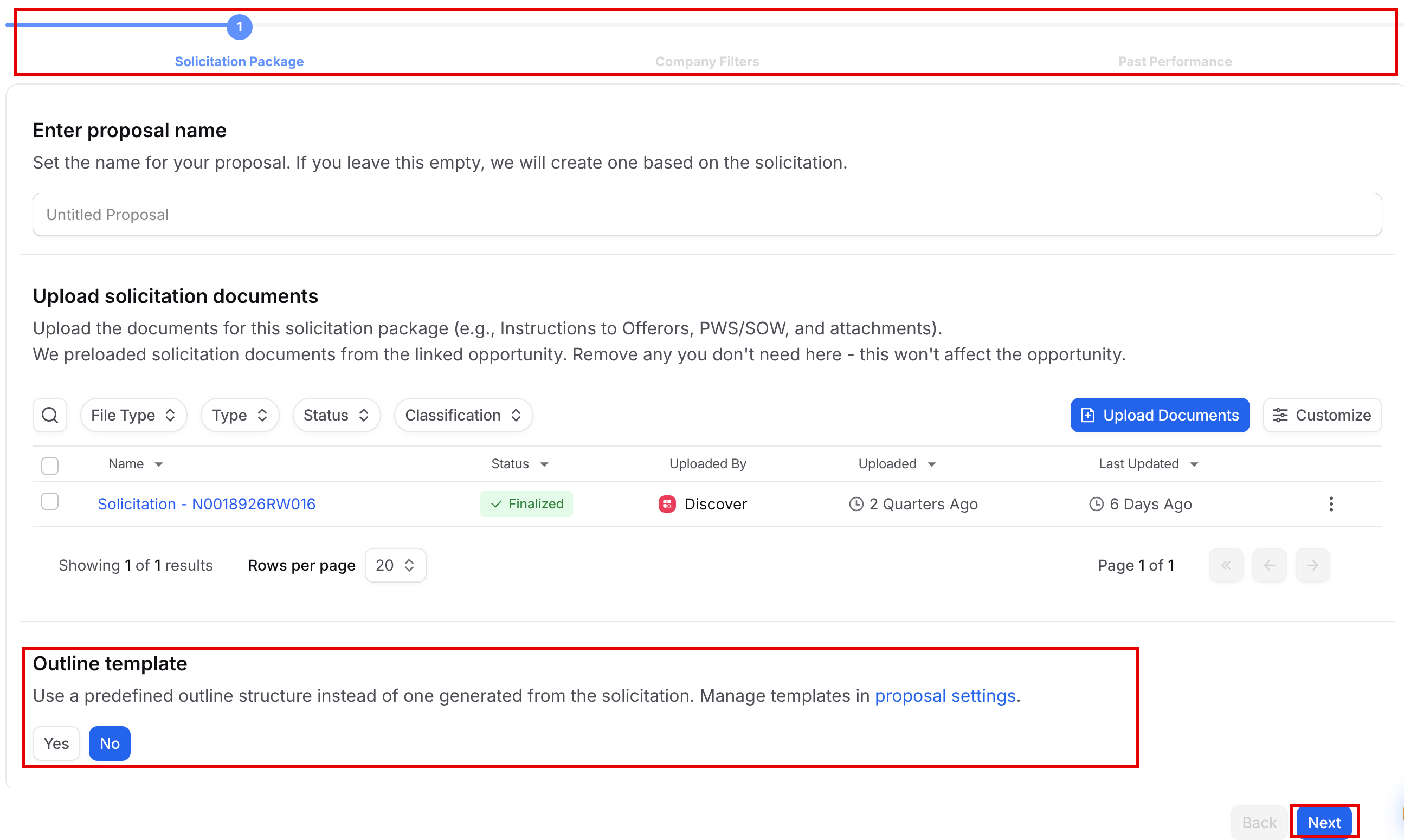
In the Solicitation Package step:
Enter proposal name: This is optional. If you leave it empty, GovDash names the proposal from your solicitation.
Upload solicitation documents: Click Upload Documents to add your solicitation, PWS or SOW, and any attachments. If the proposal is linked to an opportunity, its solicitation documents are already added. Removing one here does not remove it from the opportunity.
Outline template: Choose Yes to use one of your outline templates, or No to have GovDash build the outline from the solicitation.
Next stays unavailable until at least one document is added. If you chose Yes for an outline template, you also need to pick a template.
GovDash will also automatically determine the response type and general structure of the proposal based on the documents that you upload.
Proposal Outline Templates
Proposal outline templates allow you to configure a pre-set structure to use as your solicitation response outline, rather than have GovDash create one based on the solicitation requirements. This can be especially useful in instances where you have a prescribed structure that your team uses for specific types of solicitations.
To build a customized outline template, please see our support article here.
Important: Outline Templates
Proposal outline templates are not your branded company templates. Proposal outline templates are purely for outline structure and do not influence the styling of the downloaded proposal (such as cover page, fonts, headers, and footers).
To learn more about uploading and selecting your branded company template, please see our support article here.
Company Data Filters
Company Filters is the second step of the proposal outline creation flow. It controls which Data Library documents GovDash can draw from when it generates proposal content.
Use all makes every document in your Data Library eligible, regardless of which company it's linked to. This is the right choice for a solo bid, or when you want the widest pool of reusable content and are comfortable reviewing sourcing yourself.
Filter to teaming partners limits generation to documents linked to your own company or to a teaming partner on this opportunity. Teaming partners come from the Teaming tab of the linked opportunity, and past performance documents attached to those companies' awards are included. On a teamed bid this keeps GovDash from pulling capabilities, quals, or past performance from a company that isn't part of the offer, which is both an accuracy problem and a compliance risk in a submitted volume.
A summary line under the buttons shows exactly which companies are included so you can confirm before continuing, and each teaming partner appears as a removable chip beneath it. If a selected company has no documents in the Data Library, a warning appears, since a proposal with no eligible source content may fail to generate.

If the opportunity already has teaming partners, GovDash will default to Filter to teaming partners. Otherwise it defaults to Use all.
Managing Teaming Partners During Proposal Setup
If your proposal is linked to an opportunity, you can build your team right from the Company Filters step, no need to leave proposal setup. With Filter to teaming partners selected, two buttons appear next to the filter options:
Suggest partners: Opens the Suggested Partners panel, where GovDash recommends companies for this opportunity. Use the Add as... button on a suggestion to add that company as a teaming partner with the role you choose.
Add Partner: Opens the Add Partners dialog, where you can select companies from your database and assign each a role. If a company isn't in your database yet, click Create New Company to add it on the spot.
Partners you add here are also added to the linked opportunity, so your opportunity's Teaming tab stays in sync automatically.
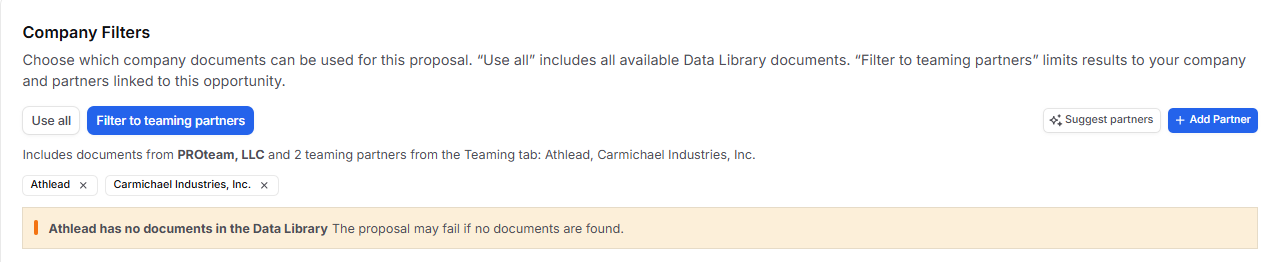
Your current teaming partners appear as chips beneath the summary line. To remove a partner, click the x on its chip. Because this also removes the partner from the linked opportunity, GovDash asks you to confirm in a Remove Partner dialog before continuing. Click Yes, remove to confirm.
Don't see the buttons?
The Suggest partners and Add Partner buttons appear only when your proposal is linked to an opportunity, and they're enabled once Filter to teaming partners is selected. You'll also need Capture permissions to view suggestions or to add and remove partners.
Adding Past Performance
The Past Performance step only appears if your team has contracts in Contract. It asks whether there are specific past performances you want referenced:
Yes: Opens a list of your contracts. Click the ones you want to reference, or use the search bar to find them. The button then shows how many you selected.
No: The proposal will not reference past performance.
Select them for me: GovDash picks the relevant contracts for you.
Finish becomes available once you make a choice. If you choose Yes, select at least one contract.
Updating your Contract Inventory
For help with adding new contracts to your contract inventory, please see our guide here.
Contract Greyed Out?
If your contract/past performance within the list is greyed out, this is because we require at least the main contract document and associated PWS/SOW to be uploaded to the contract before you're able to use it as past performance within your proposal.
.png)
Submitting Your Draft
Once you’re satisfied with your draft, click Finish, and GovDash will begin analyzing your solicitation package, creating your compliance matrix, and generating your annotated outline. As soon as this process finishes, you will receive an email! Your outline is typically ready in 15 minutes or less, but large solicitation packages can take longer.
Saving your Draft
If you need more time before submitting and would like to save your work to complete later, GovDash will automatically store your current work in a draft that can be picked up at any point.
To access your draft, simply click the Drafts button on the main dashboard page. Drafts are listed in descending chronological order, and you may delete drafts at any time.
.png)
Starting Your Outline with Dash
You can ask Dash to start outline generation for you, without stepping through proposal setup. Dash will analyze your solicitation package, create your compliance matrix, and generate your annotated outline just as it would from the Proposal page.
To start your outline with Dash:
Open Dash and make sure the Proposal source is turned on from the + menu.
Tell Dash which opportunity you're responding to, attach your solicitation documents to your message, or both.
Optionally, tell Dash how you'd like your outline set up, such as which outline template to use, whether to include past performance (or let GovDash select it for you), and whether to filter to teaming partners.
Send your message. Dash will show Starting outline generation while it works, then confirm once your outline is underway and share a link to your proposal.
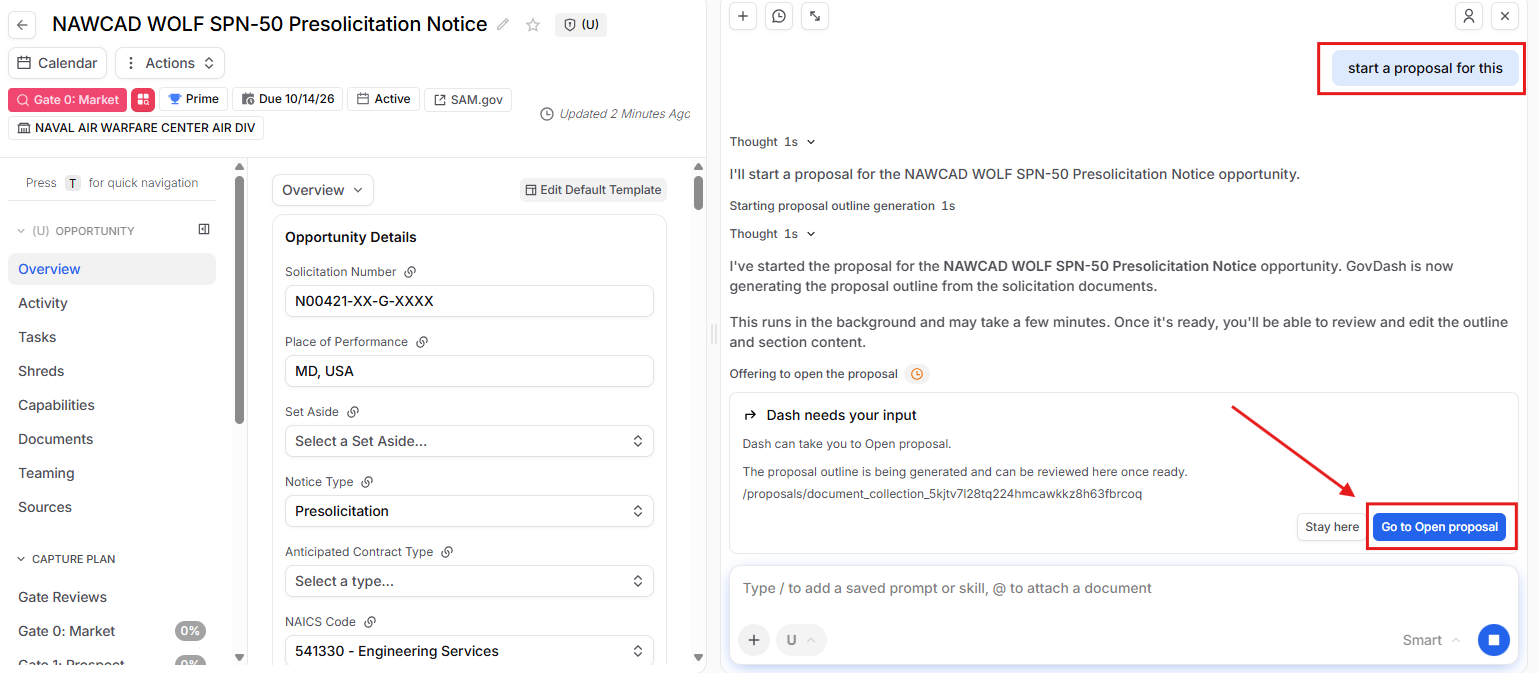
Here's how Dash sets up your proposal:
Starting from an opportunity: The opportunity's solicitation documents are included automatically. If the opportunity already has a proposal draft, Dash uses that draft instead of creating a new one.
Starting from documents you attach: Dash creates a new proposal from the files you share in chat. If you also name an opportunity, the files are added to that opportunity's proposal.
Outline template: If you don't name a template, GovDash uses your team's default outline template.
Your saved draft choices: Past performance and teaming partner choices already saved on your draft are kept unless you ask Dash to change them.
Just like starting from the Proposal page, you'll receive an email as soon as your outline is ready!
Setting and Managing Proposal Classifications
When you upload a document into GovDash, you will select its classification as either (U) Unclassified or (CUI) Controlled Unclassified Information. This classification helps your team properly label sensitive data and ensures it is protected on the GovDash platform.
.png)
How Classification Works in GovDash
GovDash uses your document classification to automatically label related information across the platform.
If a document is classified as CUI, GovDash will automatically propagate that classification to items that are derived from that document or created from it. Examples include:
If you upload a CUI focus document to a proposal, the proposal classification will be updated to CUI
If you upload a resume and mark it as CUI, the Key Personnel entity extracted from that resume will also be marked as CUI
This same behavior applies across other connected parts of GovDash as information is extracted and structured from your uploaded files.
.png)
Where You Can Set Classification
Classification is not limited to document uploads. Other areas of GovDash also allow you to set classification, such as when you are creating an opportunity.
GovDash supports classification on the following types of records:
Dash Conversations
Key Personnel
Government officers
Agencies
Business partners
Capabilities
Forms (such as data calls)
Custom documents
Documents
Awards
Proposals
Opportunities
Updating Classification After Upload
If you need to change a classification after something is already in GovDash, you can update it at any time.
.png)
When you update the classification of a “parent” item (like a document), GovDash will show a popup listing related items that were derived from it. This helps you quickly decide whether you also want to update the classification of those related records.
.png)
Important Note Regarding Classification
Your team is responsible for properly marking your data in GovDash. Correct classification ensures that sensitive information is handled appropriately and that properly labeled, sensitive data is protected on the GovDash platform.
FAQ
What documents do I need to prepare before starting a proposal in Proposal?
You need to have the Solicitation Document (RFP, RFI, RFQ, etc.), Performance Work Statement (PWS) or Statement of Work (SOW), and any supporting documents such as amendments or clarification notices.
Can I reference past performance contracts in my proposal?
Yes, you can reference past performance contracts found within Contract. You can select relevant contracts or let GovDash choose them for you.
What should I do if my contract is greyed out in the past performance list?
If your contract is greyed out, it means that the main contract document and associated PWS/SOW need to be uploaded before you can use it as past performance in your proposal.
How can I save my draft proposal in GovDash?
GovDash automatically saves your work as a draft, which you can access by clicking the Drafts button on the main dashboard page.
How long does it take for GovDash to generate the proposal outline after submission?
It usually takes 15 minutes or less. Large solicitation packages can take longer.
Can I add or remove teaming partners while creating a proposal?
Yes! If your proposal is linked to an opportunity, select Filter to teaming partners in the Company Filters step, then use Suggest partners or Add Partner. Any partner you add or remove there is also added to or removed from the linked opportunity.