Generating Your Proposal
Once you're satisfied with your outline, click the Generate Proposal button in the top right of GovDash to begin the process for generating your proposal.
.png)
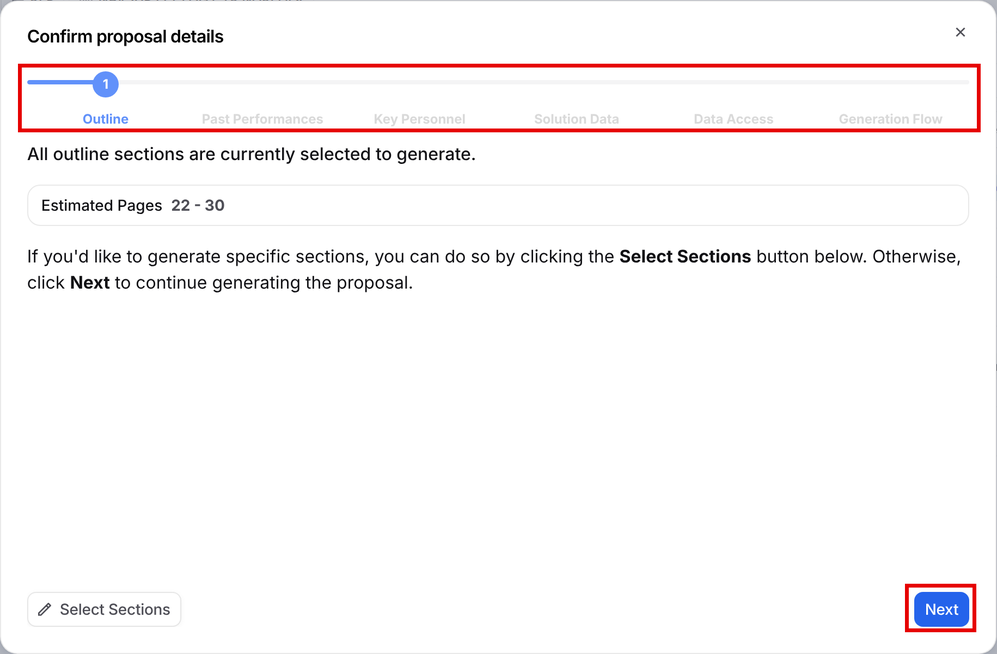
The Confirm proposal details window walks you through each step before your proposal begins generating. Click Next to move through the steps:
Outline: All outline sections are selected to generate. Click Select Sections to generate only specific sections.
Past Performances and Key Personnel: Review what is attached. If nothing is attached, you can add it from this step.
Solution Data: Review the solution information from the opportunity.
Data Access: Select the highest classification level for Data Library and Contract documents that can be used. Documents above this level are left out.
Generation Flow: Choose Standard generation or Agentic generation. Your choice applies to this run only.
On the last step, click Generate Proposal.
Once your proposal has begun generating, a status indicator will appear near your proposal’s title indicating the current status and percent generated.
.png)
What happens now?
As soon as your proposal is ready for download, you will receive an email stating so with a link to bring you right to your proposal. There is no need to wait at this screen, we will let you know as soon as you can download your proposal!
Downloading Your Proposal
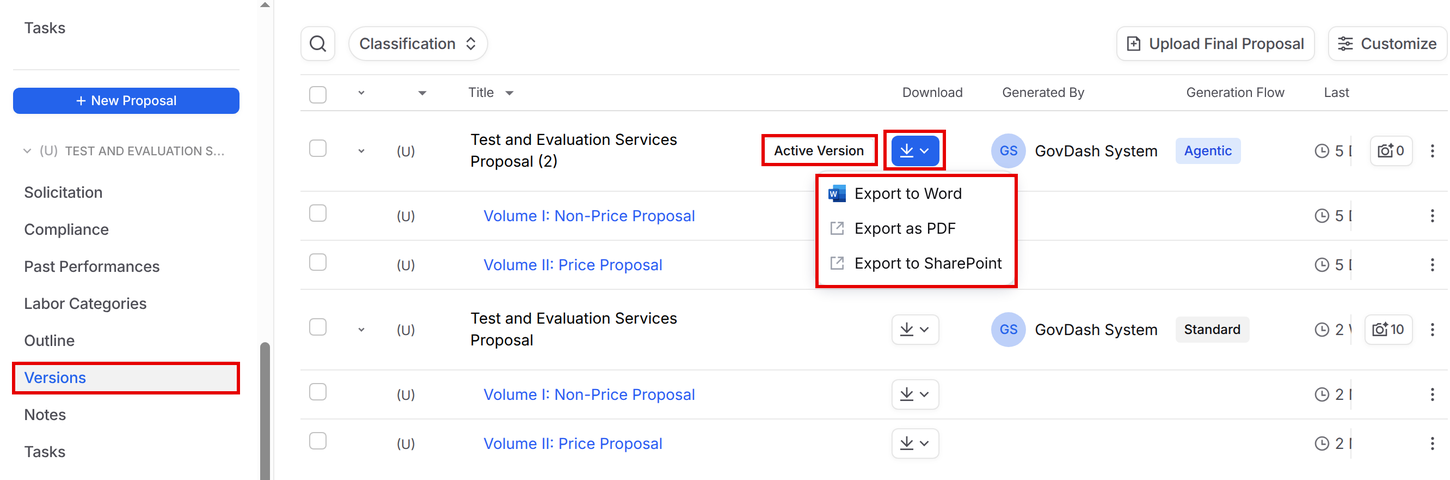
Once your proposal is ready for download, click Versions in your proposal's left menu. Click the Download button for the version you want, then choose Export to Word or Export as PDF. Active Version marks the most recent version.
Volume Download
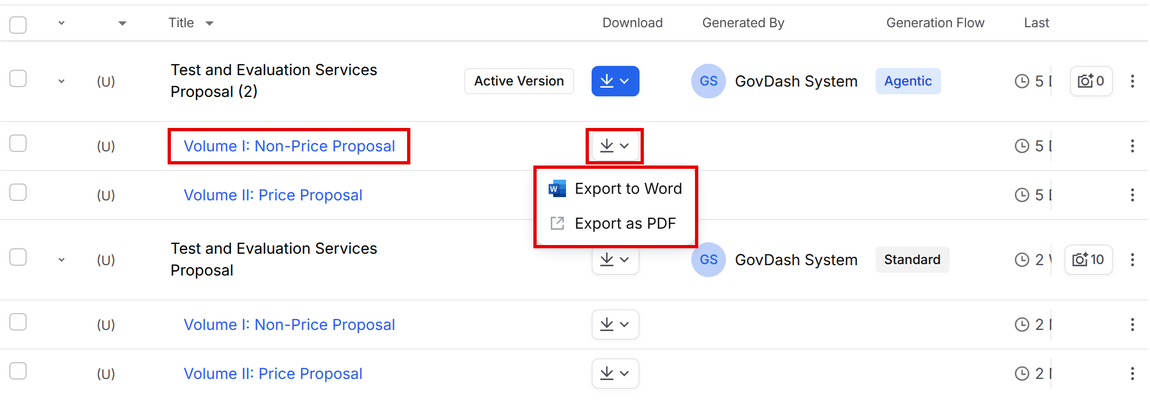
You can also download individual volumes of your proposal. Each volume has its own row under the version. Click the Download button next to the volume, then choose Export to Word or Export as PDF.
Want to change your proposal template before you download?
Check out our guide on how to use proposal templates within GovDash in our guide.
Exporting to SharePoint
If you currently have your SharePoint integration set up with your GovDash team, you can export your proposals straight to your desired SharePoint site and folder by clicking the Download button for the version and selecting Export to SharePoint. This option is available for the full version, not individual volumes.
Don’t have the SharePoint integration configured?
If you’d like to learn more about integrating SharePoint with GovDash, check out our set up guide here.
FAQ
What steps do I need to take before generating my proposal?
The Confirm proposal details window walks you through six steps: Outline, Past Performances, Key Personnel, Solution Data, Data Access and Generation Flow. Click Next on each step, then click Generate Proposal.
Is there a visual indicator for the proposal generation process?
Yes, a status indicator will appear near your proposal’s title showing the current status and percentage generated.
Can I download specific volumes of my proposal?
Yes, you can download individual volumes of your proposal by clicking the Download button next to each volume and choosing Export to Word or Export as PDF.
Will I receive a notification when my proposal is ready for download?
Yes, you will receive an email notification with a link to download your proposal as soon as it is ready.
What's the difference between Standard and Agentic generation?
Standard generation drafts each section from your outline and writing plans, and is the fastest way to a complete draft. Agentic generation researches, drafts and reviews each section, so it spends more time on each one to produce better grounded content. You choose one each time you generate.