Proposal outline templates allow you to configure a pre-set structure to use as your solicitation response outline, rather than have GovDash create one based on the solicitation requirements. This can be especially useful in instances where you have a prescribed structure that your team uses for specific types of solicitations.
Outline templates are for structure only and are not stylistic templates. For more information on using your stylistic template for your downloaded proposal, please see our support articles here.
Creating and Managing Outline Templates
Creating a New Template
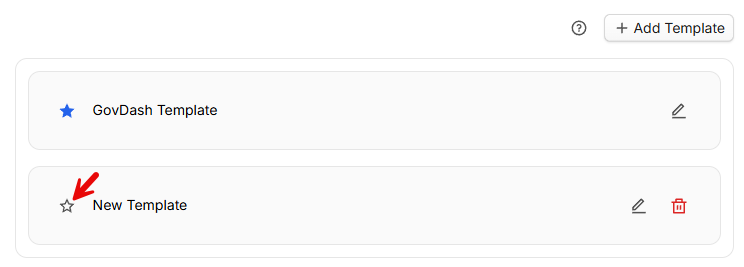
To create a new outline template, navigate to the Proposal Settings page and select Add Template under Outline Templates. Provide your template with a name, and you may optionally set this template as your default template.
Default Templates
The template that is set as your default template will be automatically used in instances where the solicitation lacks specific instructions on how the response should be formatted, and you have not already selected a template when creating the draft. GovDash has a pre-built capabilities focused template available for use under GovDash Template. You can change which template is your default template by clicking the star icon next to your template in Settings.
Editing Your Template
To edit your outline template, select the  icon on your template. This will bring you directly to the outline editor where you can create your outline structure. This editor works nearly identically to the editor in Proposal, complete with familiar section types, writing plans, page targets, and language types.
Section Types
Section types directly influence the way GovDash will structure and write the section content. GovDash will automatically determine these while generating your outline, but we recommend double checking to make sure these align with the section’s theme and purpose. Using the tabs below, you can see what section type is best to use in what scenario, as well as an example of what it will look like.
Section Type | Description/When To Use | Generated Example (Click to Enlarge) |
|---|---|---|
Volume | Description: Designates the start of a volume When to use: At the beginning of a volume. This controls your ability to download the individual volume in our By Volume download section. |
|
Cover Page | Description: Creates a cover page. When to use: Some solicitations require specific information to be included on a Cover Page. This is when you would use the Cover Page Section Type in GovDash. In cases where the required information is not part of your standard template, GovDash facilitates compliance by identifying the necessary details and labeling them as Cover Page content, allowing you to provide the required information seamlessly. |
|
Table of Contents | Description: Generate a table of contents. When to use: If a table of contents was not generated in your initial outline, you can insert this section. |
|
Glossary | Description: Generate a full list of acronyms used within the proposal. When to use: If you’d like GovDash to automatically generate a list of acronyms that were used, along with their definitions, you can insert this section. |
|
.png)
.png)
.png)
.png)
Section Type | Description/When To Use | Generated Example (Click to Enlarge) |
|---|---|---|
Labor Category Table | Description/When to use: Creates a table of labor categories which relates key personnel experience to labor category requirements. |
|
Emphasize Key Personnel | Description: The Emphasize Key Personnel section type focuses primarily on the resumes and qualifications of the selected key personnel. When to use: This section is ideal for addressing solicitation requirements that prioritize highlighting the expertise, experience, and roles of key team members. |
|
Key Personnel Resume | Description/When to use: Generates a resume of selected key personnel within the section that details their LCAT experience and match status. |
|
.png)
.png)
.png)
Section Type | Description/When To Use | Generated Example (Click to Enlarge) |
|---|---|---|
Past Performances | Description: This section type sets up the overall layout for your past performance section. It acts as a container for each individual past performance you’ll include. When to use: Use this section type to set up your past performance section overall. See our guide here for more information on this. | N/A |
Past Performance - Title | Description: This section type will insert the title of your selected past performance into the outline. When to use: This is already included in Past Performances section types and does not need to be used on its own. |
|
Past Performance - Narrative | Description: A narrative section that utilizes the past performance(s) attached to the section. When to use: Sections that need to address instruction and PWS requirements. Utilizes language types for additional control over the writing style. |
|
Past Performance - Form Field | Description: Generate a concise and short answer response typically for form fields (e.g. award value, teaming partner names, etc.) or short answer questions (e.g. YES/NO responses, or a few sentence responses). When to use: If the section contains fields that need to be filled out within a form (award values, specific values, specific names, etc.), yes or no responses, etc. |
|
Past Performance - Relevance to Task Areas | Description: A narrative-like section that aligns the task areas in the PWS to the work performed in the selected past performance. When to use: Sections that need to align the capabilities/past performance to task areas in the PWS. |
|
Past Performance - Contract Information Table | Description: A table that displays contract information for the selected past performance(s). When to use: When a contract table is required to show contract values such as titles, recipient names, award values, contract types, etc. |
|
.png)
.png)
.png)
.png)
.png)
Section Type | Description/When To Use | Generated Example (Click to Enlarge) |
|---|---|---|
Form | Description: Prompts you to fill out and attach a form. When to use: GovDash identifies the form and provides a reminder to ensure that it is attached appropriately as part of your final submission. However, it does not complete the form for you. You are responsible for filling out the form based on the solicitation's requirements and inserting it where indicated. |
|
Form Field | Description: Generate a concise and short answer response typically for form fields (e.g. UEI, DUNS Number, addresses, etc) or short answer questions (e.g. YES/NO responses, or a few sentence responses). When to use: If the section contains fields that need to be filled out (like company details, UEID, CAGE code, etc.), yes or no responses, etc. |
|
.png)
.png)
Section Type | Description/When To Use | Generated Example (Click to Enlarge) |
|---|---|---|
Narrative | Description: Generate a narrative response to address ITO and PWS/SOW citations. This is the most common content type. When to use: Sections that need to address task areas and instructions, such as technical volumes, pricing sections, capabilities, etc. | |
Cover Letter | Description: Creates a cover letter. When to use: In some situations, solicitations may require a cover letter and request specific information in that letter. Using the Cover Letter Section Type creates a cover letter. |
|
Corporate Experience | Description: Generates a corporate experience narrative using selected past performances. When to use: When the solicitation requires you to detail corporate experience. |
|
.png)
.png)
Language Types
Language Types allow you to directly influence the verbiage and tone GovDash within Narrative Section Types. Highlighted below are our available language types and best practices on when to utilize them.
Language Type | Description | When to Use |
|---|---|---|
Plain Language | Answers plainly. Commonly used in "Executive Summaries" and pricing sections. | When you want to convey information in a clear, direct manner. |
Technical Approach | Writes content as if this section belonged to a "Technical Proposal Volume". | When you want to convey precise and detailed information. This combination is ideal for presenting complex concepts or technical details, ensuring clarity and accuracy while maintaining a professional tone. |
Capability to Perform Task Areas | Write content using your capabilities, with less technical detail. | When you want to effectively convey your company's capabilities to perform specific tasks outlined in the Scope of Work with less technical detail. This is ideal for providing a high-level overview of your expertise, focusing on the value your company delivers without delving into intricate technical details. |
Writing Plans
The Writing Plan section is where you can provide GovDash with specific instructions on how you’d like the section written, key points you’d like included, strengths for GovDash write to, and more. Writing plans provided here will be applied to every response that your template is used for.
You can think of GovDash as your proposal manager, and the Writing Plan as your to-do list for the way you want the section written. These are best handled in bullet points, but you can provide instructions in narrative form as well. By providing GovDash with context and direction, your proposal content will be better informed by what makes your team best suited for the solicitation.
Past Performance Sections
Within your outline, past performance sections are designated by the Past Performances section type. By clicking on the section title (under Header), you can select specific past performances to apply (1), or pull from the list within the Past Performances tab (2).
.png)
.png)
Within these sections, you can access the Template Structure, which is how you can control the structure of your past performance sections!
.png)
Working with Templated Sections
Templated sections are the building blocks for your past performance sections within your outline. By creating a structure here, all past performances that are assigned to the section will mirror this structure, making it quick and easy to adjust the structure or past performances within the entire section.
From this view, you can add new sections using the New Templated Section button, move or remove sections, and change section types as needed. Each section type also includes a tooltip that explains how content will be generated using that type.
For example, are you looking to include a contract table? Create a new template section with the Past Performance - Contract Information Table section type. Need to include a section detailing your contract’s alignment to the task areas of the solicitation? Use the Past Performance - Relevance to Task Areas section type. We give you the full flexibility to structure the section how you’d like!
.png)
From the example in the screenshot below, you can see that we have selected two past performances (1), have defined our past performance section structure (2), and it has mirrored that structure in our outline based on the number of selected past performances (3).
.png)
You can freely swap out your pinned past performances in this section without needing to restructure your outline manually!
Corporate Experience
If your solicitation requires you to detail corporate experience, utilize the Corporate Experience section type, located under Narrative Types.
With this option selected, you can pin specific past performances to the section to be included when content is generated. This ensures we are speaking about your selected past performances/capabilities!
.png)
If you’d like to apply all of your selected past performances to the entire section, select the parent level Corporate Experience section and make your selection there (as shown above). This will apply your selection to any section under that header (1).
You can also select subsections and apply specific past performances to just that section (2).
.png)
Page Limits and Page Targets
The Page Limit for a section is the government-mandated maximum number of pages that can be produced for the section when the proposal is generated. GovDash will never go above this set number within a section when generating the proposal.
The Page Target for a section will dictate how much content is produced for the section when the proposal is generated. GovDash will attempt to write content that is as close to this set number of pages as possible.
Managing Sections and Subsections
Within the outline editor, you can quickly create new sections, subsections, and change their order.
You can freely move any section or subsection by clicking and dragging anywhere on the section itself.
To create a new section, click the New Section button in the top right of the outline editor. This will create a new section at the top of your outline that you can rename and reorder.
.png)
You can create new subsections under any section by either clicking and dragging a section onto another section (or subsection), or clicking the actions menu to the right of the section, and selecting New Subsection from the menu.
.png)
Deleting sections can be done through this menu, or by clicking the boxes to the left of your sections and clicking the red trash can icon in the black bar that appears.
.png)
Section Number Heading Preview
By enabling the TOC Preview toggle within the More drop down in your outline, you can preview the outline structure by numbered heading levels.
.png)
Does this affect my downloaded proposal?
The preview toggle within the outline does not impact your downloaded proposal. This is a visual preview within GovDash and will not change the numbering structure you may have within your company template. It will not override any custom settings you have within your template.
Undo/Redo
Using the undo/redo arrows located at the top of your outline, you can undo and redo certain actions taken within your outline. These actions include:
Creating new sections/subsections
Deleting/bulk deleting sections
Moving the order of sections
Modifying the sections such as changing the name, page limit/target, section type, review status, language type (doesn't include reviewers or selected instruction/task area citations)
Bulk modifying page target, section type, and language type
.png)
Applying Your Template
To use your template in a new solicitation response, create a new solicitation response either through your Capture opportunity, or via Proposal.
From the draft page, choose Yes under the Outline template section and choose your template.
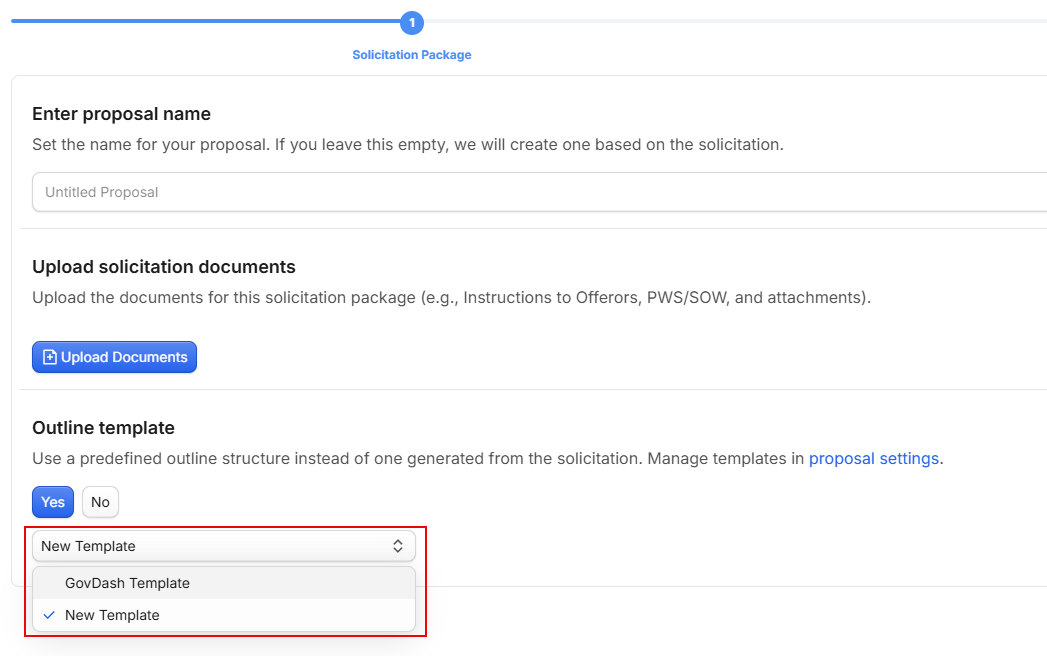
Your predefined outline structure will now be used for this solicitation rather than GovDash creating an outline for you from the requirements.
Saving an Existing Outline as a Template
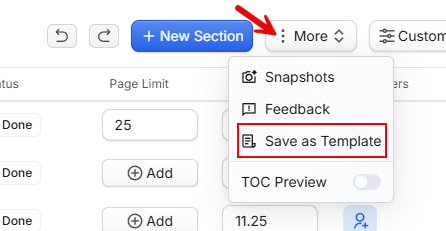
If you have an existing outline that you would like to save as a template to use for future responses, click the More menu within your outline and select Save as Template. This will also save your writing plans to the template.