Overview
Past performance shows evaluators you have done similar work before. GovDash recommends the contracts from your inventory that best match the solicitation, you choose which ones to use, and GovDash writes your past performance sections from them.
Before you begin…
If you have not yet uploaded your contracts to Contract, we strongly recommend doing so before following this guide. To learn how to upload your contracts and build your contract inventory within GovDash, see our guide here.
Selecting Past Performance
During the proposal draft creation, GovDash allows you to pre-select your past performance, or have the system recommend past performance based on the solicitation.

Past Performance Tab
If you’d like to review or adjust the past performances that are used for your solicitation, click Past Performances in your proposal's left menu to review which contracts are to be referenced.

You can select new past performances at any time by clicking the Add Past Performances button, or Click to select Past Performances in the box on the page. This will bring up a list of all the contracts within Contract for you to select from.
Also within this tab, any past performances that have been utilized within an outline section (which will be explained in detail below) will show which sections they were pinned to (1), as well any applicable requirements from the solicitation on the number of past performances that should be included (2).

Past Performance Sections Within Your Outline
Within your outline, past performance sections are designated by the Past Performances section type. Click the section title (under Header) to open Edit Section Details. Under Selected Past Performances, click Click to select Past Performances to choose specific contracts, or click Add All Past Performances From Outline to use the past performances from your proposal's Past Performances page.

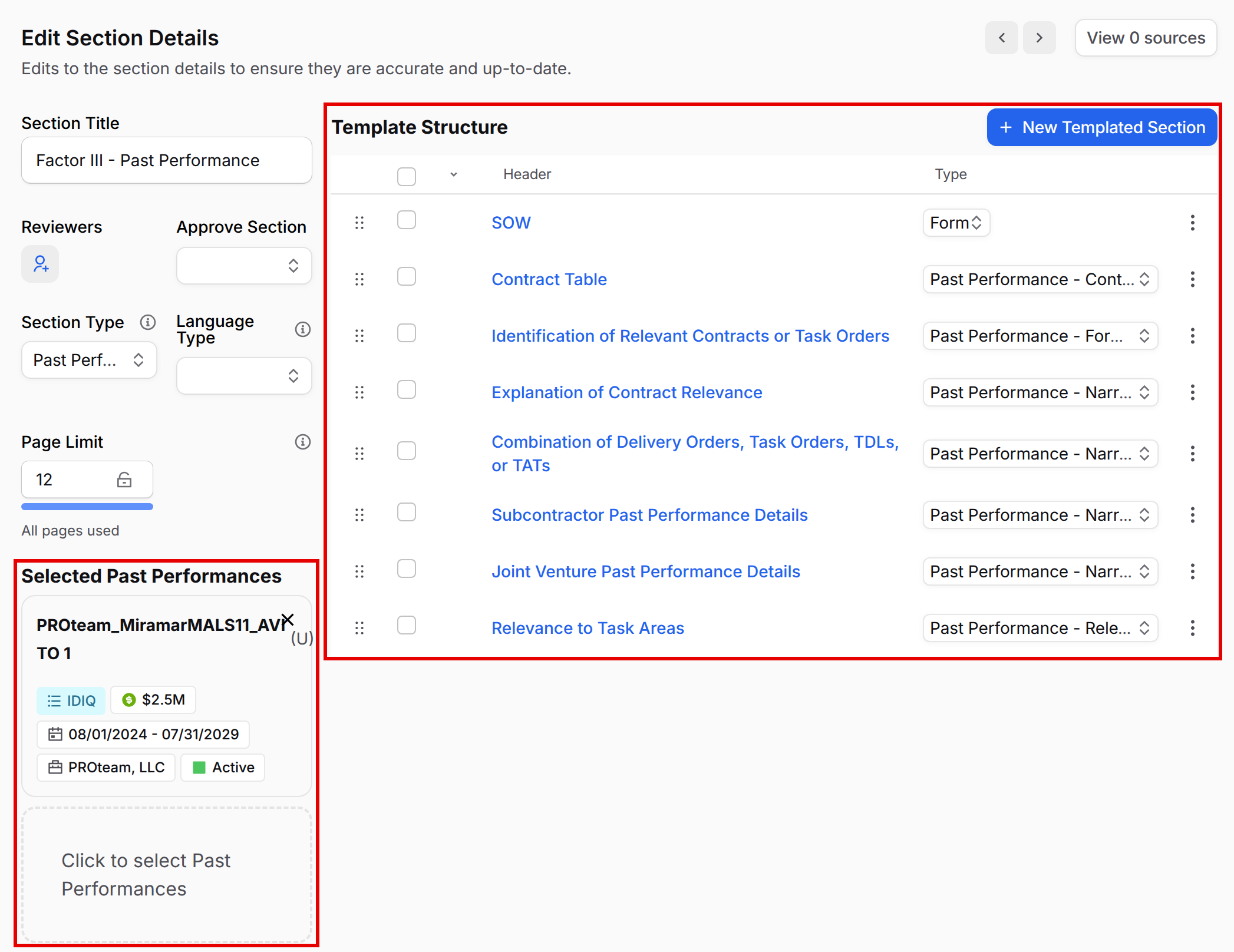
The Template Structure is on the right side of the same window. This is how you control the structure of your past performance sections.
Working with Templated Sections
Templated sections are the building blocks for your past performance sections within your outline. By creating a structure here, all past performances that are assigned to the section will mirror this structure, making it quick and easy to adjust the structure or past performances within the entire section.
From this view, you can add new sections using the New Templated Section button, move or remove sections, and change section types as needed. Each section type also includes a tooltip that explains how content will be generated using that type.
For example, are you looking to include a contract table? Create a new template section with the Past Performance - Contract Information Table section type. Need to include a section detailing your contract’s alignment to the task areas of the solicitation? Use the Past Performance - Relevance to Task Areas section type. We give you the full flexibility to structure the section how you’d like!

From the example in the screenshot below, you can see that we have selected two past performances (1), have defined our past performance section structure (2), and it has mirrored that structure in our outline based on the number of selected past performances (3).

You can freely swap out your pinned past performances in this section without needing to restructure your outline manually!
Corporate Experience
If your solicitation requires you to detail corporate experience, utilize the Corporate Experience section type, located under Narrative Types.
With this option selected, Selected Past Performances appears in Edit Section Details, so you can pin specific past performances to the section to be included when content is generated. This ensures we are speaking about your selected past performances/capabilities!
If you’d like to apply all of your selected past performances to the entire section, select the parent level Corporate Experience section and make your selection there. This will apply your selection to any section under that header (1).
You can also select subsections and apply specific past performances to just that section (2).

Writing Plans and Focus Documents
Once you have your past performance section structure configured and your past performances pinned, you can improve your past performance section content even further by utilizing the Writing Plans and Focus Documents for your sections.
By clicking on the sections within your outline (and not from the templated view), you will see the same familiar section editor controls.

We recommend taking advantage of section Writing Plans to provide GovDash with details that help guide the content generation, such as key topics to focus on, proof points, finer details on your approach, and more. These can be provided in the form of bulleted lists for easy formatting and review.
Focus Documents allow you to upload source documents that will help GovDash write the content for the section. Some examples could include partner capabilities, technical specs, customer needs, notes, etc. Open the Focus Documents drop down and click Attach Documents. You can upload from your computer, reuse Existing Focus Documents, or add files from the Data Library, SharePoint or Google Drive.
FAQ
Why does a past performance show a lock and “No access”?
The past performance is part of your proposal, but your roles don’t give you access to its contract. Its title still appears on the Past Performances page, under Selected Past Performances, and in the count beside the section in your outline, so you can see it’s included. When GovDash generates content, it only uses the past performances you can access. If you need to work with it, ask your team Admin to update your role. To learn more, see Roles & Permissions.
Why does my proposal name another company on a past performance?
When the Contract Recipient on an award is a company other than your own, GovDash names that company in each section that uses the award, along with its relationship to your team (for example, “our subsidiary, Acme Services, LLC”). The Relationship set on that company’s record on the Companies page of the Data Library decides how the work is presented:
Subsidiary or Joint Venture: the work is presented as your team’s experience, performed by the named company.
Any other relationship (such as Parent Company, Vendor or Customer): GovDash only claims as yours the work the award shows your team performed.
Companies marked Our Team, or with no relationship set, are written as your own company and aren’t named separately. If a company’s relationship is wrong, open its record and update it before generating. To learn more, see People, Companies, and Agencies.