Overview
GovDash tracks each opportunity through its whole contracting lifecycle using two fields: Capture Phase and Submission Stage. Knowing how they work makes it easier to find opportunities and see where each one stands.
Understanding Phases and Submission Stages
Every opportunity record has two fields to know:
Capture Phase: where the opportunity is in your capture process.
Submission Stage: whether the opportunity has been submitted, and how it turned out.
Capture Phases
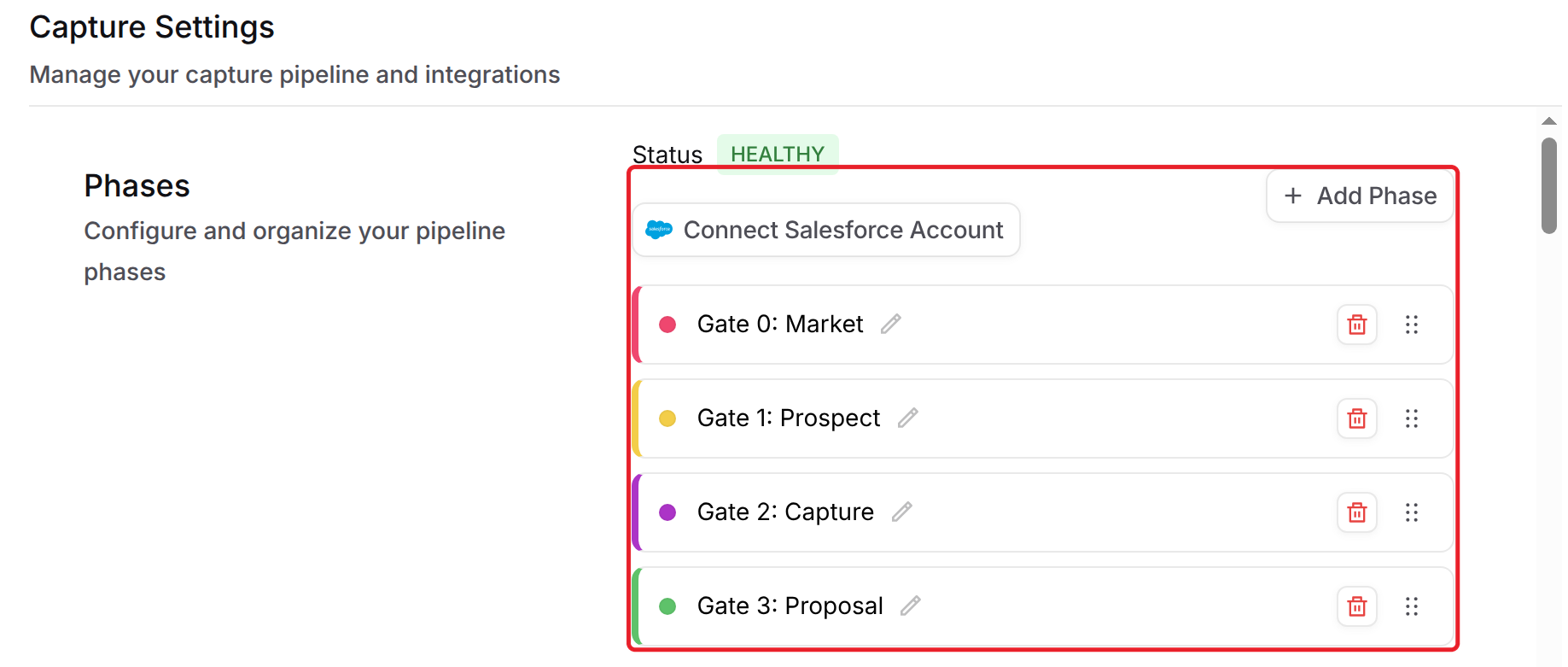
Capture phases include the following by default:
Analysis
Intel
Solution
Ready for Proposal
Active Proposal
Your team can rename, add, remove and reorder phases in Settings > Capture, under Phases. Phases can also come from your Salesforce integration, so your Pipeline may show different phases than the ones listed above.
Submission Stages
Opportunities in your Pipeline are Not Submitted. You can move an opportunity to any of these stages:
In Evaluation
Submitted
Won
Lost
No Bid
Canceled
Submission stages are preset and can't be changed.
How do Submission Stage and Capture Phase differ?
Submission stages show an opportunity's outcome (such as No Bid or Lost) or current status (such as In Evaluation or Submitted). Capture phases show where an opportunity is in your capture process (such as Analysis, Intel or Solution).
When a new opportunity is added to your Pipeline, it starts in the first capture phase of your Pipeline (for example, Analysis). When you add opportunities manually, you can choose which phase they start in.
Changing the Submission Stage
The Pipeline only shows opportunities that are Not Submitted, organized by capture phase. To change an opportunity's submission stage, click the ⋮ menu on its Pipeline card and choose an option such as Mark as 'Submitted' and hide. The opportunity leaves the Pipeline.
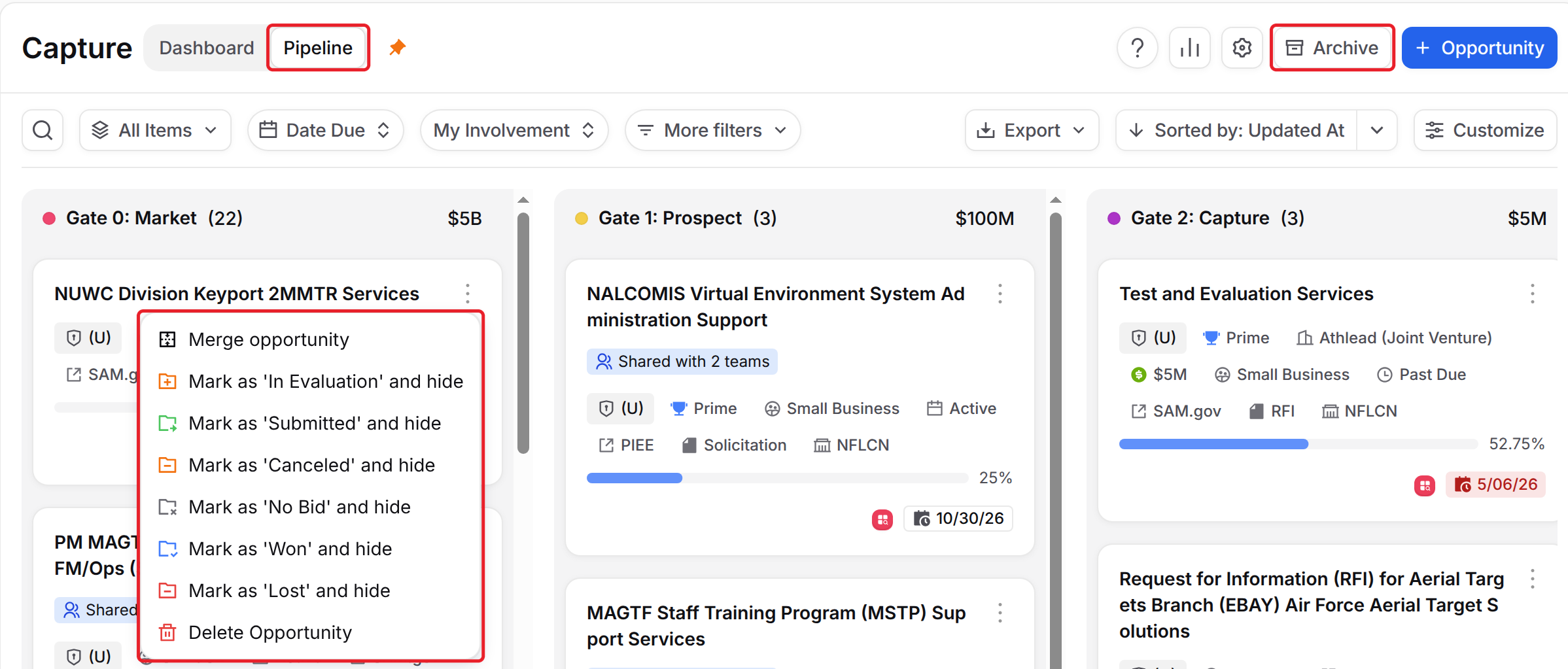
To find opportunities with a submission stage, click Archive at the top of the Capture page, or open the Lifecycle page. To move an archived opportunity back to the Pipeline, open its menu in the Archive and click Unarchive.
Archived Opportunities
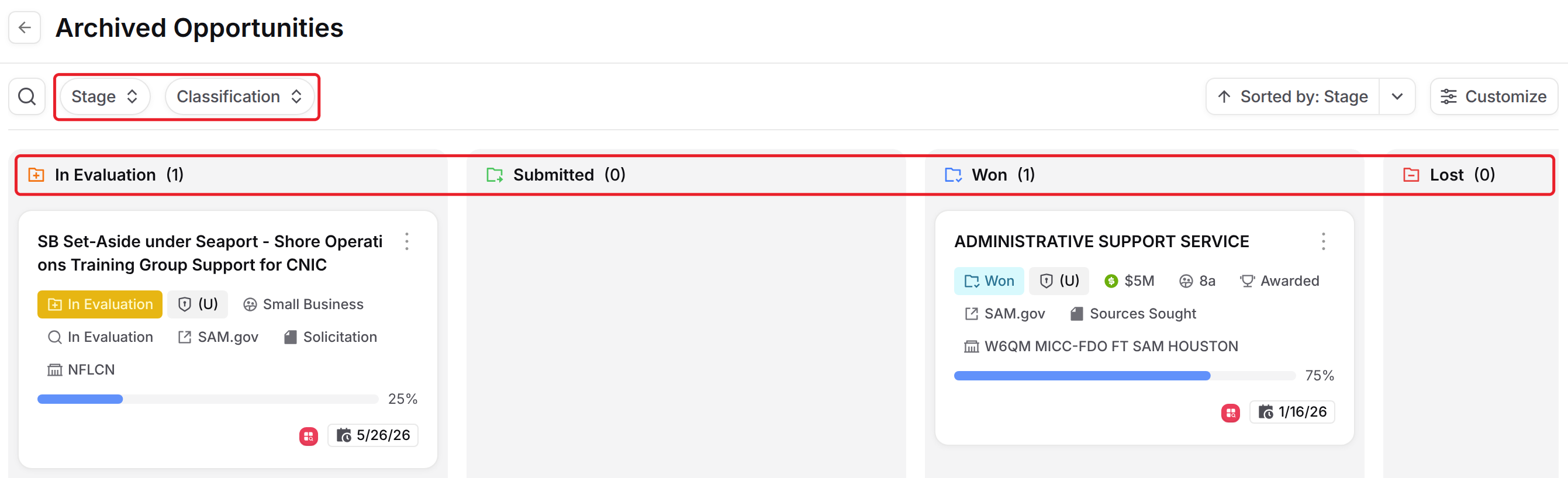
The Archived Opportunities page shows every opportunity you've marked, in a column for each outcome.
You can view the opportunity by clicking the opportunity name, filter with Stage or Classification, and add the opportunity back to your Pipeline by choosing Unarchive from the three dot menu on its card. You can also change an archived opportunity's outcome from the same menu.
Deleting Opportunities from the Archive
To delete an archived opportunity, choose Delete Opportunity from the three dot menu on its card.
Deleted Opportunities
Once an opportunity is deleted, it cannot be recovered. Please exercise caution when deleting opportunities from your Pipeline!
FAQ
Why don't I see an opportunity in my Pipeline?
It probably has a submission stage, such as Submitted or No Bid. Click Archive at the top of the Capture page to find it.
Can I add or rename submission stages?
No. Submission stages are preset. You can customize capture phases in Settings > Capture.
Why are my capture phases different from the defaults?
Your team may have customized them in Settings > Capture, or they may come from your Salesforce integration.