Overview
The Watchlist is a shared list where your team saves opportunities from Discover, reviews them together, and decides which ones to pursue. Items can come from Public, Private, or Forecast results, and can be added by you, a teammate, or Dash.
If you can’t add, reject, or remove Watchlist items, or can’t run Dash, ask your GovDash administrator to check your Discover permissions.

Adding a notice to the Watchlist
Select Search at the top of Discover, then select Public, Private, or Forecast.
Find the opportunity you want to save.
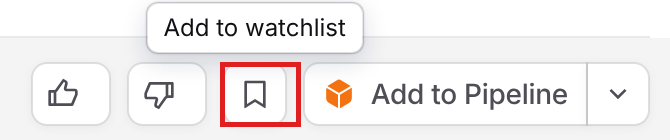
Select the bookmark button labeled Add to watchlist on the opportunity.
GovDash confirms with Added to watchlist, and the bookmark fills in so you can see at a glance which opportunities are already saved. The opportunity now appears on the Watchlist tab for your whole team. To take it back off, select the filled bookmark (labeled Remove from watchlist). You can also use Remove from watchlist on the Watchlist tab.
When an opportunity is added, Dash starts a fit assessment for it. The item shows Assessing… until the assessment is ready.
Watchlist additions from Dash
Dash can also add opportunities to the Watchlist for you. When Dash is turned on for a search profile, it runs that profile on a schedule or when you start it, reviews the results, and adds the opportunities that fit. Depending on the profile’s settings, Dash can also search Forecasts and Private portals. To set up Dash on a profile, see Create and Manage Search Profiles.
Items Dash adds show an Added by Dash tag. If your Watchlist is empty, select Let Dash find opportunities to create a search profile for Dash to run.

Managing Dash runs
When at least one search profile has Dash active (scheduled, or run in the last 30 days), the top right of the Watchlist tab shows Dash runs and Manage profiles. Select Dash runs to see each active profile with its latest run status: Dash is running..., Last run with how long ago it ran, or Dash hasn’t run yet. Each profile has these controls:
Start now: Runs Dash on that profile right away.
View runs: Shows the profile’s run history.
Edit: Opens the profile’s Dash settings on the Manage profiles page.
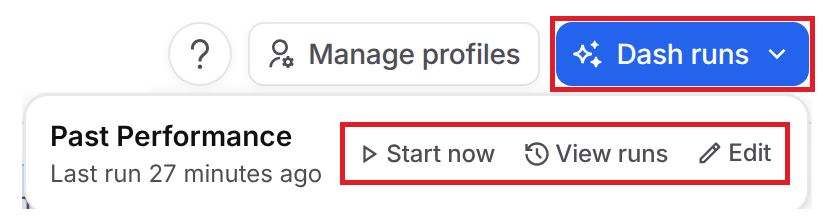
Select Manage profiles to create or edit search profiles and turn Dash on or off.
Above the list, a summary shows how many profiles Dash runs, when Dash last ran, and how many items it added this week. Select Show Dash’s picks to filter the Watchlist to items Dash added.

If you can view Discover but can’t edit it, you see a Dash runs button that opens your search profiles instead of the run controls. If no profiles have Dash active, only Manage profiles appears.
Reviewing the Watchlist
Select the Watchlist tab at the top of Discover.
Use the Added by and Status filters to narrow the list.
Select an item to open its details in the side panel.
Added by: Show items added by Me, Dash, Dash for a specific search profile, or a teammate.
Status: Show Watching, Promoted, or Rejected items. The list shows Watching items by default.

Each item can show:
Source: A tag such as SAM.gov that shows where the opportunity came from.
Added by Dash: Appears when Dash added the item from a search profile.
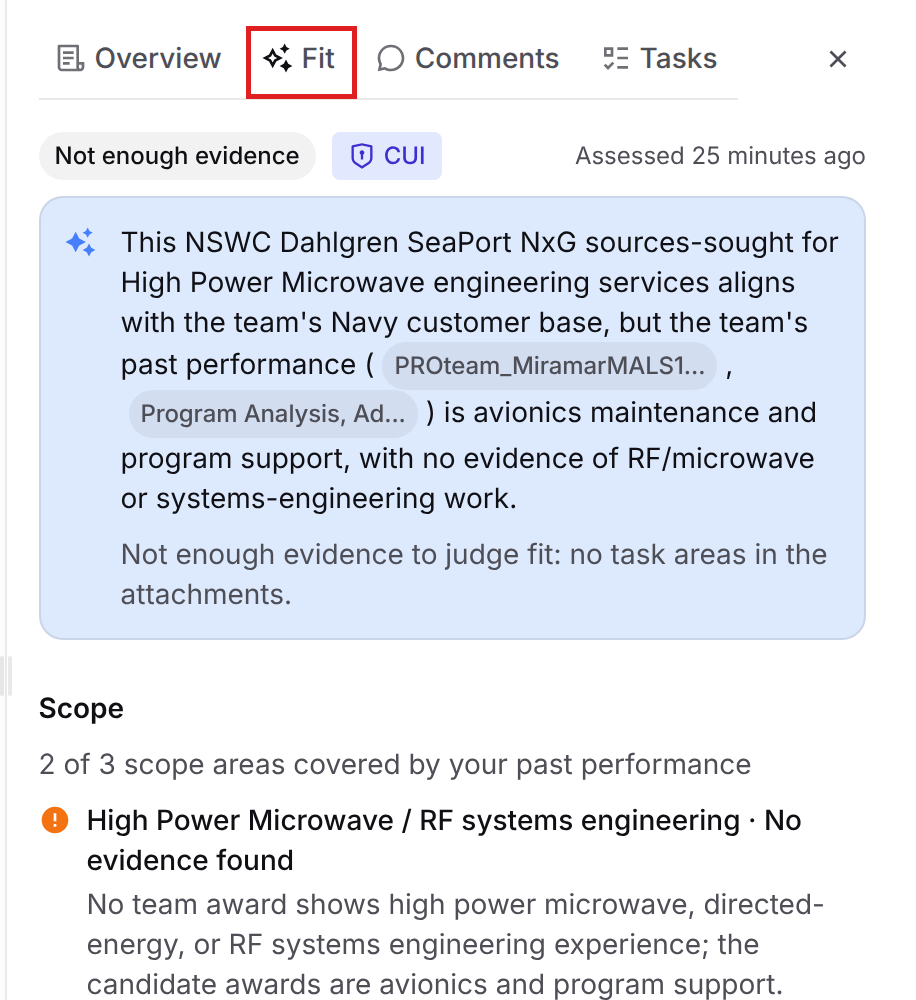
Fit assessment: Dash’s read on how well the opportunity fits your company: Strong fit, Possible fit, Poor fit, or Not enough evidence. Assessing… means Dash is still working, and Assessment unavailable means Dash couldn’t complete one.
Key details such as posted and due dates, agency, location, solicitation number, notice type, and set aside.
Viewing Watchlist item details
Select an item to open the side panel. It has these tabs:
Overview: Who added the item and when (and from which profile, if Dash added it), key details, and the description.
Fit: Dash’s fit assessment, including fit checks, scope, hard requirements, and past performance references. This tab appears when Dash has an assessment for the item. Select a source to open the attachment at the exact page it came from.
Comments: Discuss the opportunity with your team. Type @ to mention a teammate.
Tasks: Create and track tasks for the opportunity. To add the same tasks to every new Watchlist item automatically, set up a default task template in Settings > Tasks.
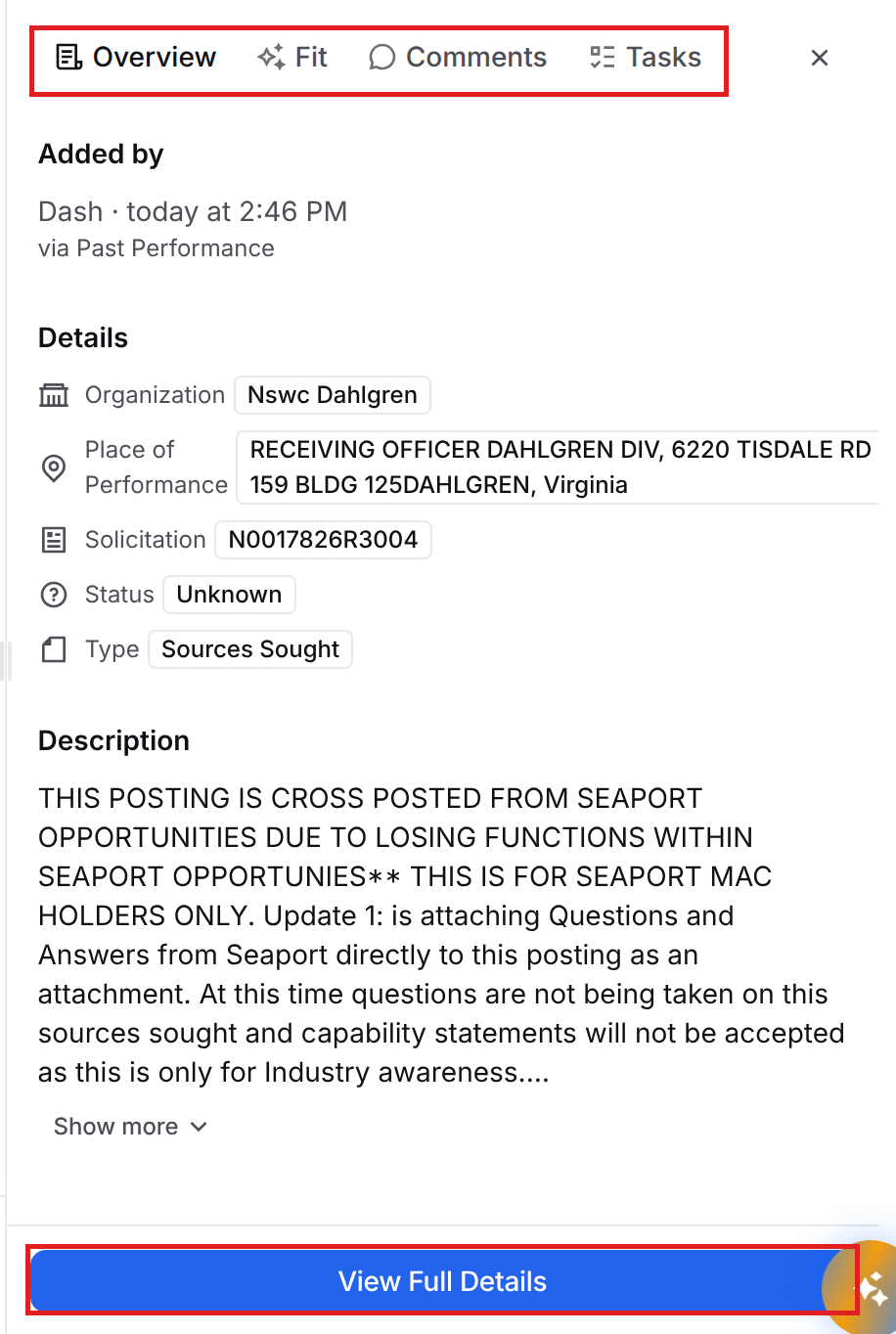
Select View Full Details to open the full opportunity page. Watchlist items can link to public, private, or forecast records, and the full page opens in the matching area of Discover. The full page also has the Comments and Tasks tabs, plus the Fit tab when Dash has an assessment, so your team’s notes stay with the opportunity. Private items only appear for users who can view private opportunities. To learn more about opportunity pages, see Discover Opportunity Records.
Adding a Watchlist item to your Pipeline
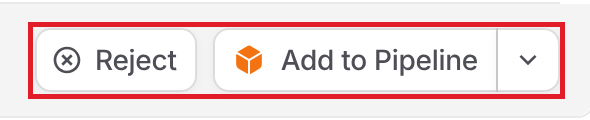
Select Add to Pipeline on an item, choose the classification level in Set Classification, then select Add to Pipeline to create an opportunity in your Pipeline. To link it to an opportunity that’s already in your Pipeline, select the arrow next to Add to Pipeline and choose Attach to opportunity. Either way, the item’s status changes to Promoted and the button changes to View in Pipeline.
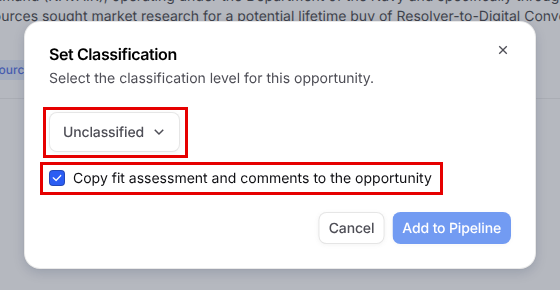
Both dialogs include Copy fit assessment and comments to the opportunity, which is checked by default. Leave it checked to have Dash post the item’s fit assessment and your team’s Watchlist comments and replies to the opportunity’s Notes, so everything your team learned while reviewing it comes along into capture. Teammates mentioned in those comments aren’t notified again. The checkbox only appears the first time an item is added to your Pipeline. To find the copied notes, open the opportunity and select Activity in the left menu. Learn more about Notes.
Rejecting or removing a notice
Reject an item when your team decides not to pursue it:
On a Watching item, select Reject.
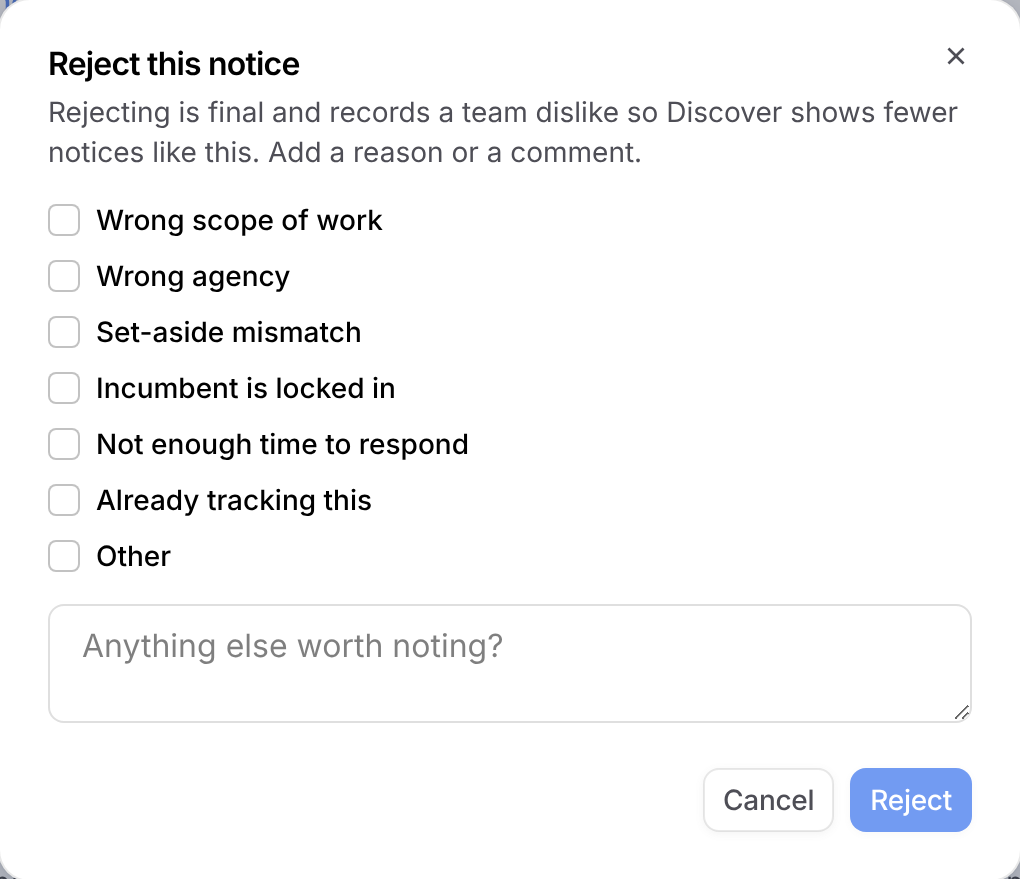
In Reject this notice, select one or more reasons, add a comment, or both. You need at least one reason or a comment.
Select Reject.
Reasons include Wrong scope of work, Wrong agency, Set-aside mismatch, Incumbent is locked in, Not enough time to respond, Already tracking this, and Other. Rejecting is final. The item moves to Rejected, and GovDash records a team dislike so Discover shows fewer notices like it. Dash also uses your team’s recent rejections to decide which opportunities to add in future runs.
To take an item off the list without recording feedback, remove it instead:
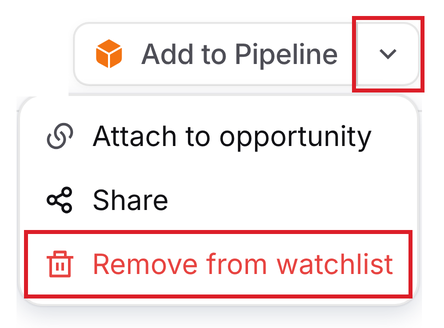
On a Watching item, select the arrow next to Add to Pipeline.
Select Remove from watchlist.
Select Remove to confirm.
Removing deletes the item from the Watchlist. You can only remove items that are still Watching. Promoted and rejected items stay on the list as a record, and you can find them with the Status filter.
Watchlist statuses
Watching: The starting status for every item, whether you, a teammate, or Dash added it. The Watchlist shows these by default.
Promoted: The item was added to or attached to a Pipeline opportunity.
Rejected: Your team rejected the item with a reason or comment. This can’t be undone.
Removed items are deleted, so they no longer appear under any status.
Watchlist bookmarks compared with Likes and Dislikes
Watchlist bookmark: Saves the opportunity to your team’s shared Watchlist, where you can track its status, comment, add tasks, see Dash’s fit assessment, and move it to your Pipeline.
Like or Dislike: Tells Discover what you want to see more or less of. Liked opportunities go to Likes, and disliked opportunities are hidden from results and go to Dislikes. Liking or disliking doesn’t add anything to the Watchlist.
Rejecting a Watchlist item also records a dislike for your team, but it keeps the item on the Watchlist as Rejected.