Overview
Forecasts help you get ahead of upcoming work by showing contracts that agencies plan to buy, often before the government releases a solicitation. Watch the video for a quick tour, or follow the steps below.
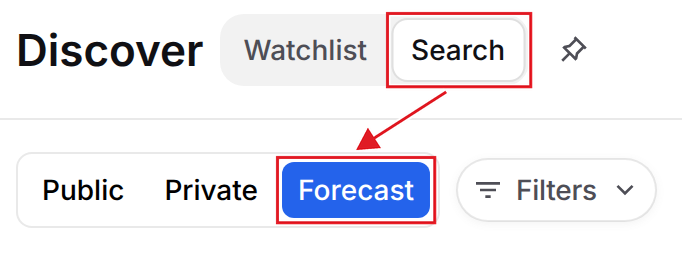
To view forecasts, select Search at the top of Discover, then select Forecast.
Searching and Filtering Forecasts
Use the search box to find forecasts by title, ID, agency, office, code or description.
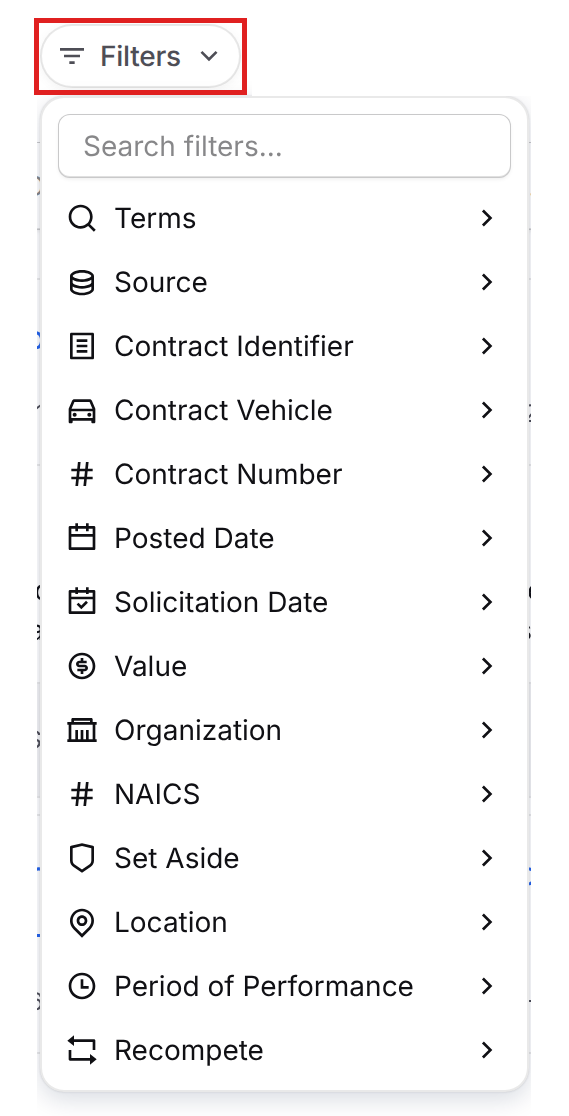
Select Filters to narrow forecasts by Source, Contract Vehicle, Value, Organization, NAICS, Set Aside, Location, Recompete and more. Tags in the top right of each card show the forecast source, such as DHS APFS, and other details such as Existing Contract.

Forecast Sources
Forecasted opportunities are pulled from official agency forecast systems, such as the DHS Acquisition Planning Forecast System (APFS) and the GSA Acquisition Gateway.
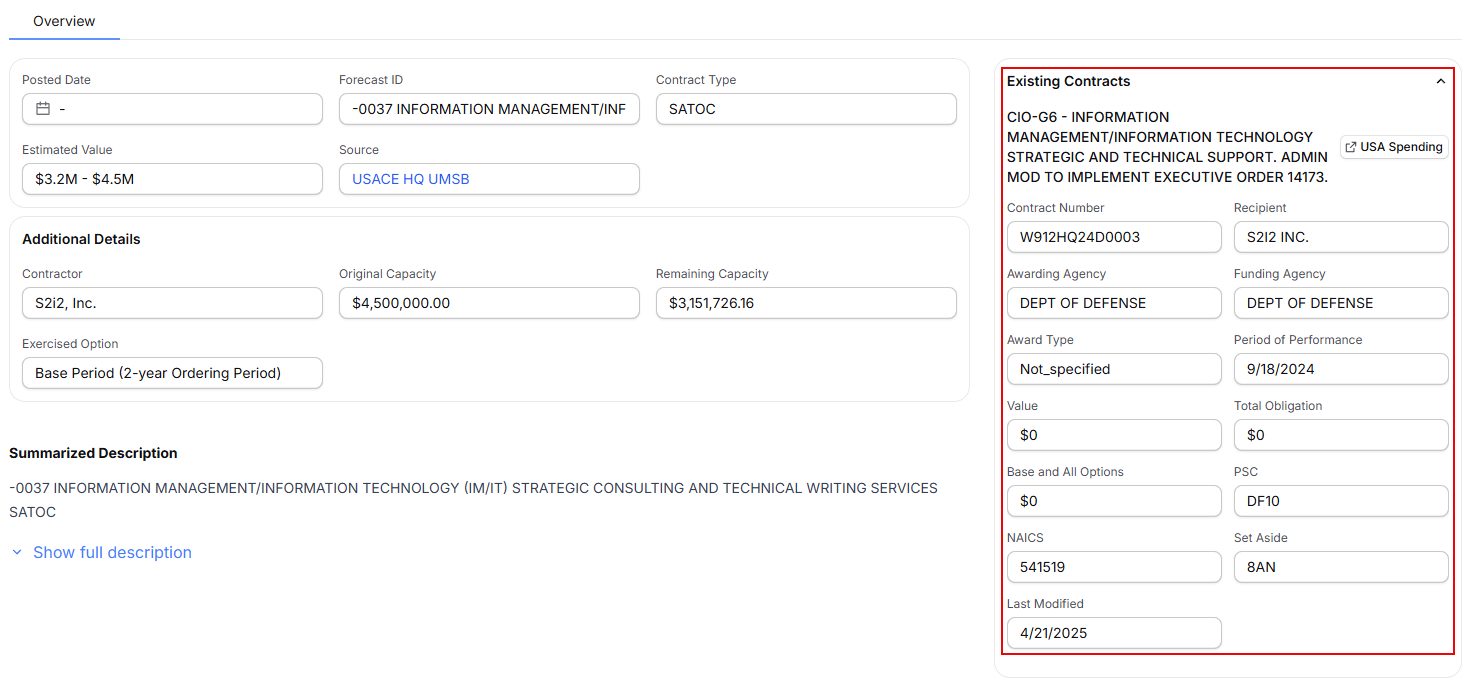
In addition to agency-published forecasts, GovDash scans USAspending.gov award end dates to identify existing contracts approaching expiration that may be recompeted. These predicted recompetes appear alongside agency forecasts, giving you visibility into potential opportunities even before an agency publishes a forecast. On recompete records, you can view incumbent information, including details of the existing contract, directly within the opportunity.
Finding Possible Recompetes
To see only possible recompetes, select Filters, choose Recompete, and turn on Has previous contract. This hides forecasts that don't list an existing contract number. After you add a recompete to your pipeline, open the opportunity and use Recompete Of Contract in the Contract Award Tracking card to link it to the current contract in your inventory. See Opportunity Overview.
Forecast Details
Select a forecast’s title to open it. The Overview tab shows key details such as Solicitation Date, Award Date, Agency, Contract Vehicle, Estimated Value, NAICS, Set Aside and Source. When the agency shares them, Additional Details shows items such as Contract Status and Incumbent, and Contacts lists the agency contacts.
Some forecasts also have an Award tab with the existing contract’s award details from USAspending, such as the PIID, recipient and award amounts.
Using Dash with Forecasts
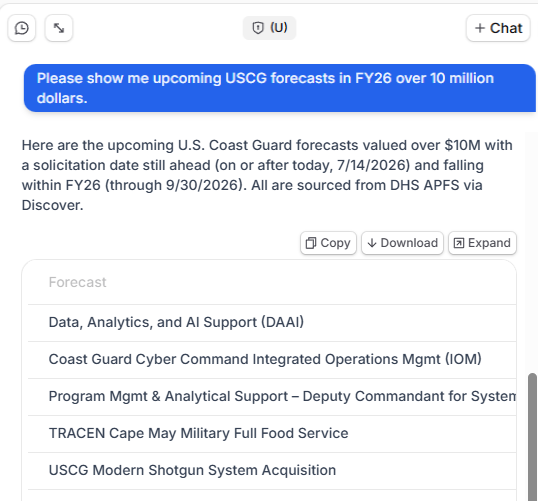
You can also ask Dash to search forecasts for you. Describe what you’re looking for (for example, an upcoming FY26 opportunity valued over $10 million), and Dash applies the right filters and returns matching forecasts.
Adding Forecasts to Your Pipeline
Just like other opportunities in Discover, you can add forecasts to your Pipeline and start capture well before the solicitation is released. Select Add to Pipeline, choose the classification level in Set Classification, then select Add to Pipeline. To save a forecast for your team to review first, add it to the Discover Watchlist.