Overview
A crosswalk matrix maps every task in the Performance Work Statement (PWS) to where your proposal answers it, so nothing gets missed. Most teams already have their own Excel template for this. With Dash in Excel, you can open that template, tell Dash exactly which PWS to read, and have Dash fill in the rows for you, right in your workbook.
This guide walks you through it in three steps, with ready-to-use prompts you can adjust for any template.
Before you begin
Make sure the Dash add-in is installed in Excel. If it isn't, see our Dash Office Add-in Deployment Guide. Have your PWS ready, either on your computer or already in GovDash (in the opportunity's Documents tab).
Step 1: Open Your Template in Excel
Open your crosswalk matrix template in Microsoft Excel.
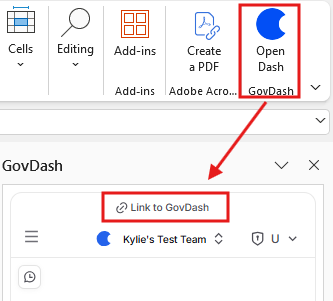
From the Excel Home tab, click Open Dash and sign in to GovDash if prompted. You don't need to select any cells. Dash reads your template on its own to find your columns and the next empty row.
Step 2: Tell Dash Which PWS to Use
Dash does its best work when you point it at the exact document. Choose whichever option fits where your PWS lives.
Option A: Link the opportunity or proposal and @ mention the PWS
Use this option when the PWS is already attached to an opportunity or proposal in GovDash.
Click the Link to GovDash menu at the top of the chat.
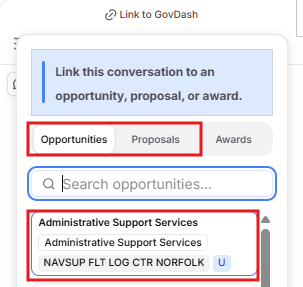
On the Opportunities or Proposals tab, search for and select your opportunity or proposal.
Optional: in the chat box, type @ and start typing the name of the PWS file, then select it from the list. You only need to do this if the opportunity or proposal has more than one PWS (for example, a draft and a final) or you want Dash to use one specific document. Otherwise, just tell Dash what to fill in, and it will find the PWS in the linked opportunity or proposal.
Does your opportunity have more than one PWS?
Opportunities often include a draft PWS, a final PWS, and amendments. Always tell Dash which one to use, and tell it to ignore the rest. For example: "Use only @Final PWS Amendment 02. Do not use the draft PWS or any other document."
Option B: Drag and drop the PWS
Use this option when the PWS is saved on your computer.
Drag the PWS file from your computer and drop it into the Dash chat window. You can also click + and choose Attach files.
If you're asked to choose a classification for the file, select it and continue.
The file appears above your message, ready to send with your request.
Step 3: Ask Dash to Fill In Your Matrix
Copy one of the prompts below into the chat, replace the parts in [brackets] with your own sheet name, column headers, and document name, and send it. Dash reads the PWS and writes the rows directly into your sheet. If you skipped the @ mention, replace @[PWS document name] with "the PWS." If you dragged and dropped the PWS, use "the attached PWS."
When Ask before edits is selected, Dash shows you its changes and waits for your approval before writing to the sheet. Choose Accept all edits if you'd rather let Dash write without asking.
Example prompts
These prompts are just examples
Every company's template is different, with its own columns, formatting, and layout. Use the prompts below as a starting point, and adjust them to fit your template and get the output you want.
Optional: Start with a plan (recommended for any new template)
Read the [sheet name] tab of this workbook and @[PWS document name]. Tell me what each column in my template is for and how you plan to fill it in from the PWS. Don't change anything yet.
Fill in the whole matrix
Fill in the crosswalk matrix on the [sheet name] tab using only @[PWS document name]. Don't use any other documents or the web. Add one row for every task and subtask in the PWS, in the order they appear, starting on the first empty row. Put the PWS paragraph number in the [PWS Reference] column, the task title in the [Task] column, and the requirement text, quoted word for word, in the [Requirement] column. Leave the [Proposal Section] column blank. Keep my headers, formatting, and formulas as they are. If something isn't in the PWS, leave the cell blank instead of guessing.
Fill in one section at a time (best for long PWS documents)
Using only @[PWS document name], fill in rows on the [sheet name] tab for PWS sections [3.1] through [3.4] only. Use the same columns and format as the rows already in the sheet. Start on the first empty row and don't change any existing rows.
Add Section L and Section M to each row
For each PWS task already in this matrix, use only @[Section L and M document] to fill in the matching instruction in the [Section L] column and the matching evaluation factor in the [Section M] column. Use the paragraph numbers from that document. If there is no clear match, write "No match found" instead of guessing.
Check the matrix against the PWS
Compare every row in this matrix against @[PWS document name]. List any PWS tasks or subtasks that are missing from the matrix, any rows that appear more than once, and any rows where the reference number or wording doesn't match the PWS. Don't change the sheet yet. Just give me the list.
Tips for the best results
Use your exact column names: name the columns in your prompt exactly as they appear in your template so Dash puts each piece of information in the right place.
Say "only": naming the document and telling Dash not to use anything else keeps it focused on your PWS.
Work in sections: for a long PWS, fill a few sections at a time, then ask Dash to continue.
Check before you submit: run the "Check the matrix" prompt above, then spot check a few rows against the PWS yourself.
FAQ
Does Dash work with my own template?
Yes. Dash reads the column headers in your template and fills in the rows to match, so you can use any layout your team already has.
How do I make sure Dash only uses my PWS?
Point Dash to the exact document with an @ mention or by attaching it, and say in your prompt that Dash should use only that document. The example prompts above already include this wording.
What if my opportunity has a draft PWS and a final PWS?
Name the one you want with an @ mention and tell Dash to ignore the others. If you aren't sure which is current, check the opportunity's Documents tab first.
Can I do this without opening Excel?
Yes. In Dash in GovDash, click + to attach your template and your PWS, then ask Dash to fill in the template using only the PWS. Dash returns the completed workbook for you to download. Learn more in Generating Artifacts with Dash.
Where can I learn more about Dash in Excel?
See Using Dash in Excel. To review the compliance matrix GovDash builds for a proposal, see Compliance Matrix and Shreds.