Accessing Tasks
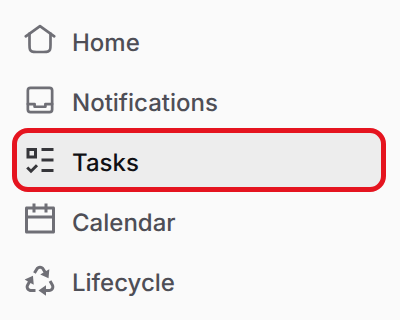
To open the Tasks dashboard, select Tasks in the GovDash navigation menu. It shows your team's tasks from every part of GovDash in one place.
You can also see and add tasks for a single record from the Tasks tab of a capture opportunity, proposal, Pricer workbook, contract, Data Library record or Watchlist opportunity.
Creating Tasks
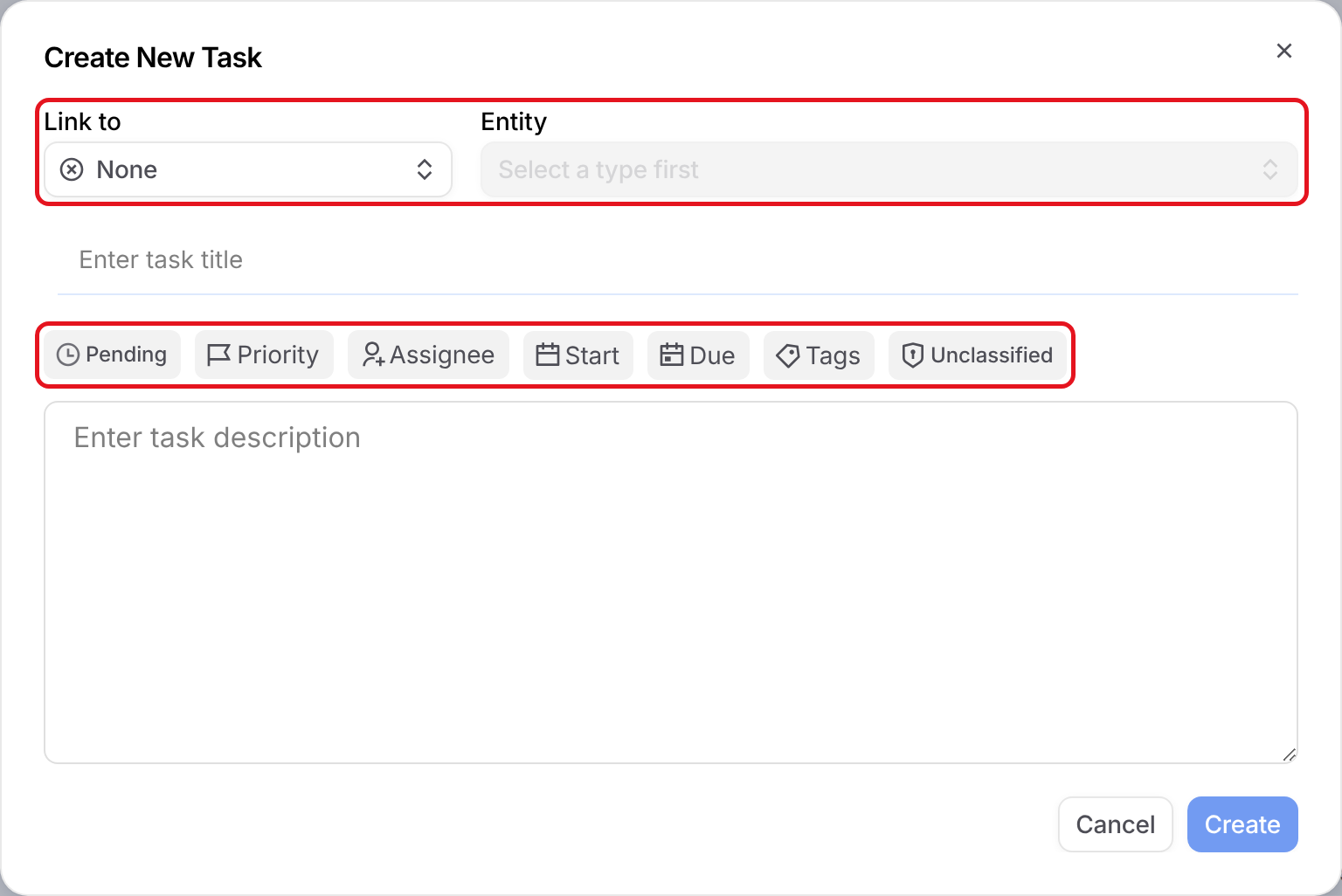
To create a new task, click New Task in the top right of the page. In Create New Task:
Link to: Optionally link the task to a type of record: Capture, Proposal, Contract, Pricer, People, Company, Agency or Watchlist item. Leave it as None for a task that isn't tied to a record.
Entity: Choose the record to link the task to. This is available after you choose a Link to type.
Task title and description: Give your task a title and an optional description.
Task details: Use the buttons under the title to set the status (Pending by default), Priority, Assignee, Start and Due dates, Tags and classification.
Due time: Due dates include a time of day. Use the hour, minute and AM/PM selectors at the bottom of the date picker to set exactly when the task is due. New due dates default to 5:00 PM.
Click Create to save the task.
Filters and View Customization
Use the toolbar at the top of the page to find tasks and set up your view:
All Items: Switch between saved views, or select Manage Views to manage them. When you change your filters, click Save to save them as a view.
Filters: Filter by Status, Assignee, Created By, Priority, Date Due, Classification or Tags.
Type: Show only tasks linked to a type of record, such as Capture or Watchlist item. Choose None to see tasks that aren't linked to a record.
Sorted by: Choose how tasks are sorted.
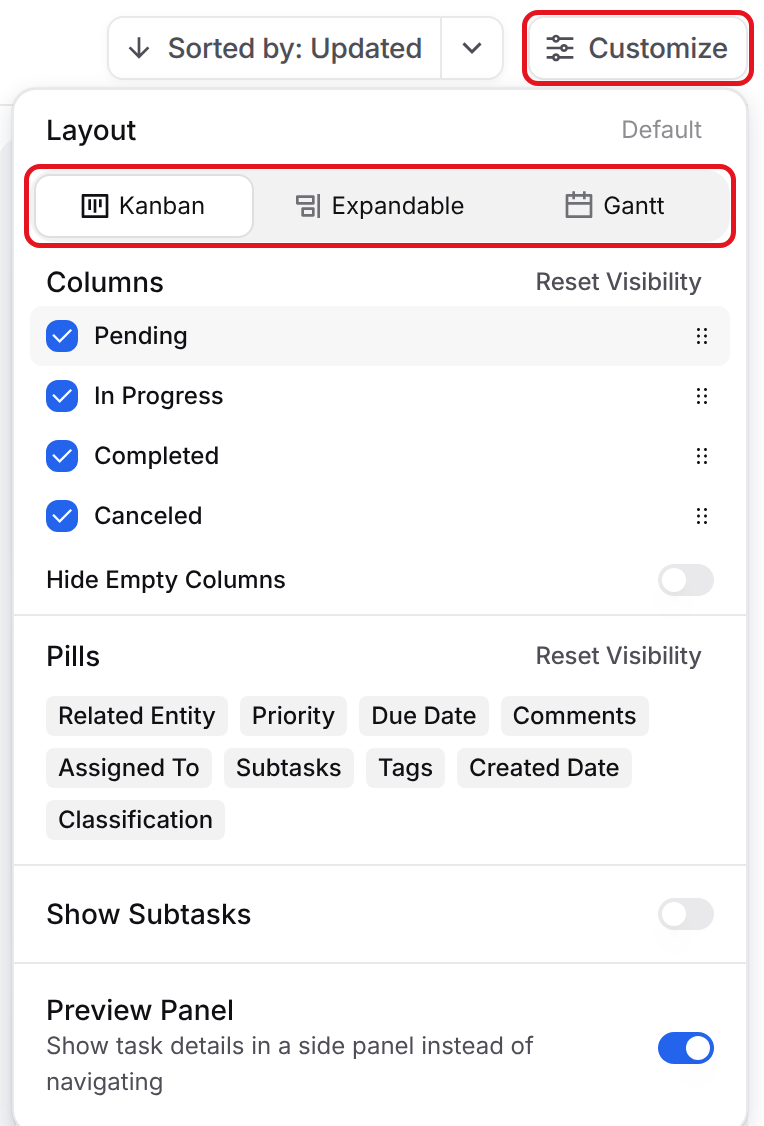
Click Customize to change how tasks are shown:
Layout: Choose Kanban, Expandable or Gantt. Click Set Default next to Layout to make your chosen layout the one the Tasks page opens with.
Columns: Choose which status columns appear and drag them to change their order. Turn on Hide Empty Columns to hide statuses with no tasks.
Pills: Choose which details show on each task, such as Priority, Due Date, Assigned To or Tags.
Show Subtasks: Show subtasks in the current view.
Preview Panel: Open task details in a side panel instead of a new page.
Task View
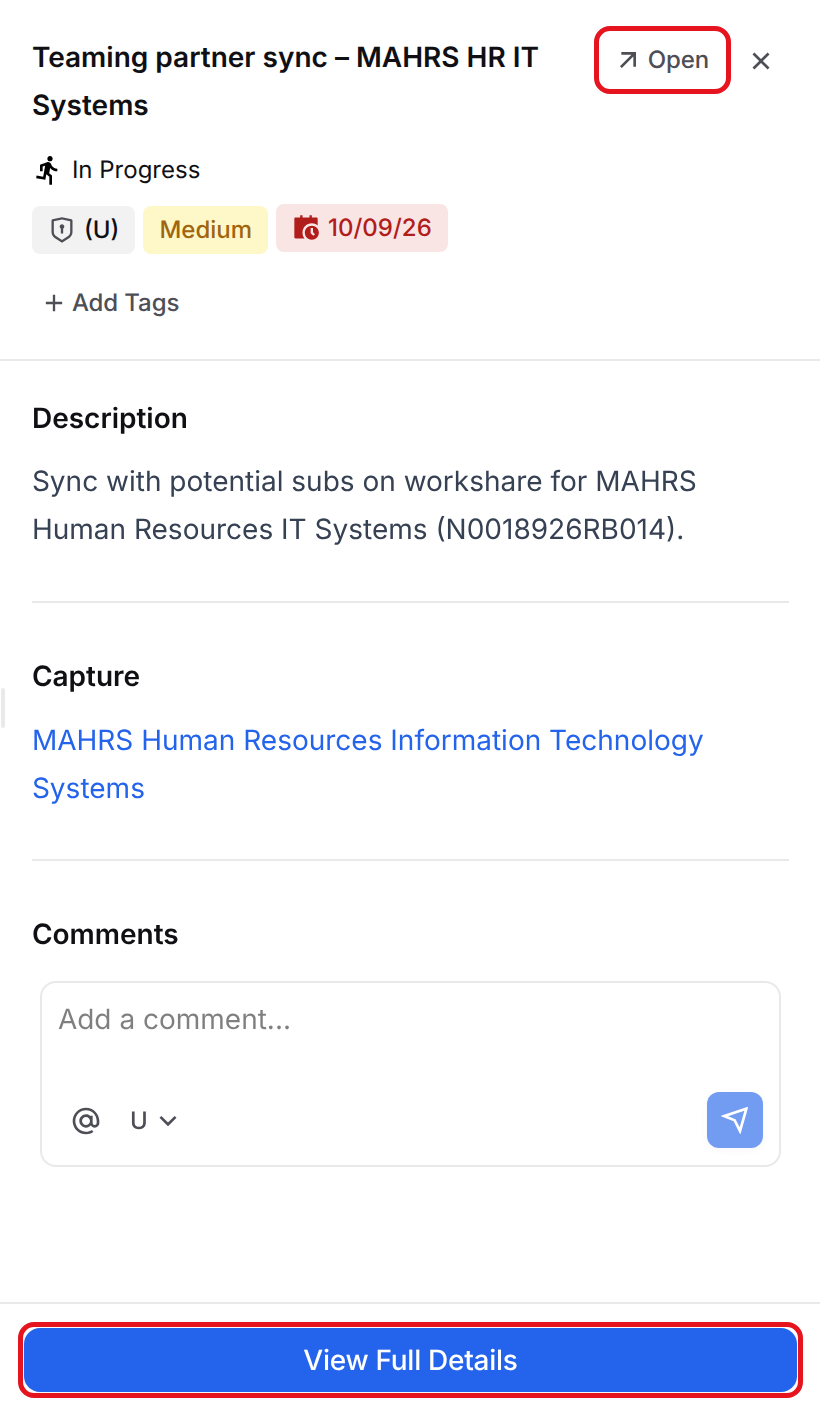
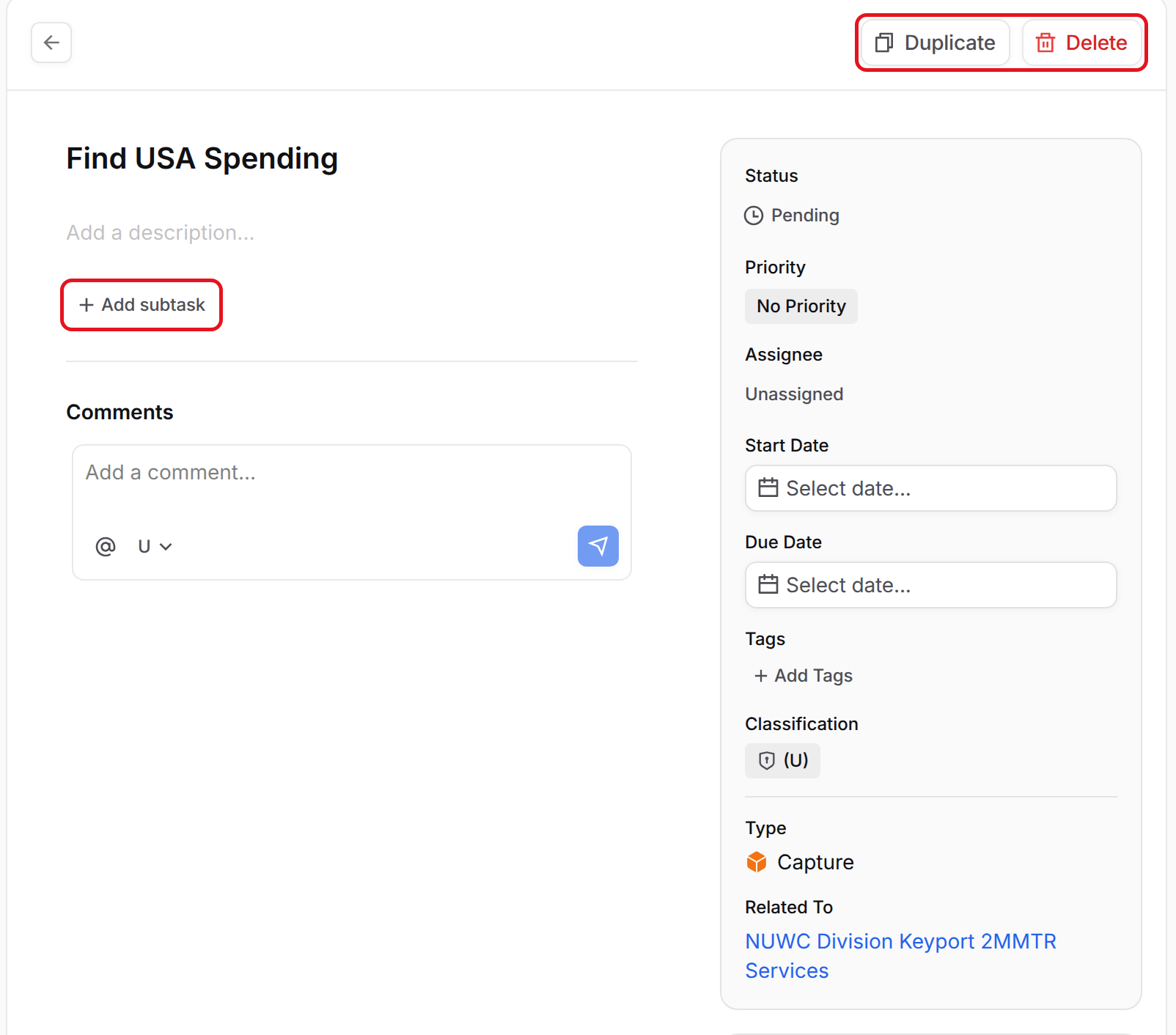
Click a task to open it. If Preview Panel is on, the task opens in a side panel where you can update its status, tags and comments. Click Open or View Full Details to see the full task page.
The full task page allows you to adjust the task details that have already been set. You can also:
Click Add subtask to break the task into smaller steps.
Collaborate with your team in Comments. Use @ to mention a teammate.
Review the Activity log. Tasks that Dash creates for you show Dash on behalf of the person who asked.
Click Duplicate in the top right to copy the task, or Delete to remove it entirely.
FAQ
Can I create a task that isn't linked to a record?
Yes. Leave Link to set to None when you create the task. To find these tasks later, select Type and choose None.
Why does a task open in a side panel instead of its own page?
Preview Panel is turned on. Click Customize and turn off Preview Panel to open tasks on their own page, or click View Full Details in the panel.
How do I make Kanban or Gantt my default layout?
Click Customize, choose the layout, then click Set Default next to Layout.
Where do I change task statuses, tags or templates?
Go to Settings > Tasks. See Customizing Tasks for details.