All task customization lives in Tasks settings (Settings > Tasks), which has three sections: Task Statuses, Task Tags and Task Templates. Changing these settings requires task settings permissions. Without them, you can still see your team's settings but not change them.
Customizing Task Statuses
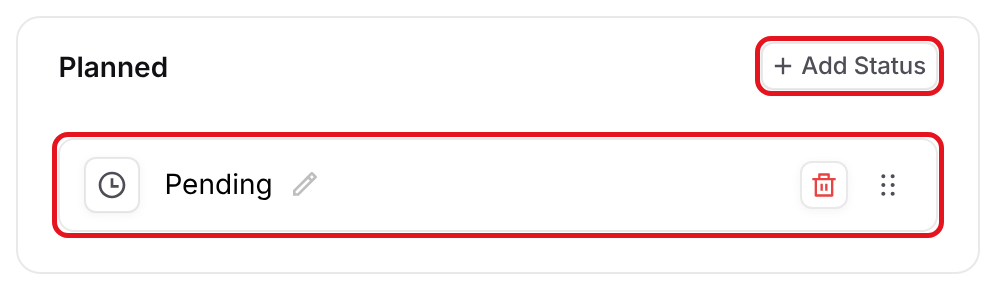
In Task Statuses, your statuses are grouped under Planned, In Progress, Completed and Canceled. Each status becomes a column in the Kanban layout.
Click Add Status in a group to add a new status to it.
Click the pencil next to a status to rename it or change its icon.
Drag the handle on the right to reorder statuses, or click the delete button to remove one.
Task Templates
Task templates allow you to set up a pre-defined set of tasks that can be applied to a record, which saves you from recreating the same tasks for each opportunity. Templates are in the Task Templates section of Tasks settings.
Adding Templates
Click Add Template.
Enter a Name, choose the Type of record the template is for (such as Capture, Proposal or Contract) and click Create.
In Edit task template, type a task in Add top-level task and click Add. Click Add Subtask on a task to nest a subtask under it.
For each task, optionally set the status, Assignee, Priority, classification, Tags, Start date offset and Due date offset (in days).
Click Save Changes.
Turn on Default template to apply the template automatically to every new record of that type. A default template can't be deleted, so turn off Default template first if you want to remove it.
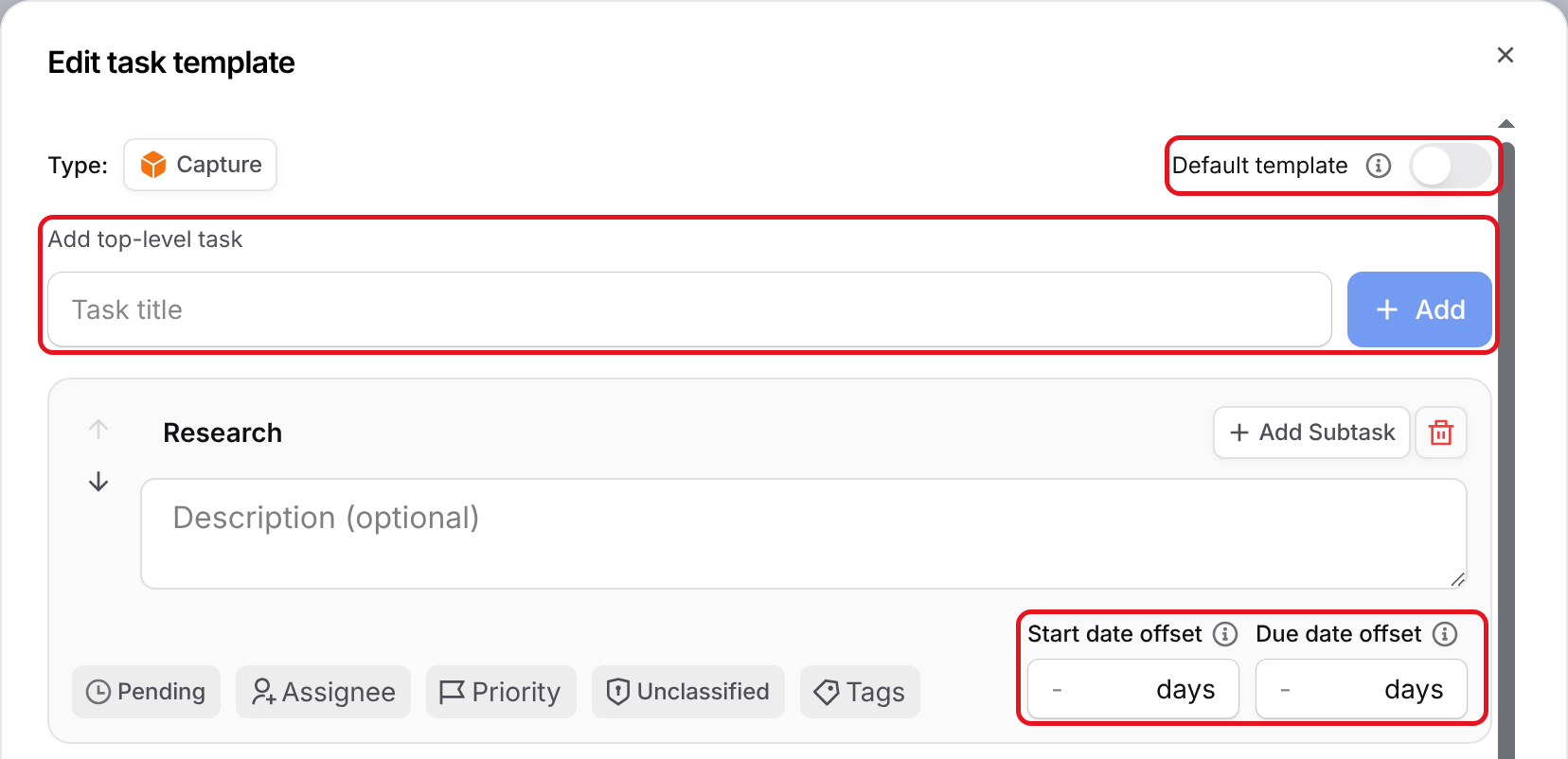
You can manage your saved templates at any time by selecting Manage next to your saved template.
Assigning Templates
To assign a template, open the Tasks tab of your opportunity, proposal, Pricer workbook, contract or Data Library record. Click Apply Template, choose your template and click Apply. Only templates for that type of record appear in the list.
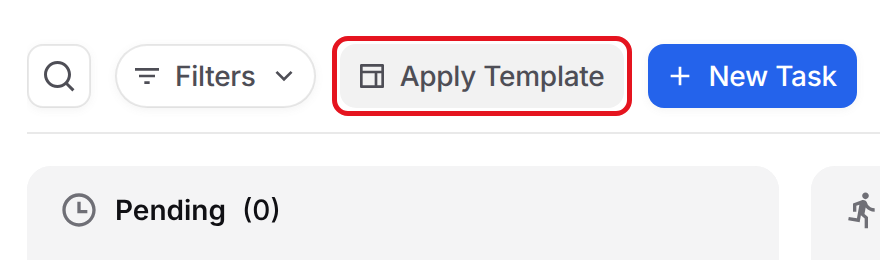
This will apply your template, and all tasks associated with the template will be created as configured.
Task Tags
Tags let you categorize tasks however your team works, such as by workstream, department, review stage, or anything else, so you can filter and group your tasks at a glance. You can manage your team's full tag list from the Task Tags section of Tasks settings.
Adding Tags
To create a tag, click Add Tag in the Task Tags section. In the Add New Tag dialog, optionally choose a Parent Tag to nest the new tag underneath an existing one, give your tag a Name, pick a Color, and click Save.
Managing Tags
Your saved tags are listed in the Task Tags section, with sub tags nested under their parent tag. From here you can rename a tag by clicking its name, change its color using the color swatch, or remove a tag with the delete button.
Tag Deletion: Important Note
Deleting a tag removes it from all tasks and also deletes any sub tags underneath it, and the action cannot be undone.
FAQ
Why can't I change task statuses, tags or templates?
Changing Tasks settings requires task settings permissions. Ask your team admin to update your role.
Why don't I see my template when I click Apply Template?
Templates only appear on records of the same type. For example, a Capture template only appears on capture opportunities.
How do I add the same tasks to every new opportunity automatically?
Open the template with Manage and turn on Default template. It will be applied to every new record of that type.