Understanding Credits, Usage, and Billing in GovDash
GovDash credits provide a shared way for your workspace to use AI-powered features whose cost varies based on the work performed.
Credits belong to the workspace, not to an individual member. Purchases, usage charges, refunds, grants, and support adjustments all update the same shared workspace balance.
Purchased credits do not expire.
GovDash reports usage in credits rather than displaying technical information such as token counts, model prices, or internal processing costs.
Important: The features that use credits depend on your workspace’s product subscriptions and beta rollout status. Notices displayed in GovDash reflect the billing rules currently applying to your workspace.
What Uses Credits?
Credit usage depends on whether your workspace has a GovDash platform subscription and which product areas the subscription covers.
Workspaces Without a Platform Subscription
After paid credit billing is enabled for your workspace, credits are used for:
Agent runs, based on the work performed during each run
Dash chat
Team-initiated AI work in product areas that are not covered by a subscription
Routine product activity does not use credits. This includes creating, storing, organizing, and viewing your team’s data. Non-AI workflows, storage, and document processing also do not use credits.
The billing notices and credit controls displayed in GovDash indicate when paid credit billing is active for your workspace.
Workspaces With Platform Subscriptions
When your workspace subscribes to a GovDash product area:
Team-initiated AI work in that product area is included.
Dash chat is included.
Agent runs use credits because Agents are an optional, variable-usage extension of the platform.
Platform subscribers use 25% fewer credits for the same Agent work.
AI work outside a subscribed product area may use credits.
During the beta transition, GovDash may cover Agent usage for eligible platform subscribers. The notice displayed in GovDash explains whether your workspace’s Agent usage is currently covered and shows any applicable dates.
When a discount or beta coverage applies, GovDash may show both the original credit amount and the adjusted amount. The adjusted amount is the amount actually charged to your workspace balance.
Seeing Credit Coverage Before You Start
You do not have to check your plan to know how an action will be billed. Wherever GovDash is about to start AI-powered work, a credit indicator appears next to the button that starts it.
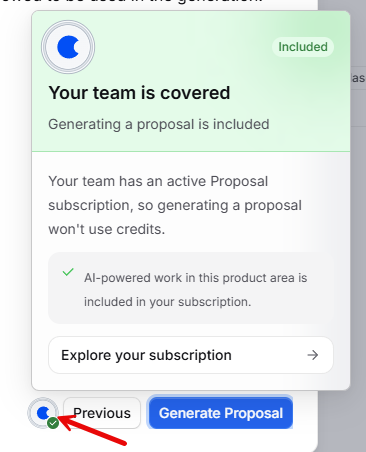
Hover the icon to see how the action applies to your workspace:
Included: Your team has an active subscription for that product area, so the action will not use credits.
Uses credits: Credits are consumed only when GovDash performs the work.
Either way, the panel includes a link to Settings → Billing → Credits → Plans Subtab so you can review your coverage without leaving the workflow.
View Your Workspace’s Usage
All workspace members can review metered activity from the Usage page.
Open Settings.
Under Billing, select Usage.
Choose the last 7, 30, 90, or 365 days, or select All time.
Review the usage summary and activity details.
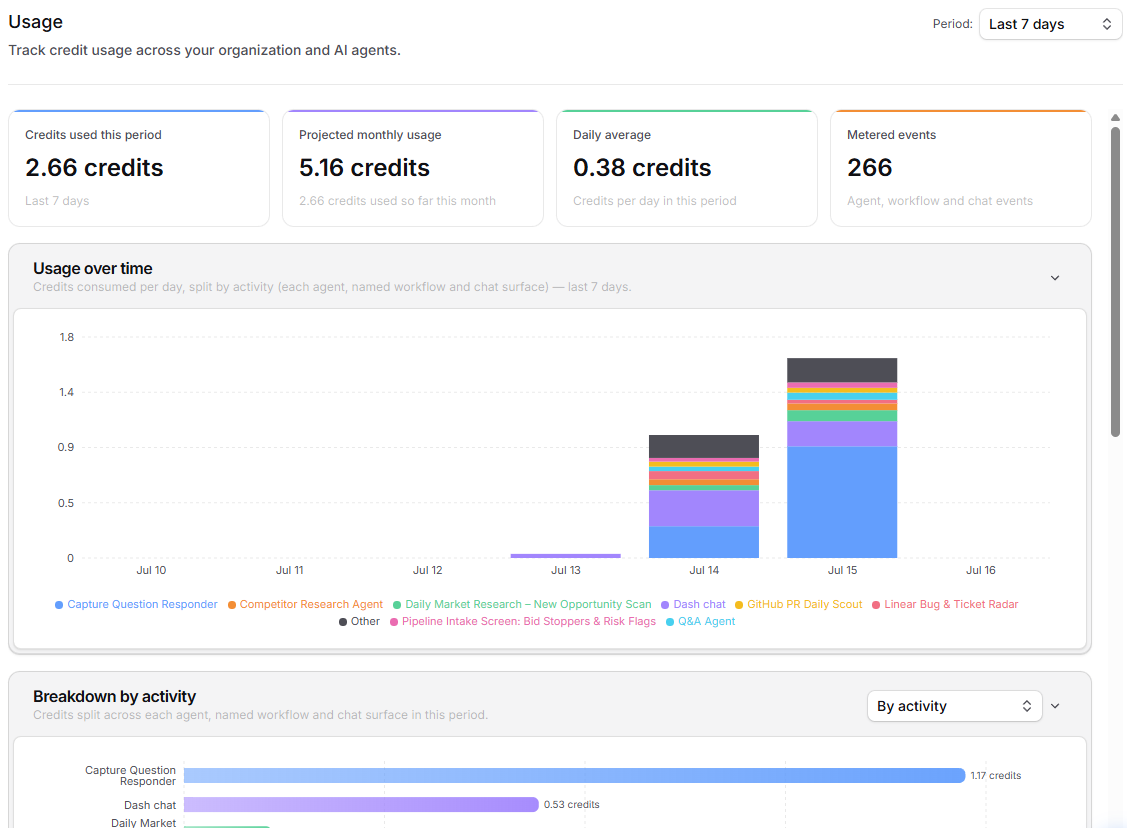
The Usage page includes information such as:
Credits used during the selected period
Month-to-date and projected monthly usage
Average credits used per day
The number of metered events
Usage over time
Breakdowns by activity and source
Details for each Agent, named workflow, and chat surface, including each Agent’s most expensive runs in the period
Seeing an Agent’s Most Expensive Runs
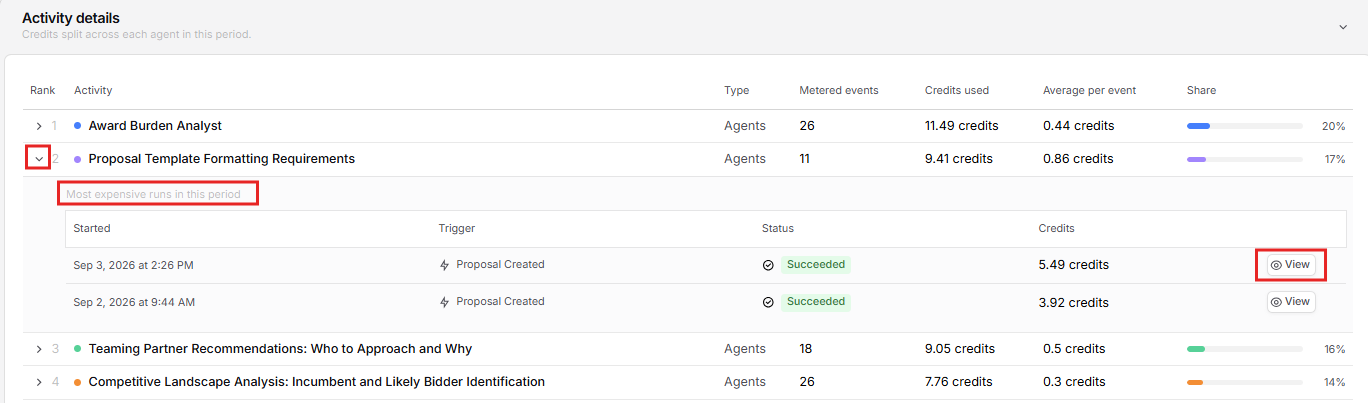
Want to know which runs made an Agent expensive? Each Agent row in Activity details can be expanded to show that Agent’s costliest runs in the selected period.
On the Usage page, scroll to Activity details.
Find the Agent you want to investigate. Agent rows with runs in the selected period show a small chevron (›) to the left of their rank number.
Click the chevron. The row expands to show Most expensive runs in this period, with up to five runs, sorted from most to least credits used.
For each run, review when it Started, its Trigger (Manual or Scheduled), its Status, and the Credits it used.
Click View on any run to open that run’s detail page. Click the chevron again to collapse the list.
Understanding Monthly Projections
Monthly projections are directional estimates based on recent activity. They are not guaranteed totals and may increase or decrease as your workspace’s usage patterns change.
Why Usage May Differ From Transaction History
The Usage page reports the amount of work GovDash measured in credits. It does not necessarily show the amount deducted from your workspace balance.
Transaction history records changes that were applied to the balance. Several factors can cause the two totals to differ:
Platform subscription coverage
Beta coverage
Subscriber discounts
Refunds or support adjustments
Transaction processing and settlement timing
For example, an Agent run may appear on the Usage page at its original metered amount, while transaction history shows a lower amount after the platform subscriber discount is applied.
Review Plans and Subscriptions
All workspace members can open Settings → Billing → Credits → Plans Subtab to understand how platform subscriptions and credits apply to the workspace.
From the Plans page, you can:
Review the current plan for each available product area
Compare platform subscriptions with credit-based usage
See which actions are included and which may use credits
Contact GovDash Sales about an available subscription upgrade
Submitting an upgrade request does not automatically purchase or change a platform subscription. A GovDash representative will follow up with your team to discuss the request.
Check Your Balance and Transaction History
Workspace administrators can open Settings → Billing → Credits → History Subtab to review the shared credit balance and billing activity.
Depending on your workspace’s beta billing experience, the Credits page may include:
The current shared credit balance
Your workspace’s billing policy
Available prepaid credit packs
A link for managing payment methods and billing details
Transaction history for purchases, grants, Agent runs, named workflows, chat, refunds, and support adjustments
How Refunds Appear in Transaction History
Transaction history is append-only so billing activity remains auditable. Completed transactions are not replaced or rewritten.
When GovDash returns credits, the refund appears as a separate transaction alongside the original charge.
Purchase Credits
Credit purchases are available only to workspace administrators and only when purchasing has been enabled for the workspace.
To purchase credits:
Go to Settings → Billing → Credits.
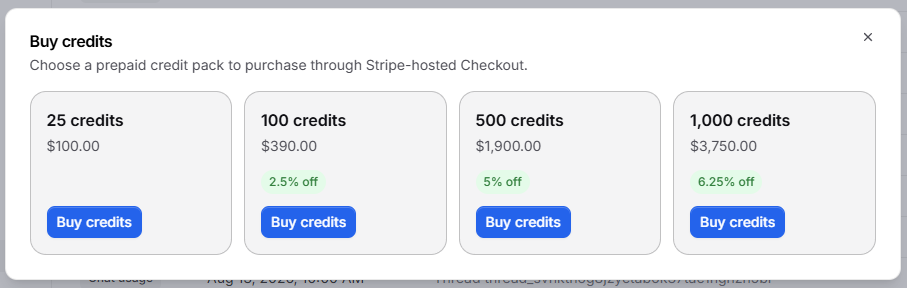
Select Buy credits in the top right corner, and then choose your desired number of credits to buy.
Confirm that you are leaving GovDash and continuing to Stripe, GovDash’s approved payment processor.
Complete the payment in Stripe Checkout.
Return to GovDash.
Your workspace balance updates after Stripe confirms the payment and GovDash processes the purchase.
Available pack sizes, prices, and volume discounts are displayed before checkout. If no credit packs have been configured for your workspace, the purchase controls will not appear.
Manage Payment and Billing Information
Select Manage billing from the Credits page to open the Stripe Customer Portal. You will be asked to confirm that you are leaving GovDash before being redirected.
The Stripe Customer Portal can be used to manage supported payment and billing information, including saved payment methods and receipts. GovDash does not collect or display full payment card details.
Setting Credit Limits
Setting credit limits allows your team to control the amount of credits used by the entire team, specific users, and agents. Navigate to Settings → Billing → Credits → Limits Subtab to access the Limits dashboard.
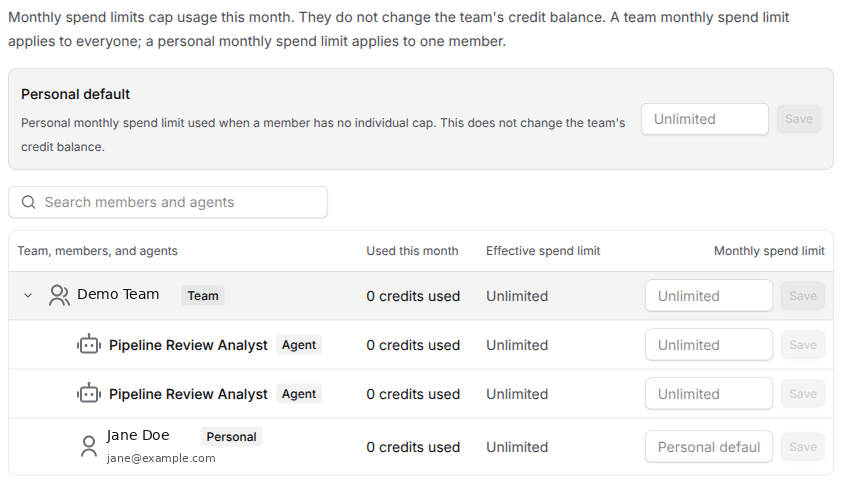
For any member, the enforced limit is the first of these that exists:
An individual Monthly spend limit on that member's row
The Personal default
No cap, if neither is set
The Effective spend limit column always shows the result, so you can confirm what is actually being enforced without tracing the logic yourself.
Setting a Personal Default
Set this once in the Personal default card at the top of the page. It applies to every member who does not have an individual limit, which makes it the fastest way to cap a whole team. Changing it immediately updates the Effective spend limit for everyone still on the default. Leave it as Unlimited if you only want to cap specific people. If you need to adjust it back to Unlimited, remove all numbers from the field and hit Save.

Setting Team, Member, and Agent Limits
To cap the whole team, enter a value in the Team row. To cap one member, enter a value in that member's Monthly spend limit field and select Save on the same row. Each row saves independently, so you can adjust one person without touching anyone else. Two things to read off the field:
Placeholder text reading Personal default means the member uses the Personal default
A value in the field means the member has an override, and the Personal default no longer applies to them
Agents appear as their own rows and are capped separately. An agent that belongs to a member appears under that member. Agents do not inherit the Personal default, so their field reads Unlimited until you set a value.
What Happens When the Credit Balance Is Low?
When credit enforcement is active, GovDash provides a small, centrally configured overdraft allowance. This is intended to let work already in progress finish when the workspace balance crosses zero.
The following rules apply:
New metered work is blocked after the workspace reaches the configured credit floor and has no additional billing option available.
Features included with a platform subscription are not blocked by the credit balance.
Work already in progress is normally allowed to finish.
An Agent run may be stopped and marked Terminated if its projected usage moves significantly beyond the allowed overdraft, exceeds a configured monthly spend limit, or reaches the workspace's pay-as-you-go overage ceiling. The run shows the specific reason it was stopped.
Workspace administrators may receive low-balance, zero-balance, overdraft-warning, and excessive-run notifications.
Overdrafts: The overdraft allowance is configured by GovDash. Workspace administrators cannot change this, but spending limits are fully configurable.
If the workspace balance prevents new work from starting, contact a workspace administrator. The administrator can purchase credits when purchasing is available or contact GovDash Support.
Refunds and Failed Work
GovDash automatically returns credits for eligible system-caused failures, including certain failures involving an AI provider.
Credits may still be charged when:
A team member cancels work after processing has started.
A failure is not eligible for an automatic refund.
GovDash completed part of the requested work before the cancellation or failure occurred.
In these situations, the workspace may be charged for the work that was already performed.
Earning Credits for Feedback
In some areas of GovDash, you can earn credits for your workspace by leaving detailed feedback. Feedback credits go into your workspace's shared credit balance, so your whole team benefits.
When a feedback window offers credits, you'll see a coin icon and a message above the comment box.
Write a comment that explains what worked well or what could be better.
Check the message above the comment box. It says Add a detailed comment to earn [number] credits. until your comment qualifies, then changes to This comment earns [number] credits.
Submit your feedback. The credits are added to your workspace balance.
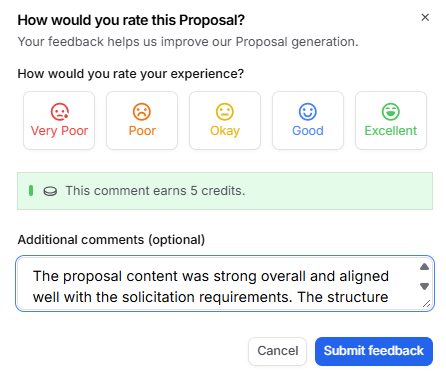
Good to know:
What counts as detailed: a sentence or two of specific feedback. Short or generic comments like "Looks great, thanks" don't qualify, and neither do repeated characters or random letters.
Once per item: each member can earn credits once for each item they give feedback on, and teammates can each earn credits for the same item. If you've already earned credits, you'll see You've already earned credits for this feedback, but we'd still love your comments.
Daily limit: each workspace can earn up to 100 feedback credits per day. The limit resets at midnight UTC. Once your team reaches it, you'll see Your team hit today's feedback credit limit, but we'd still love your comments.
Pilot workspaces: feedback credits aren't available to workspaces on a GovDash pilot.
Where to find them: feedback credits show as Feedback reward in your transaction history (Settings → Billing → Credits → History Subtab).

FAQ
Do credits expire?
No. Purchased credits do not expire.
Can one member purchase credits for only themselves?
No. Credits are held in a shared workspace balance. Only workspace administrators can purchase or manage them.
Why does Usage differ from transaction history?
Usage shows metered AI activity. Transaction history shows settled balance changes. In-progress work, settlement timing, discounts, and refunds can cause temporary or expected differences.
Will running out of credits stop included subscriber features?
No. Manual named workflows and Dash chat that are included with a platform subscription do not route through credit enforcement. Dash agent runs remain metered for all workspace types.
How do I know whether an action will use credits?
Look for the credit indicator next to the button that starts the work, for example when generating a capability matrix, submitting a proposal draft for outline generation, or generating a proposal. Hover it to see whether the action is Included with your subscription or Uses credits.
Why was an agent run system terminated?
GovDash normally lets in-progress work finish, even after the balance crosses zero. A run is system terminated when it moves far beyond the configured overdraft allowance, exceeds a configured monthly spend limit, or reaches GovDash's pay-as-you-go overage ceiling.
Open the run to see which of these applied. The run's details state the reason, for example "Run terminated automatically: a configured monthly spend limit allowance was exceeded." If the cause is a spend limit, a workspace administrator can adjust it under Settings → Billing → Credits → Limits. Contact a workspace administrator or GovDash Support if the termination appears unexpected.
Which payment methods can I use to buy credits?
Stripe Checkout accepts credit cards, Link, and ACH bank transfers from a U.S. bank account. Choose whichever your finance team prefers, the credits and pricing are the same.
I paid by bank transfer. Why is my balance unchanged?
Bank transfers clear in a few business days, so your balance updates after the transfer succeeds rather than at checkout. Until then you will see the Payment processing notice on the Credits page. If a transfer fails, no credits are added, so check your Stripe receipts and start the purchase again.
Which runs made an Agent expensive?
Open Settings → Billing → Usage, scroll to Activity details, and click the chevron next to the Agent’s row. You’ll see its most expensive runs in the selected period, with a View link to each run.
Where can I get help?
Contact your GovDash representative or Support. Include the workspace name, approximate time, affected workflow or agent, and any transaction or run identifier shown in GovDash. Do not send card details.