Opt-In Feature
To configure Multi-Entity Management for your organization, contact your GovDash Account Manager or support@govdash.com to opt-in to the feature.
Overview
Multi-Entity Management lets your organization model its corporate structure inside GovDash. Once your parent organization and its teams are set up, you can see every team's pipeline in one place, find opportunities that more than one team is chasing, and run reports for one team or for the whole organization.
This feature is designed for:
Alaskan Native Corporations (ANCs) and Native Hawaiian Organizations (NHOs) managing multiple 8(a) subsidiaries under a single corporate parent
Multi-division prime contractors with separate BD accountability by business unit or vertical
Any GovCon organization that tracks pipeline across more than one entity or reporting structure
How It Works
Multi-Entity Management works in three layers:
Structure | Pipeline | Reporting |
|---|---|---|
GovDash sets up your parent organization and the teams under it, such as divisions, subsidiaries or business units. | See every team's opportunities on one Lifecycle board, filter by team, and spot opportunities that more than one team is pursuing. | Run reports for one team or roll them up across your whole organization. |
Setting Up Your Organizational Structure
Share your parent organization and its subsidiaries or divisions with your account manager or support@govdash.com. Our team sets up the structure in GovDash for you. Each subsidiary or division becomes its own team under the parent organization.
Note
GovDash supports any hierarchy depth. An ANC with six 8(a) subsidiaries can have all six under the parent, and each subsidiary can have its own sub-teams below it.
When you switch to the parent organization, GovDash opens the organization view. Its left menu has Corporate Structure, Notifications, Lifecycle and Reports.
Labeling Relationships
Corporate Structure shows your organization as a chart, with lines connecting each team to its parent. To describe a relationship, select Add label on a line and enter a label, such as Division, Department or Team.
Viewing the Pipeline Across Teams
Lifecycle in the organization view shows opportunities from every team in your organization on one board, grouped by phase.
Filter by team: Use the Team filter to see one or more teams. Select several teams to compare them side by side.
Open an opportunity: Selecting a card switches you to the team that owns the opportunity and opens it there.
Moving cards: You can't drag cards between phases on this board. Make changes from the team that owns the opportunity.
Finding Opportunities More Than One Team Is Pursuing
When more than one team in your organization is pursuing the same opportunity, its card shows a Shared with badge, such as Shared with 2 teams. Hover over the badge to see which teams.
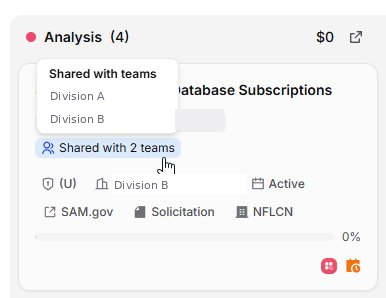
To see only these opportunities, select Customize and turn on Tracked By Multiple Teams. Review them with your teams and decide which one should own the pursuit before both spend capture time on it.
Getting Notified
Members of the parent organization get the Multi-Team Opportunity Pursuit notification, in the app and by email, when more than one team starts pursuing the same opportunity. To change how you get it, go to Settings > Notifications.
Reporting by Entity
Reports in the organization view can show one team, several teams or your whole organization.
Select Reports in the left menu.
Use the Teams selector at the top to choose which teams to include.
To roll up across your whole organization, select every team.
Your team selection applies to every report view, and you can still customize the views and widgets you want to see.
Tip
Reports use live data, so there's nothing to export or reconcile. When a team updates an opportunity, the roll up reflects it.
FAQ
How many entities can an organization configure?
There is no set limit. ANCs with six or more active 8(a) subsidiaries, and large primes with many distinct business units, can configure all of them in the same account.
Can we detect when two subsidiaries are chasing the same contract?
Yes. On the organization's Lifecycle board, an opportunity that more than one team is pursuing shows a Shared with badge. Members of the parent organization also get the Multi-Team Opportunity Pursuit notification.
Where can I get additional assistance?
For questions about configuring Multi-Entity Management for your organization, contact your GovDash account manager or reach out via the in-app chat. To see the feature in action, visit govdash.com to book a demo.