Overview
Contract clauses help you track the clauses your contracts carry and the work each one requires. Each clause on a contract can have due dates, an assignee for each due date and a status, so you can see what is coming up and who owns it.
Clauses live in two places:
Contracts page, Clauses tab: your team's clause library, with every clause your team tracks, when it's next due and how it stands across all your contracts.
A contract's Clauses page: the clauses on that one contract, with their due dates, assignees and statuses.
Clauses aren't added on their own, but Dash can do most of the work. On a contract with no clauses, select Extract clauses with Dash. Dash reads the contract's documents, finds its clauses and due dates, and asks you to confirm before adding anything.
Managing the Clause Library
The clause library is your team's master list of clauses. A clause has to be in the library before you can add it to a contract. To open it, go to Contracts and select the Clauses tab.
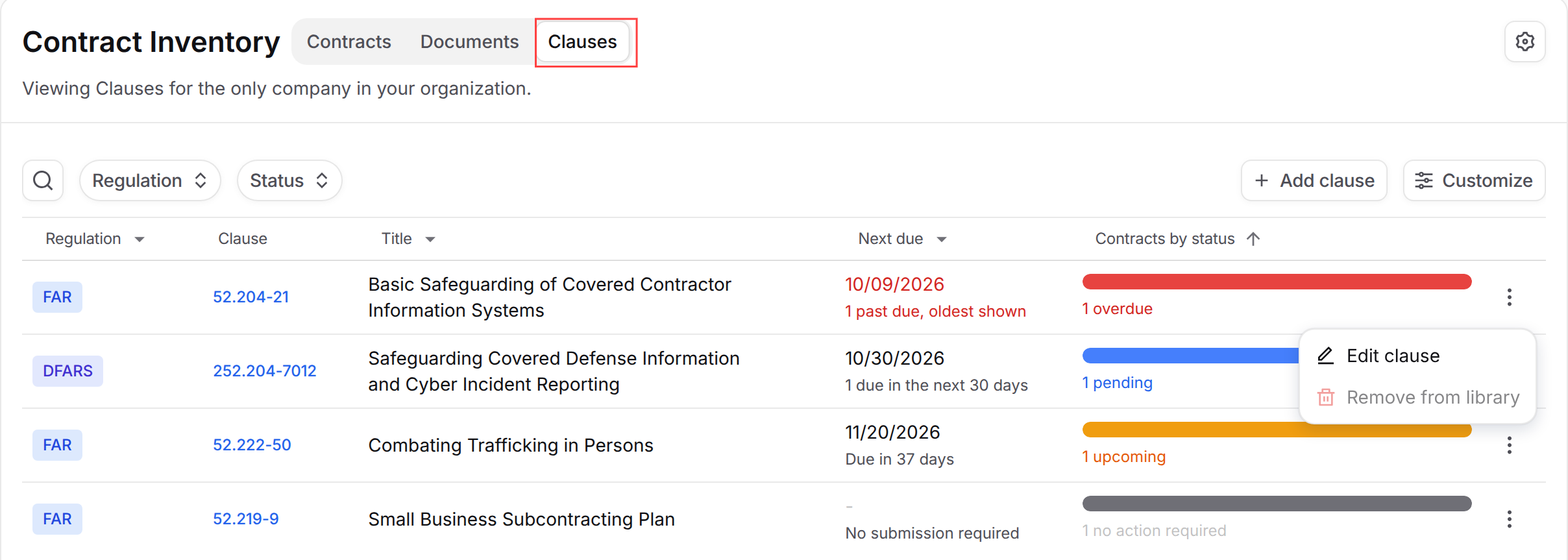
Each row shows when the clause is next due across all your contracts, and a Contracts by status bar (see Clause Statuses below). Past due dates show in red with a note such as "1 past due, oldest shown".
Use the Regulation and Status filters above the table to narrow the list. Clauses that need attention, starting with past due ones, appear at the top.
Adding a Clause to the Library
Go to Contracts, select the Clauses tab and click Add clause.
Fill in the form:
Regulation (required): FAR, DFARS or VAAR.
Clause (required): the clause number without the regulation, such as 52.204-21. Use letters, numbers, periods, dashes and parentheses only.
Revision (optional): the clause date as it reads in the regulation, such as NOV 2021.
Title (required): the clause title as it reads in the regulation.
Default assignee (optional): the person who is assigned when you add due dates for this clause on a contract. It is set to you to start. You can change the assignee on each due date later.
Click Add clause.
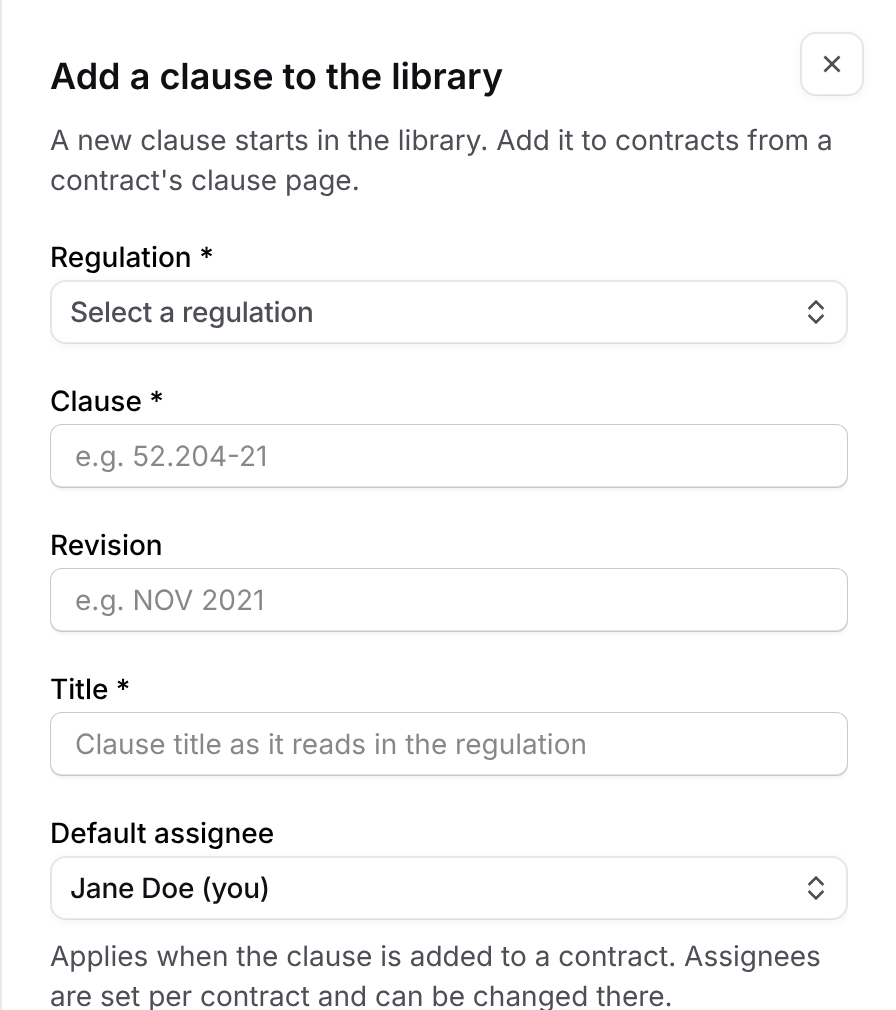
New clauses start in the library only. To track one on a contract, see Adding Clauses to a Contract.
Editing or Removing a Library Clause
To edit a clause, click its number or open the ... menu on its row and choose Edit clause. Update the regulation, clause number, revision, title or default assignee, then click Save changes. Changes apply to every contract that carries the clause. A new default assignee is used for due dates you add from then on, and existing assignments stay as they are.
To remove a clause, open the ... menu on its row, choose Remove from library and confirm. A clause can be removed once it is no longer on any contract. If it is still on contracts, hover over Remove from library to see how many contracts to remove it from first.
Who Can Manage the Library
Users who can manage Contract settings can add, edit and remove library clauses. Everyone else on the team can view the library.
Adding Clauses to a Contract
Click through the interactive walkthrough below to see how it works, or follow the steps after it.
Open the contract and select Clauses in the contract menu.
Click Add clause.
Under Clause, type in Search the clause library to find the clause by number or title, then pick it. Its title appears below so you can confirm you picked the right one.
Optional: click Add due date to add due dates now. See Setting Due Dates and Assignees. You can also add them later.
Click Add clause.
If the clause you need isn't in your library yet, click the team clause library link under the search box. It opens the library in a new tab, where you can add the clause and then come back to search for it.
If the contract doesn't have any clauses yet, you can select Extract clauses with Dash on its Clauses page. Dash reads the contract's documents, matches the clauses it finds to your library and asks you to confirm before it adds them.
Reviewing a Contract's Clauses
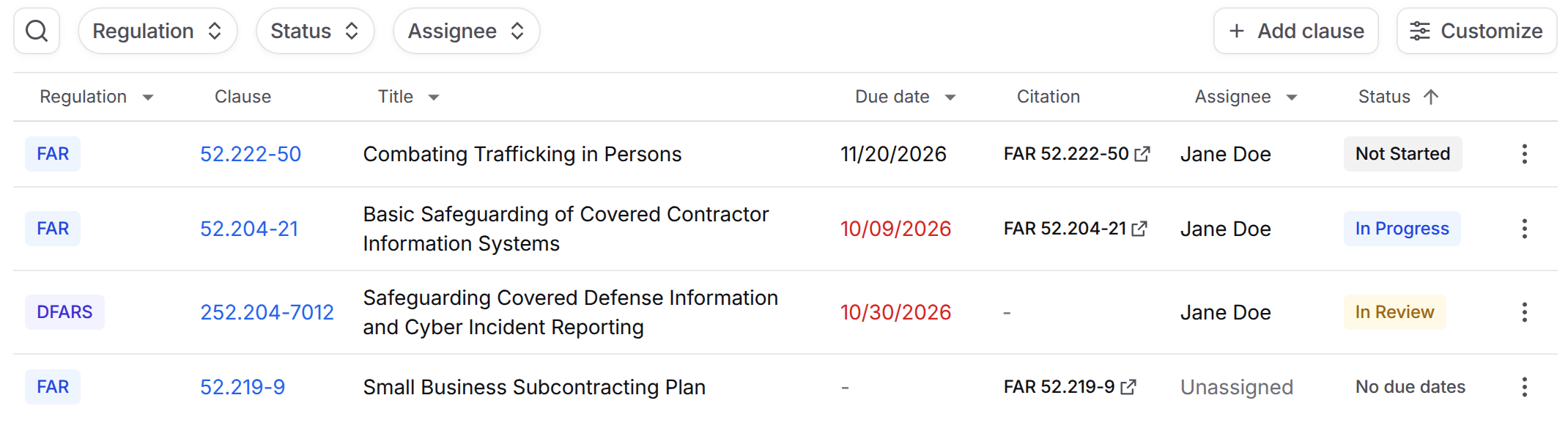
Clause: click the number to edit the clause on this contract.
Due date: the earliest due date that isn't done. Past due dates show in red. A date due today isn't past due yet.
Citation: for FAR clauses, a link to the clause's official text on acquisition.gov, which opens in a new tab. DFARS and VAAR clauses show a dash.
Assignee and Status: who owns that due date and where it stands. Clauses without due dates show No due dates.
Use the Regulation, Status and Assignee filters above the table to narrow the list. Clauses that need attention appear at the top, with the soonest due dates first.
To remove a clause from the contract, open the ... menu on its row, choose Remove from contract and confirm. This also removes its due dates and assignments on that contract. The clause stays in your team's library.
Who Can Edit
Anyone who can edit the contract can add, edit and remove its clauses and due dates.
Setting Due Dates and Assignees
Many clauses come with recurring obligations, such as reports, certifications or submissions. Each one is tracked as a due date on the contract clause, with its own status and assignee. A clause can have as many due dates as it needs.
Open the contract and select Clauses.
Click the clause number, or open the ... menu and choose Edit clause. Changes here apply to this contract only.
Under Due dates, click Add due date. Each new row has a date, a status that starts at Not Started and an assignee that starts with the clause's default assignee from the library, or with you if the clause doesn't have one.
Pick the date, and change the status or assignee as needed.
Click Save changes.
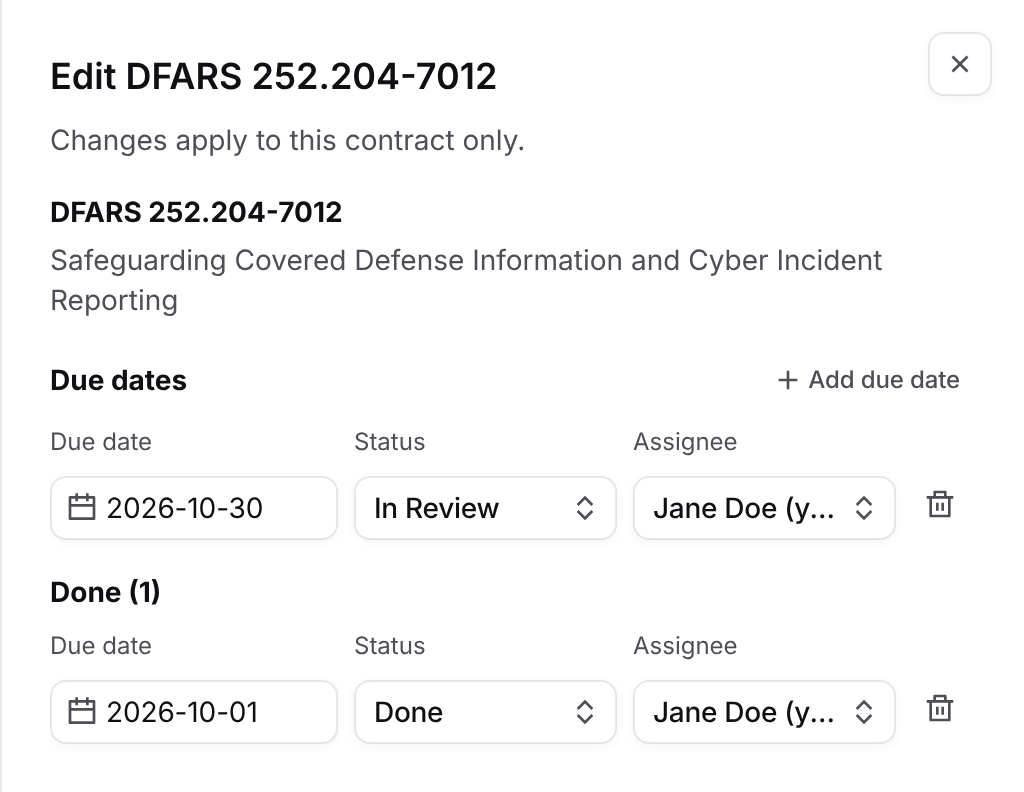
To remove a due date, click the trash icon at the end of its row, then click Save changes. Nothing changes until you save, and Cancel discards your edits.
After you save, GovDash notifies the assignee when a due date is assigned to them and when its status changes. You aren't notified about changes you make yourself.
Each due date is also a task assigned to the same person. If you delete that task, GovDash warns you first, because deleting it also removes the due date from the clause.
Updating Status as Work Progresses
Open the clause and change the status on the due date's row, then click Save changes.
Not Started: no one has started the work.
In Progress: someone is working on it.
In Review: it has been submitted or is waiting for review.
Done: it is complete.
Rejected: it was sent back and needs rework.
Due dates marked Done move to the Done section of the panel after you save. Click Show more to load older ones. You can still edit or remove done due dates there.
Clause Statuses
On a contract, the Status column shows the status you set. In the clause library, Contracts by status combines that status with the due date to show where each contract stands:
Overdue: the due date has passed and the work isn't Done. A date due today isn't overdue yet.
Pending: the status is In Review or Rejected.
In progress: the status is In Progress.
Upcoming: the status is Not Started and a due date is set.
Compliant: the work is Done and had a due date.
No action required: the clause has no due date to act on.
FAQ
Can I add a clause to a contract without adding it to the library first?
No. Every contract clause comes from your team's clause library. Add the clause to the library first. The team clause library link in the Add clause panel takes you there.
If I edit a clause in the library, do my contracts update?
Yes. Changes to the clause number, title and regulation apply to every contract that carries the clause.
Does changing a clause's default assignee reassign existing work?
No. The default assignee fills in due dates you add from then on. To reassign an existing due date, change its assignee on the contract.
Why can't I remove a clause from the library?
It is still on at least one contract. Remove it from those contracts first. Hover over Remove from library to see how many contracts it is on.
Why is a clause showing "No due dates"?
It has been added to the contract but doesn't have any due dates yet. Open the clause and click Add due date.