Overview
Use Deliverables to track what a contract requires you to deliver, such as CDRLs, monthly status reports and other recurring reports, and where each delivery stands with the government.
Deliverables are organized in two levels:
Requirement: the deliverable the contract calls for, with its title, CDRL, description and recipient.
Submission: one delivery of that requirement, with its own due date, status and documents. A one time report has one submission. A monthly report has one submission per month.
Research Preview
The Deliverables tab shows a flask icon in the contract menu, which marks it as Research Preview. It's available to every team, and we're still improving it.
Click through the interactive walkthrough below to see how it works, or follow the steps in this article.
Opening Deliverables
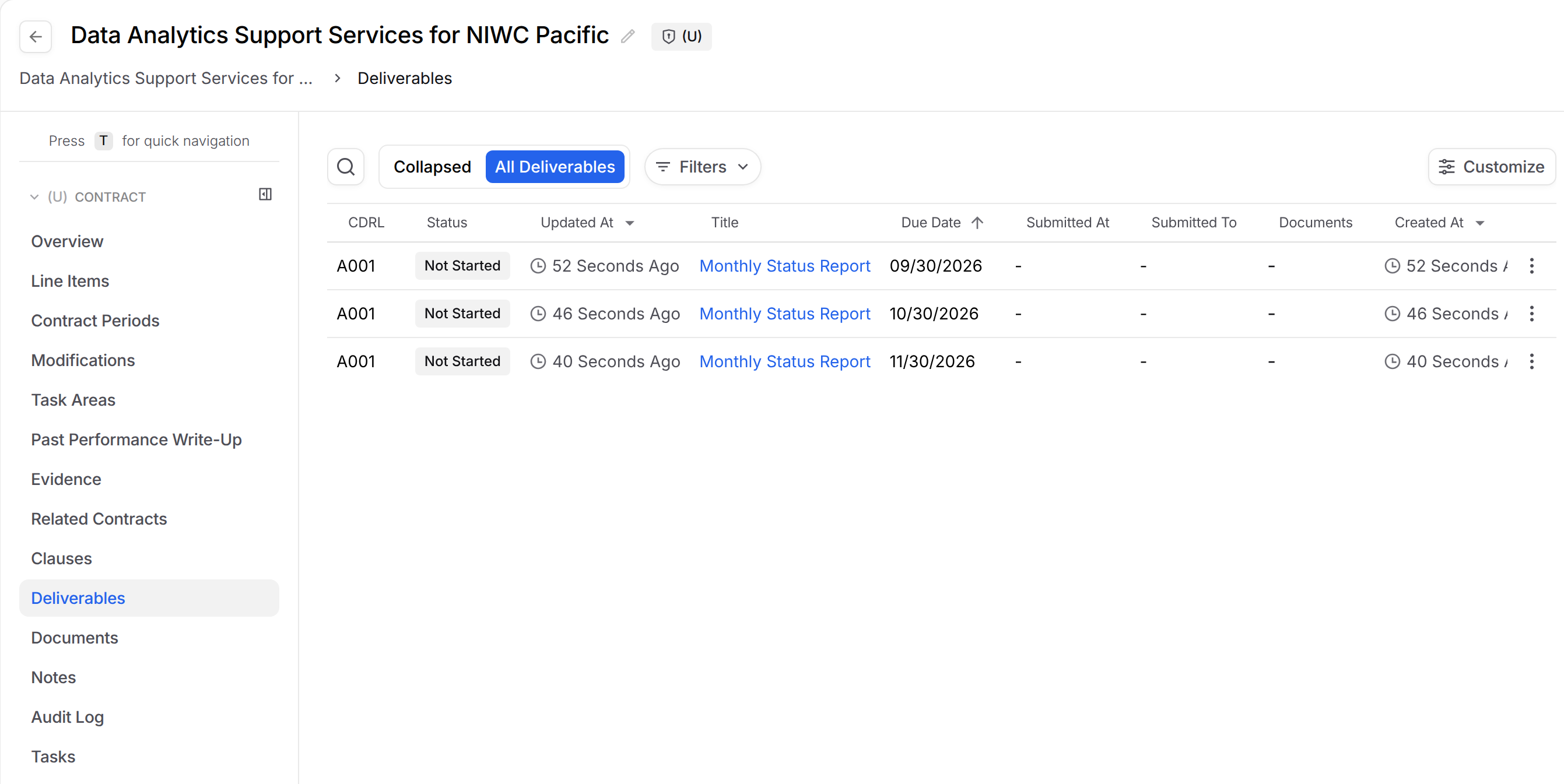
Open a contract from your inventory and click Deliverables in the left menu. Use the toggle above the table to switch views:
View | What it shows |
|---|---|
Collapsed | One row per requirement. The Next Due column shows the earliest submission that hasn't been accepted, with its status. |
All Deliverables | Every submission on the contract. Use Filters to narrow by Status, Submitted to, Due date or Submitted. |
Adding a Deliverable Requirement
In the Collapsed view, click New Deliverable.
Enter a Title. CDRL and Description are optional.
Click Create requirement.
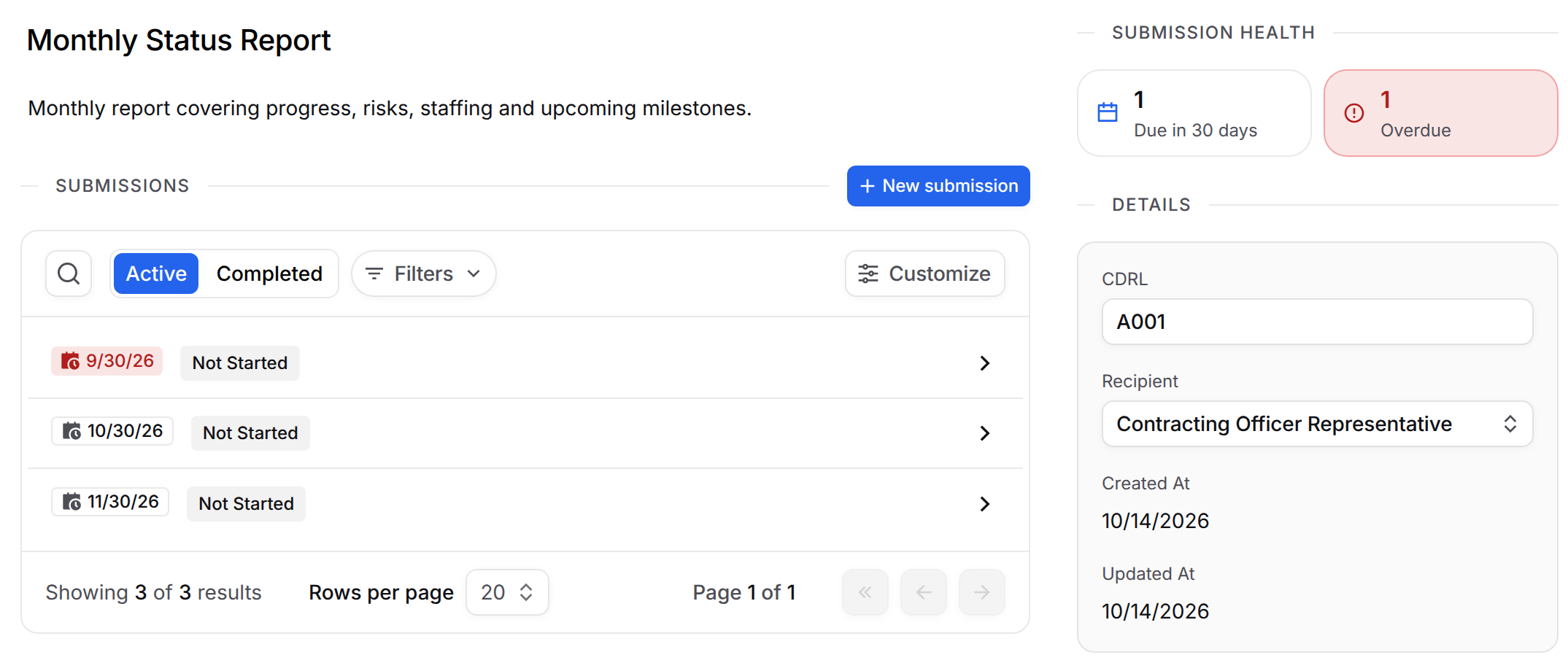
Open the requirement and, under Details, choose the Recipient: the contract's Points of Contact role that receives this deliverable, such as Contracting Officer Representative.
You can edit the title and description directly on the requirement page. Changes save automatically.
Adding Submissions
Open the requirement.
In the Submissions section, click New submission.
Optionally set a due date, then click Create submission.
Add one submission for each time the deliverable is due. Use the Active and Completed toggle to switch between open submissions and accepted ones.
The requirement page also shows a Submission health summary when any submissions need attention: Due in 30 days and Overdue count submissions that haven't been submitted yet, Pending acceptance counts those that are Submitted or Under review, and Rejected counts rejected submissions.
Tracking a Submission
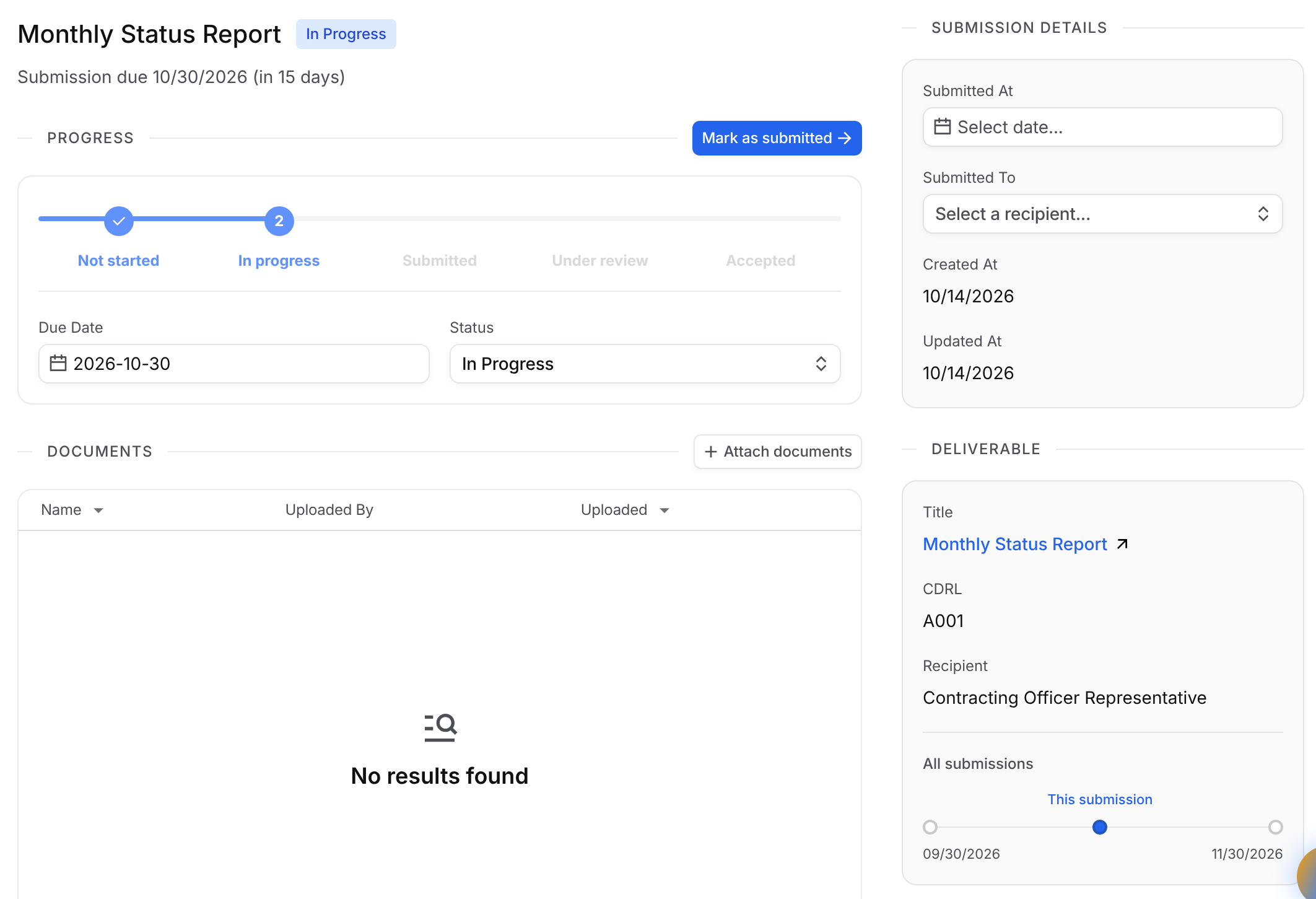
Open a submission to see its Progress. Each submission moves through Not started, In progress, Submitted, Under review and Accepted. Click the button in the Progress section to move it to the next step:
Current status | Button | New status |
|---|---|---|
Not started | Start working | In progress |
In progress | Mark as submitted | Submitted |
Submitted | Mark under review | Under review |
Under review | Mark accepted | Accepted |
Rejected | Start revision | In progress |
You can also pick any status, including Rejected, from the Status field. When you click Mark as submitted, Submitted At is set to today if it is empty.
On the same page you can:
Set Submitted At and Submitted To (the person who received it) under Submission details.
Click Attach documents to add the files you delivered. Upload a file or add one from SharePoint, Google Drive or the Data Library.
Use All submissions to jump to other submissions of the same requirement.
Who Can Edit
Anyone who can edit the contract can add and update deliverables.
Deleting Deliverables
Open the row's actions menu and choose Delete requirement or Delete submission. Deleting a requirement also permanently deletes all of its submissions, so you'll be asked to type the requirement's name to confirm.
Using Dash with Deliverables
Dash can list, create, update and delete deliverable requirements and submissions on a contract, and attach documents already in GovDash to a submission. For example, ask Dash to add a monthly status report requirement and create a submission for each month.