Adding and Managing Custom Fields
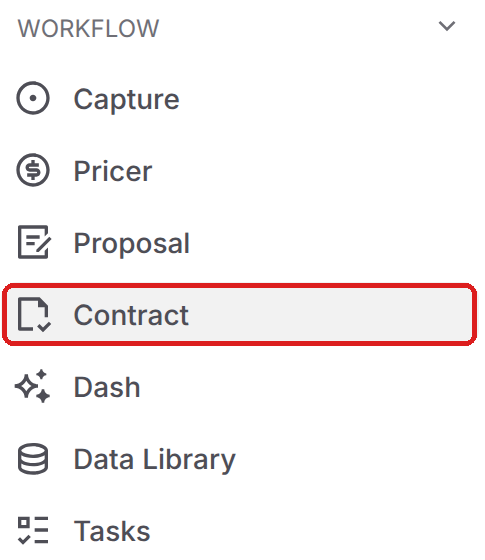
Custom fields let you track extra details on every contract, such as an internal name or a recompete date. They appear on each contract's Overview tab. To manage them, go to Settings and click Contract under Workflow.
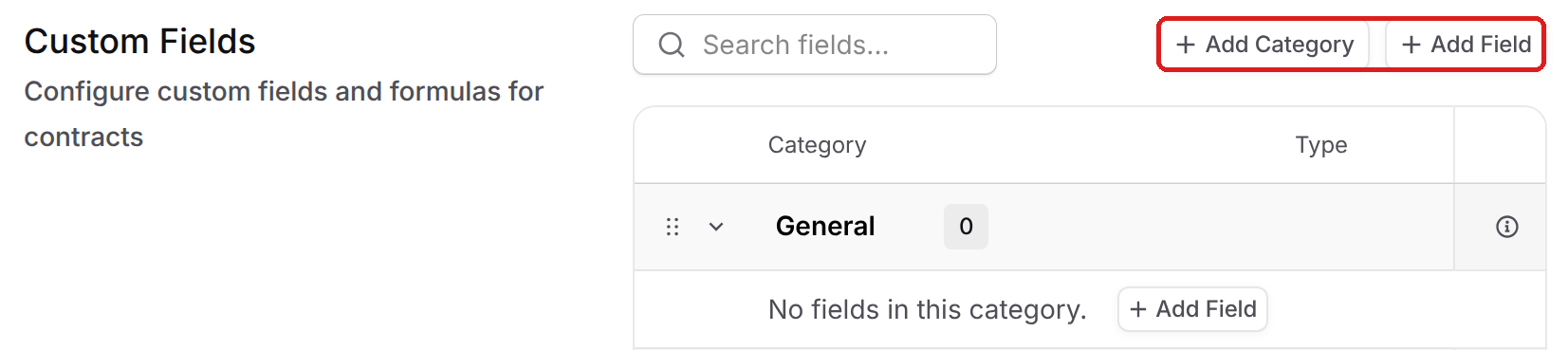
The Custom Fields section groups your fields into categories. Every team has a General category, which can't be deleted. Click Add Category to create your own.
To create a custom field:
Click Add Field at the top of the section, or click Add Field inside a category to add the field there.
Enter a Field Title and choose a Field Type, such as Text, Number, Currency, Date, Single Select, Multi Select, Yes/No, URL, or Formula.
Choose a Category and click Create Field.
Drag the handle next to a category or field to change its order. Fields appear on the contract Overview tab in the same order.
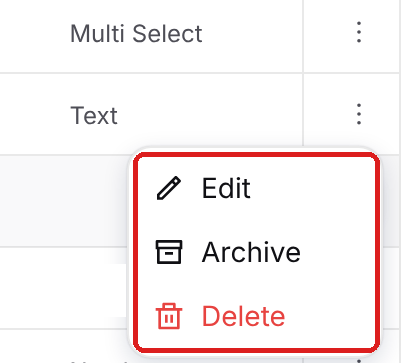
To change a field, click the three dot menu on its row and choose Edit, then click Save Changes. The same menu has Archive and Delete. If you might need a field's data later, choose Archive. Archived fields can't be edited on contracts, and you can unarchive them at any time.
Calculated/Formula Fields
A formula field calculates its value from other number fields, for example how much of a contract's potential value is not yet obligated. To create one:
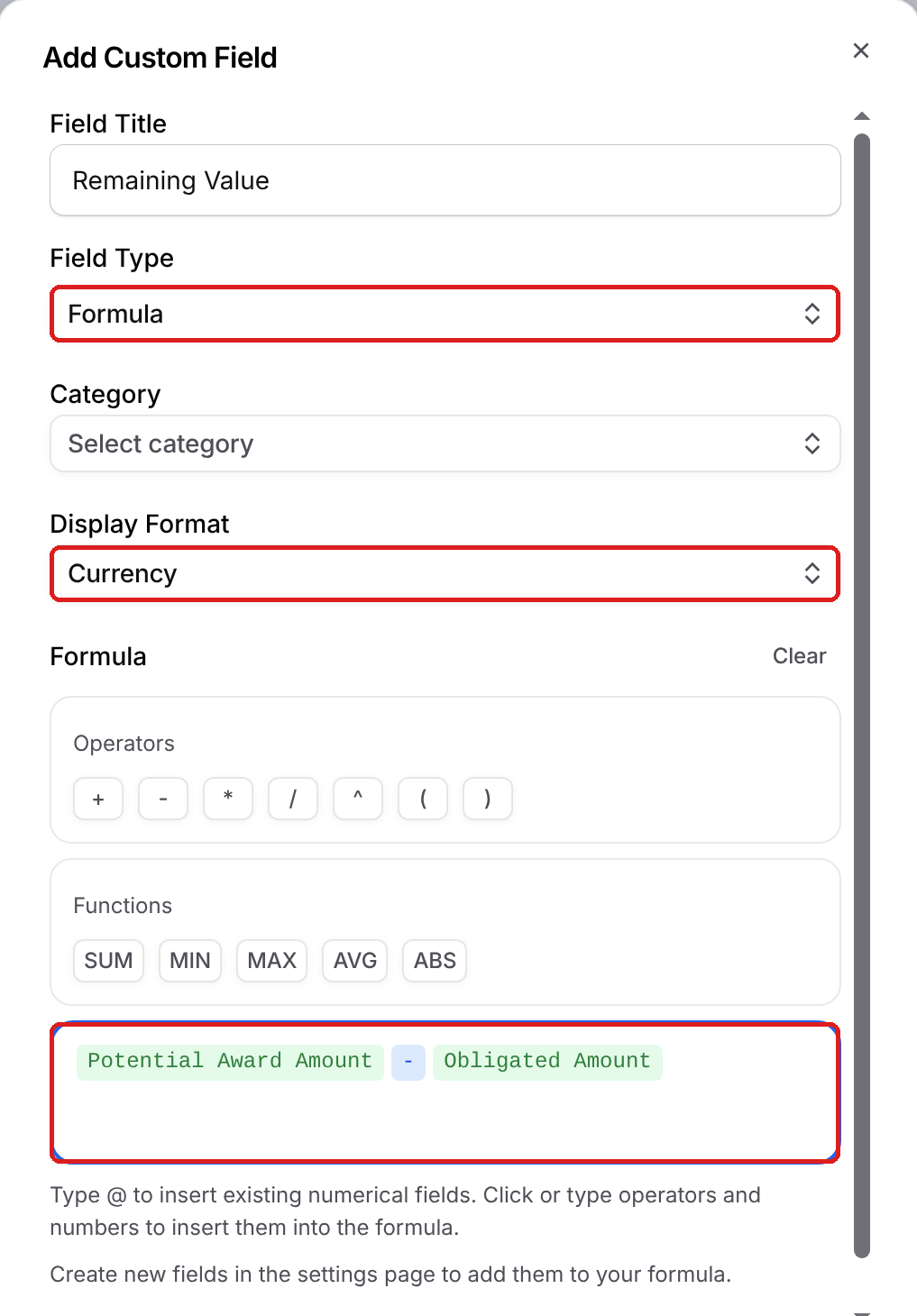
Click Add Field and set Field Type to Formula.
Choose a Display Format: Number, Currency, or Percentage.
In the formula box, type @ to insert a number field, such as Potential Award Amount or Obligated Amount. Click the operators (+, -, *, /, ^, parentheses) and functions (SUM, MIN, MAX, AVG, ABS) to add them, or type numbers directly.
Choose a Category, then click Create Field to save the formula.
On a contract, hover over a formula field to see the formula behind it. If the field shows a dash (-), hover over it to see why, such as a missing value in one of the fields the formula uses or a calculation error like dividing by zero.
The Points of Contact section further down this page sets the contact roles for your contracts. See Managing Your Contract Inventory for details.