Accessing Notification Settings
Your notification settings are personal. Changes you make apply only to you, not to your teammates.
Open Settings in the bottom left of GovDash.
Under Personal, select Notifications.
Turning Notifications On or Off
Each notification has a name, a short description and a toggle on the right. Turn the toggle on to get that notification, or off to stop getting it. Your change saves right away.
Use the tabs at the top, such as Capture Cloud, Proposal Cloud or Dash, to see only the notifications for one area of GovDash. All shows every notification.
When a notification is on, the line under it shows how you get it. App notifications show up in Notifications in the left sidebar of GovDash. Email notifications go to the email address you sign in with. If you belong to more than one team, the line also shows which teams send you that notification.

Choosing Delivery Methods and Teams
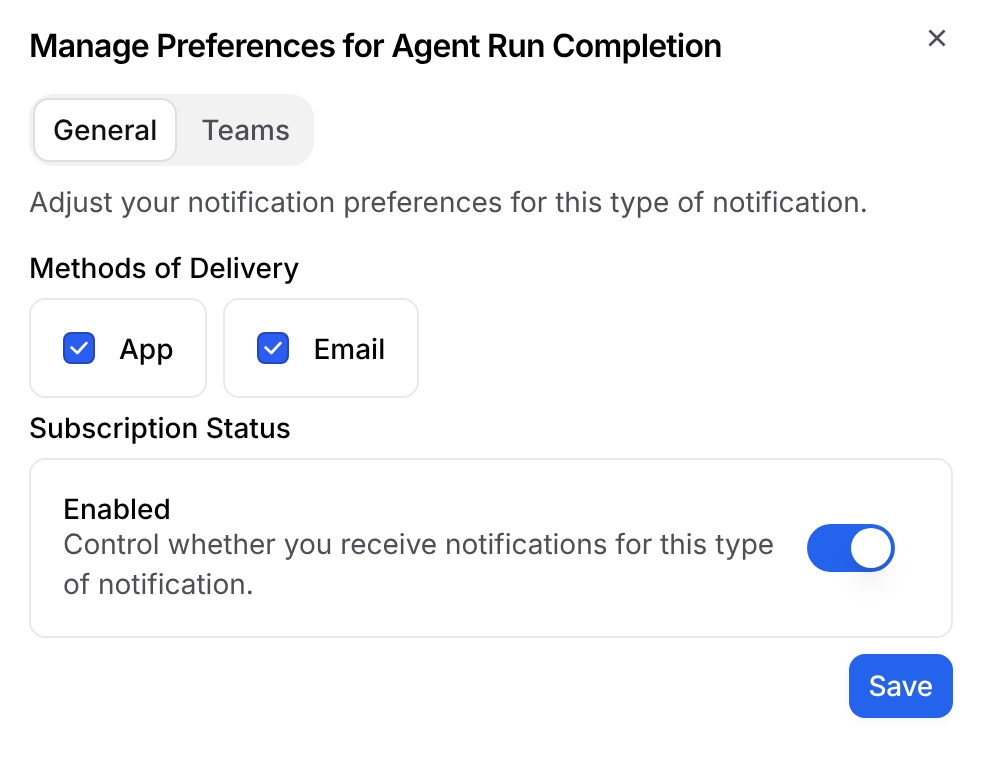
Select Configure next to a notification that's turned on. The Manage Preferences window can have two tabs:
General: Under Methods of Delivery, check App, Email or both, then select Save. This tab is available for Agent Run Completion, Chat Mentions Notification and Task Assignment Notification.
Teams: If you belong to more than one team, turn each team on or off to choose which teams send you this notification.
If you don't see Configure next to a notification, it has no extra options.
Search Profile Notifications
On the Discover tab, the Search Profiles section lists your Discover search profiles. Each one shows whether its notifications are Enabled, Disabled or Not configured, along with its schedule.
Select Manage next to a profile to choose the Notification Frequency (Daily, Weekly or Monthly), the Delivery Time and the delivery method.