What is the Staffing Pool?
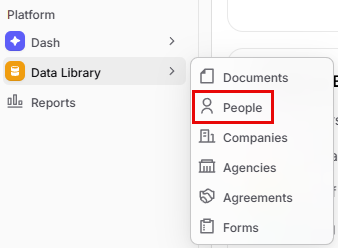
GovDash’s intelligent Staffing Pool, located under Data Library → People, helps your team streamline how they manage, select, and validate personnel during the proposal process. By centralizing resumes and profiles from your Data Library, this enables GovDash to provide automated, intelligent staffing recommendations aligned with contract labor category requirements.
Once your Staffing Pool is established, you can get those recommendations right within your proposal’s Labor Categories section.
.png)
Managing Your Staffing Pool and Resumes
Within the Data Library and People tab, you will see that your key personnel view is broken out into two tabs, Table View and Resume View. Above both tabs, the SharePoint Folder Sync window lets you link a SharePoint folder.
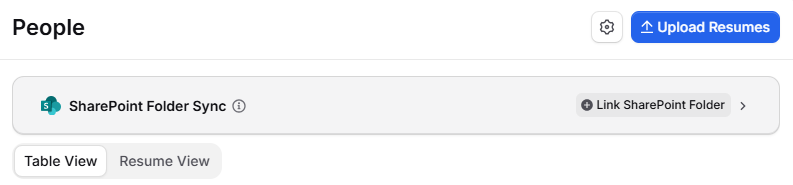
Within the Table View, you are able to see personnel that were extracted from the documents that were uploaded to your Data Library and Contract. Within this list you can view information such as whether or not the personnel is added to your Staffing Pool, whether or not a resume is attached to the personnel’s record, active employers, job title, and more.
The Resume View makes it easy to view candidate’s resumes in a full document view.
.png)
Adding/Removing Personnel From the Staffing Pool
By default, all personnel with uploaded resumes will be added to your Staffing Pool when they are populated into the People tab.
If you’d like to remove specific people from the pool (either individually or by bulk), you can do so by clicking the pink card icon (.png) ) to add/remove from the pool, or if you’d like to add/remove in bulk, use the checkboxes on the left to select multiple people and use the action bar to make your bulk action.
) to add/remove from the pool, or if you’d like to add/remove in bulk, use the checkboxes on the left to select multiple people and use the action bar to make your bulk action.
.png)
Linking SharePoint Folders for Resumes
Linking a SharePoint folder to your People tab/Staffing Pool allows you to monitor new (or removed) resumes added to a specific folder to quickly add them to your Data Library, which then feeds into your People tab/Staffing Pool.
To link a SharePoint folder, navigate to your People tab and click Link SharePoint Folder within the SharePoint Folder Sync window. Navigate to the folder you wish to link to your People tab, and click the Link button to confirm. Your linked folder will display in the SharePoint Folder Sync window.
Adding Documents From Linked Folders
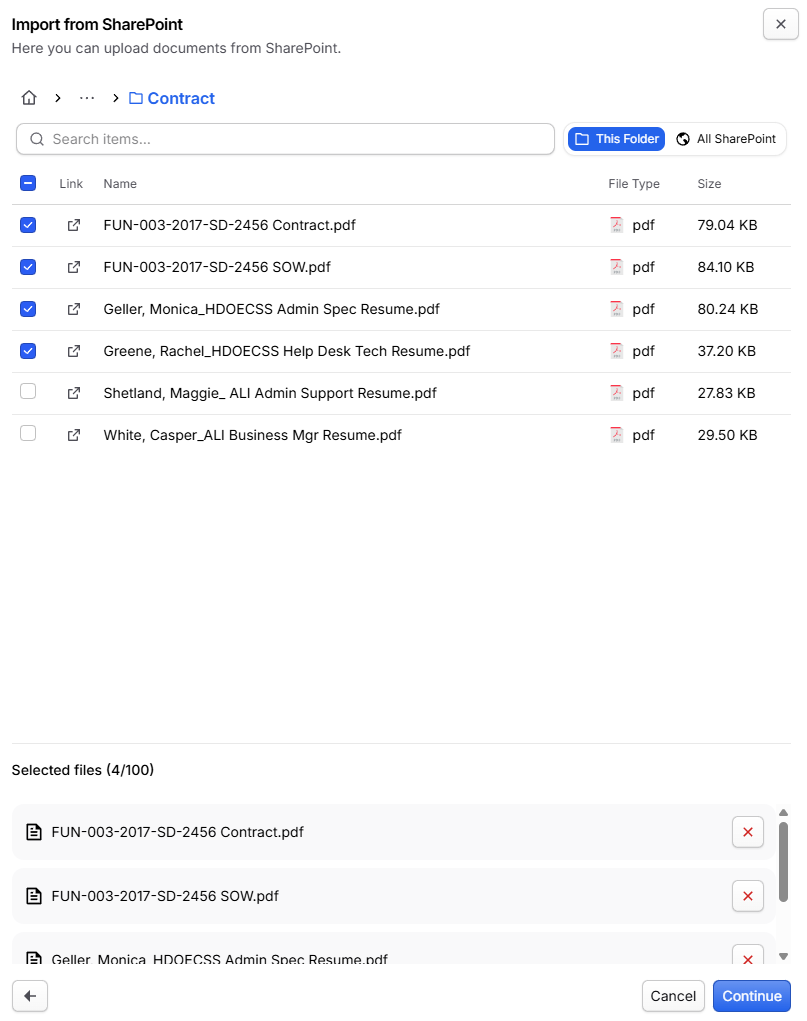
Once your folder is linked, simply click the folder in the list to bring up the documents present within the folder. Here you can choose to upload some or all files within the folder quickly.
Tracking File Changes
After linking your folder, GovDash will alert you to any changes within the linked folder within SharePoint, whether files are added or removed. You will be notified in-app, as well as a visual notification will show on the People tab.

By clicking the Review button, you can review any new or removed files and quickly add them (or remove old, deleted files) to your People tab/Staffing Pool. GovDash will scan for new changes every 5 minutes.
Auto-Syncing New Files
You can enable auto-sync to automatically import Recommended files on synced folders. Recommended files are files that GovDash can make the best use of within your People tab/Staffing Pool. Files that are not recommended will need to be manually approved in order to import.
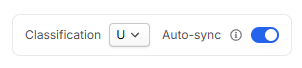
Before setting up auto-sync, you are required to specify what the classification level of every document being added to that SharePoint folder will be. For more granular control of classifications on a document-by-document basis, we do not recommend using auto-sync.
Recommended Document Types
The types of documents that GovDash recommends, and will auto-sync for resumes, are as follows:
Auto-syncing Resumes in the Data Library
Resume
Reviewing Your Staffing Pool
Once you’ve established personnel in your Staffing Pool, you can utilize the Staffing Pool filter to filter the list accordingly:
.png)
Within the Table View, you view personnel credentials and full descriptions/resumes by clicking on personnel in the list.
.png)
What’s Next?
Learn about how to get informed recommendations on labor categories within your proposal by checking out our Key Personnel guide here!