Overview
Shreds breaks the solicitation documents on an opportunity down sentence by sentence. GovDash finds the proposal instructions, task area requirements, evaluation criteria and shall/will/must statements, color codes each one and links it back to the exact spot in the document. Use it to size up a solicitation quickly for your bid/no-bid decision and planning.
Click through the interactive walkthrough below to see how it works, or follow the steps below.
Opening Shreds
Add the solicitation documents on the opportunity's Documents tab, and GovDash shreds each one for you. See Solicitation Documents for how to add files.
Then open the opportunity and select Shreds under OPPORTUNITY in the side panel. The shred overview is on the left and the document is on the right.
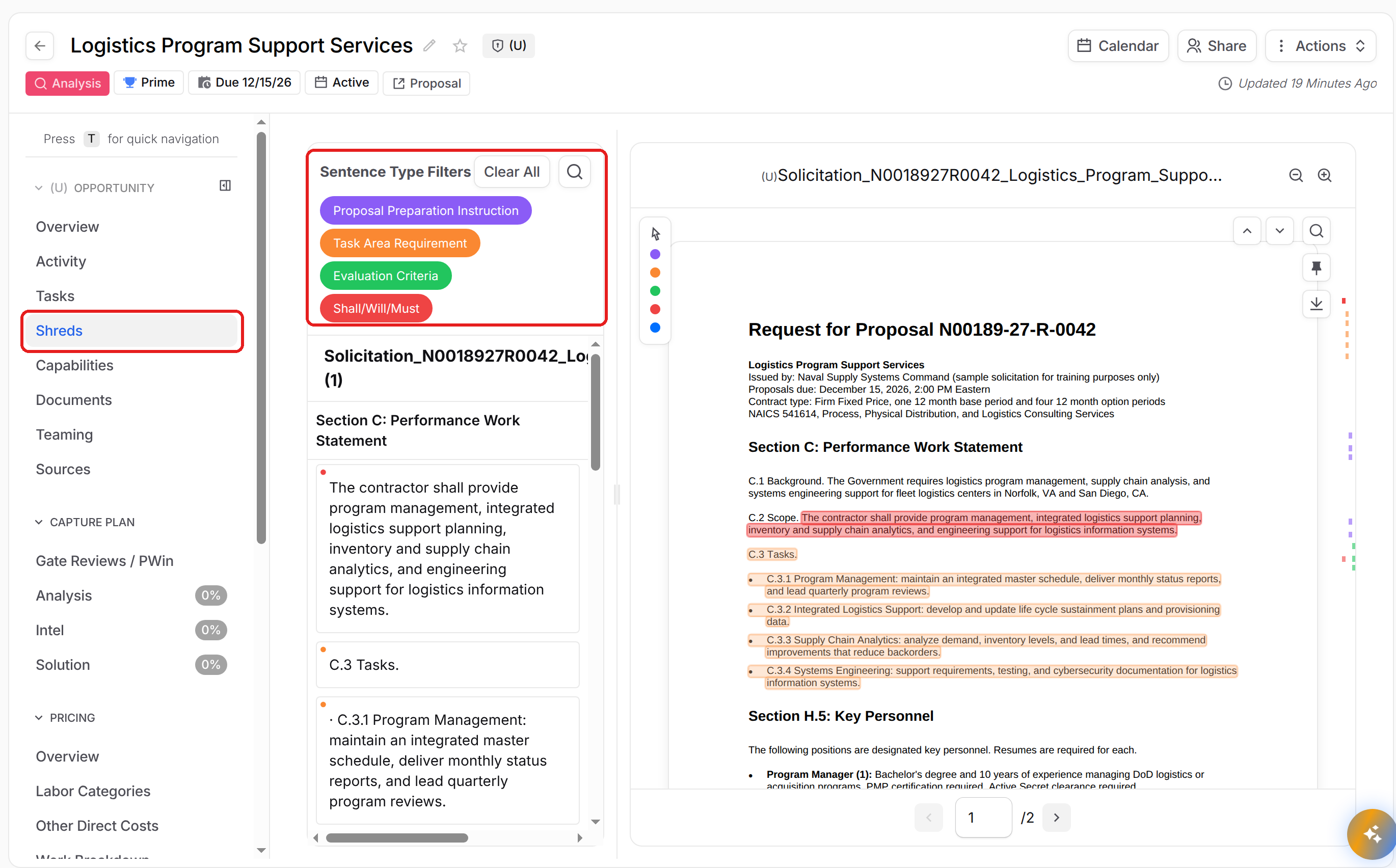
While a document is still being shredded, you'll see Processing Documents. If nothing has been shredded yet, select Upload Documents to add files.
Sentence Types
Each excerpt is color coded by its type. A sentence can have more than one type.
Proposal Preparation Instruction (purple): how to prepare and submit your proposal, such as volumes and page limits.
Task Area Requirement (orange): the work the contractor must perform.
Evaluation Criteria (green): how the government will evaluate proposals.
Shall/Will/Must (red): sentences with mandatory language.
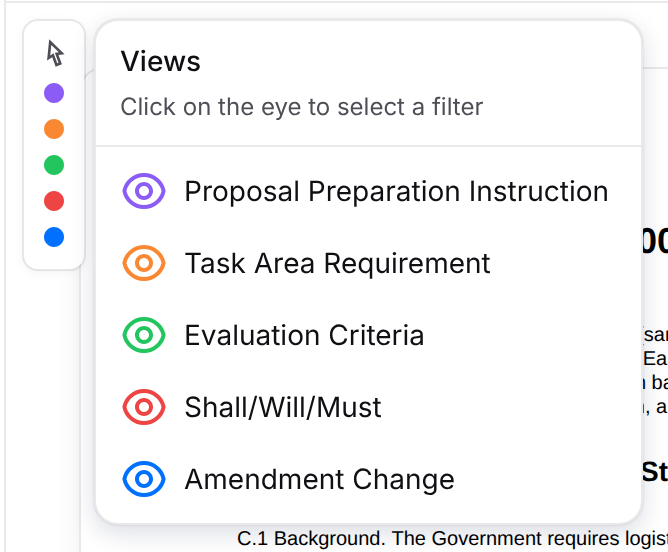
Amendment Change (blue): text that changed in an amendment. You can turn it on from the document's highlight menu.
Filtering by Type
Under Sentence Type Filters, select a type to turn it off and hide those excerpts from the overview. Select it again to turn it back on. Select Clear All to remove the filters and see every excerpt.
Finding an Excerpt in the Document
The shred overview lists every excerpt, grouped by document and section. Hover over an excerpt to jump to it in the document. GovDash scrolls to it and highlights the exact text it came from.
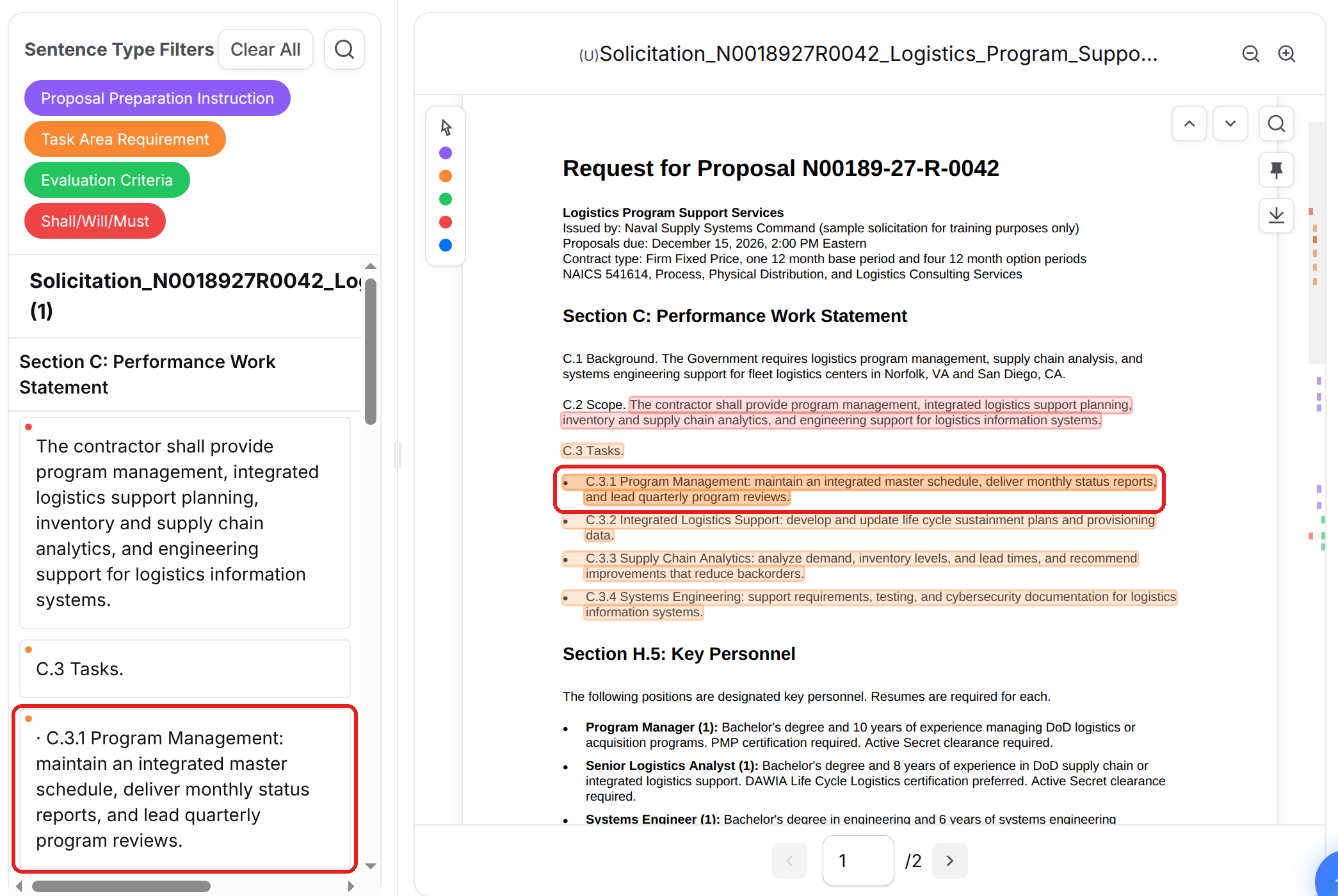
If the opportunity has more than one document, each document's excerpts are listed under its name.
Searching the Shreds
Select the search icon next to Clear All and type a word or phrase. The overview shows only the excerpts that match, and the matches are highlighted in the document. Select the x to clear the search.
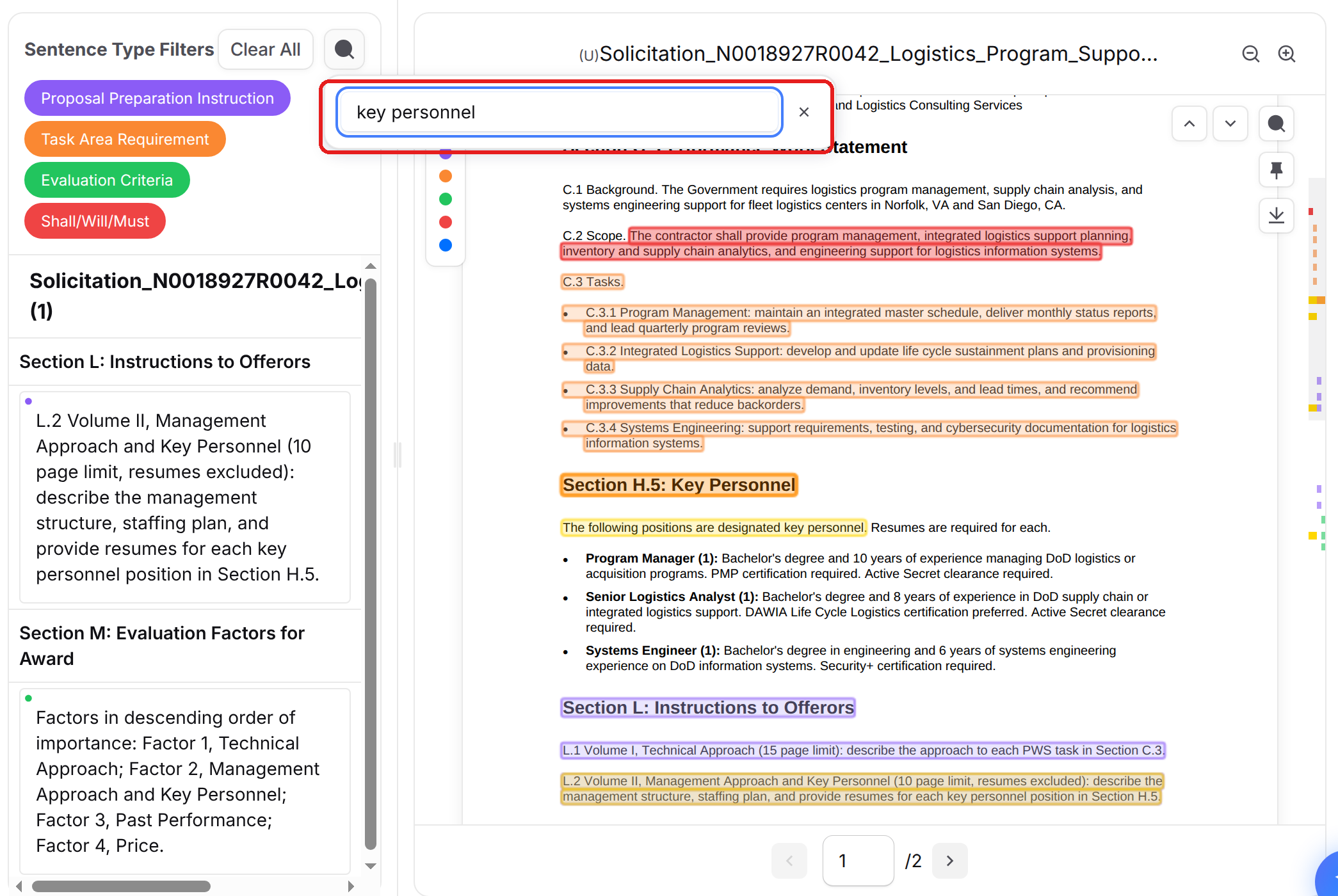
To search the full document text instead, use the search icon at the top right of the document, then the up and down arrows to move between matches.
Choosing What's Highlighted
The highlight menu on the left edge of the document shows which types are highlighted. Select it to open Views, then select the eye next to a type to choose what's highlighted in the document.
Showing or Hiding the Shred Overview
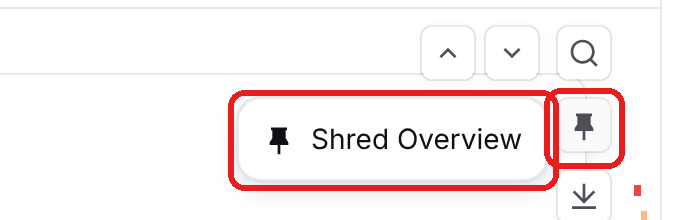
Select the pin icon on the right of the document, then Shred Overview to hide the excerpt list and give the document more room. Select it again to bring the list back.
Use the zoom buttons at the top right of the document and the page arrows at the bottom to move around the document.
Downloading the Compliance Package
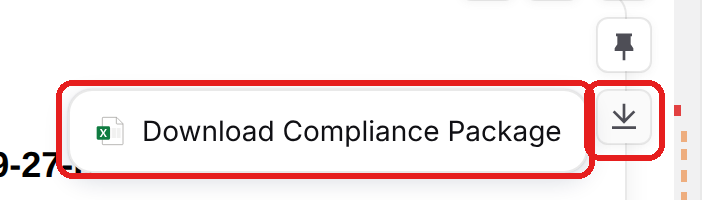
Select the download icon on the right of the document, then Download Compliance Package to download an Excel compliance package for your team.
When you start a proposal from this opportunity, its Compliance tab maps these requirements to your outline. See Compliance Matrix and Shreds.
FAQ
What does GovDash shred?
GovDash shreds the documents on the opportunity's Documents tab, such as RFPs, PWS or SOW documents and amendments.
Why don't I see a document in Shreds?
It may still be processing. Documents you don't have access to also aren't shown in Shreds.
How do shreds help my team?
Shreds pull the instructions, requirements and evaluation criteria out of a long solicitation, so your team can find what matters quickly for bid/no-bid decisions and planning.