Uploading and Linking Task Orders and Subcontracts
To upload a task order or subcontract to a parent contract, first ensure your parent contract is uploaded. You can learn how to upload your contracts using our guide here.
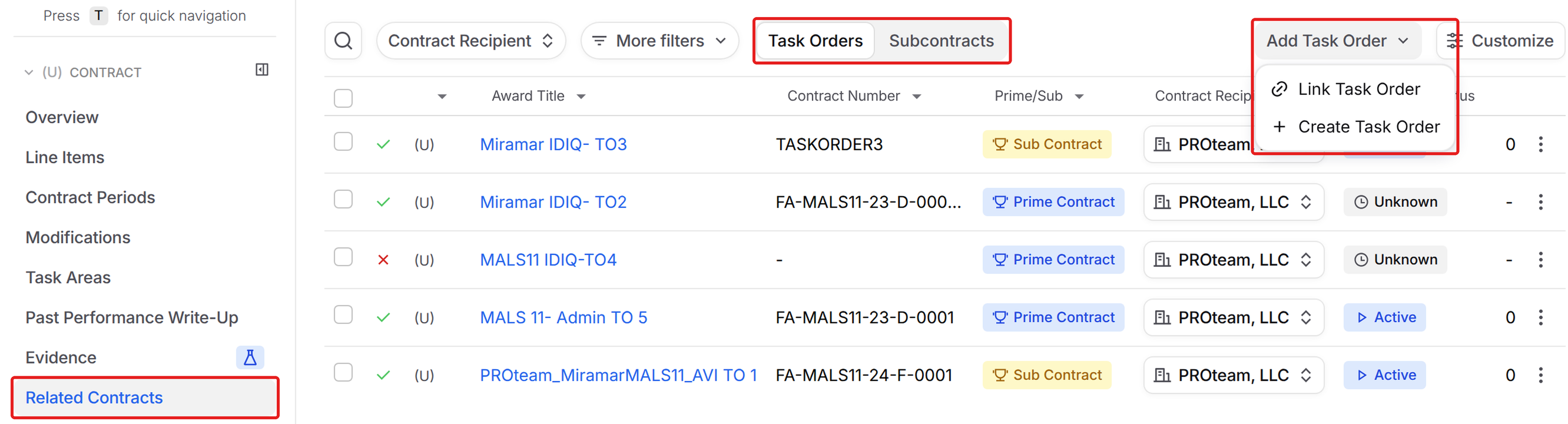
After your parent contract is uploaded, open it and click Related Contracts in the left menu. Choose the Task Orders or Subcontracts tab, then click Add Task Order or Add Subcontract:
Link Task Order or Link Subcontract: Connect one you’ve already uploaded to GovDash.
Create Task Order or Create Subcontract: Create a new one right from the parent contract.
Linking From the Task Order or Subcontract
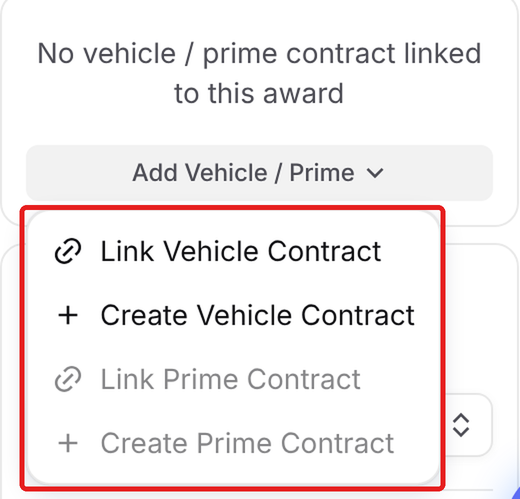
You can also make the link from the other direction. Open the task order or subcontract, and on its Overview page find the card that says No vehicle / prime contract linked to this award. Click Add Vehicle / Prime and choose:
Link Vehicle Contract or Create Vehicle Contract: For a task order under an IDIQ or other contract vehicle.
Link Prime Contract or Create Prime Contract: For a subcontract under a prime contract.
Once linked, the card lists the contract under Parent Contracts.
Linking Rules
A contract can have one vehicle contract and one prime contract. A contract marked as Prime Contract can’t be linked under another prime contract, so those options are grayed out. A contract also can’t be linked to itself, or be both a parent and a child of the same contract.
Task Order/Subcontract Organization
Your task orders are organized visually in the main Contract Inventory dashboard using the Expandable layout, which is accessible from the Customize button in the top right of the main inventory screen. Your task orders will be nested under the parent contract as shown below. You can collapse each parent level contract using the arrow indicator on the left.
.png)