Before you begin…
In order to get the best results using capability matrices within GovDash, please ensure:
Your opportunity within the Pipeline has a PWS or SOW document that contains task areas uploaded to the Documents tab, or provided by SAM.gov if added from Discover.
Your Contract inventory has been updated with your past performances
Overview
Creating capability matrices within GovDash automates long and tedious processes like shredding documents, digging through your past performance, and aligning your capabilities to task areas. Using GovDash, you can automate this entire process within minutes, providing you with relevancy scores, contract relevancy with details pulled right from your contracts, all in an easy to navigate interface.
Click through the interactive walkthrough below to see how to generate a capability matrix, from finding the task areas and selecting contracts to reviewing the scores, or follow the steps below.
Generating Scores & Adding Contracts
To generate scores for your capability matrix, click Generate Scores at the top. This will allow you to select which contracts you want scored against the task areas for relevance. You’ll also select this button to add new contracts to an existing matrix.
Which documents are used when GovDash scores the relevancy of my contracts?
When you select a contract to be scored against the task areas of the opportunity, GovDash utilizes the main PWS/SOW of your contract when determining the work that was done on the contract. To ensure these documents are kept up to date, please see our support article here on how to update these.
Matrix View
On the default Matrix view, you’ll be shown all of the task areas, the description of each, and the relevancy score assigned. You can click on the task area title to open a detailed summary on why the score was assigned, and a preview of where the task area appears in the source document, highlighted for easy review, under the Source tab.
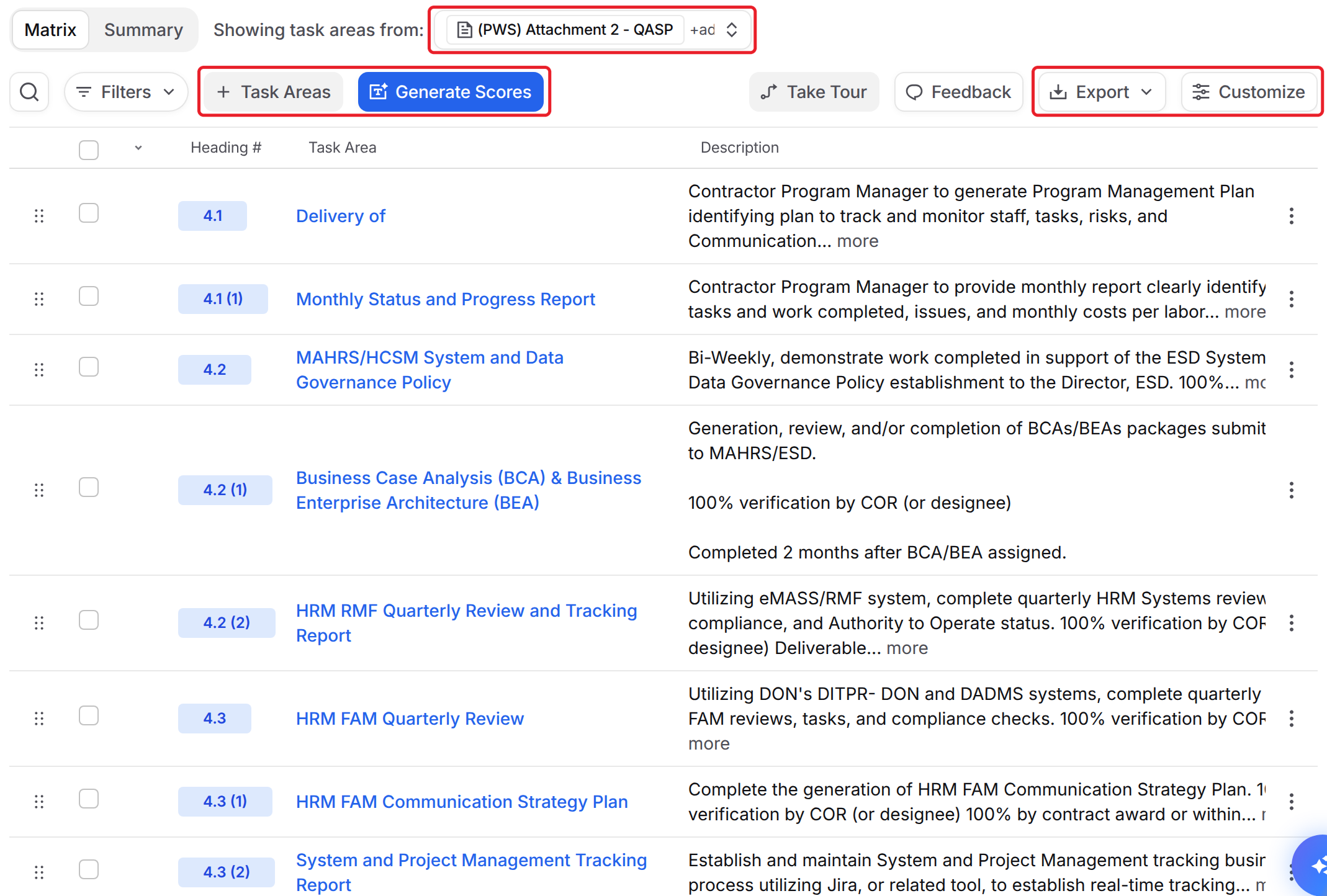
Matrix Main View
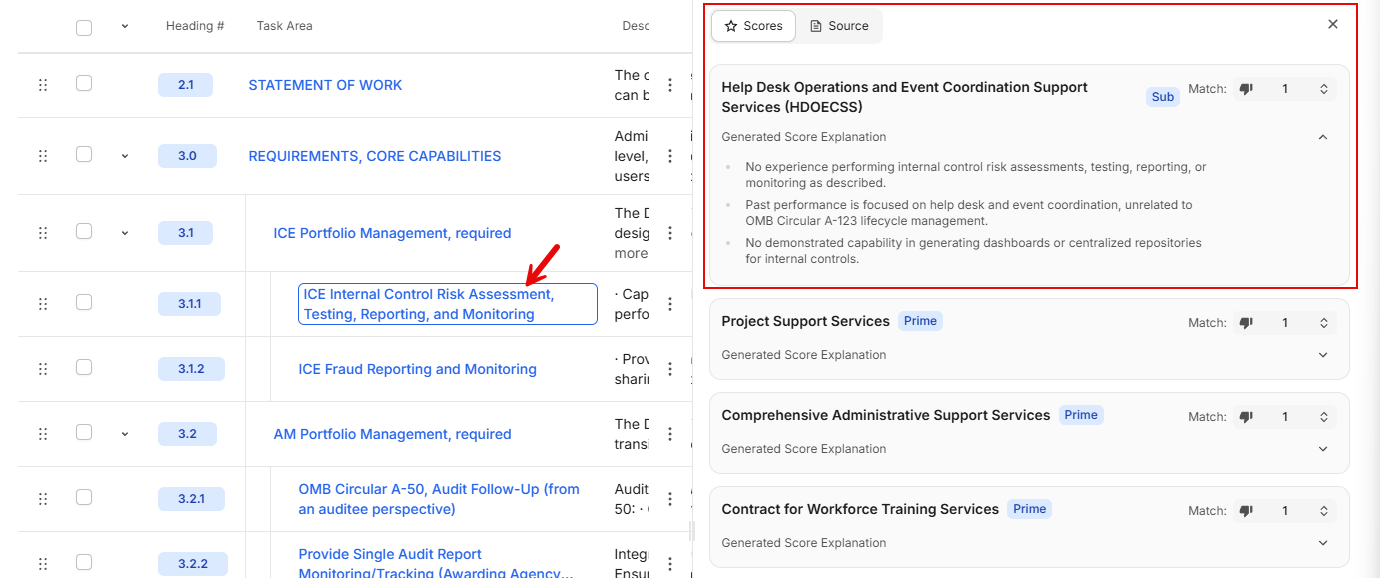
Scoring and Source Pane
Adding Additional Documents to Matrix View
GovDash will show the main PWS by default, but you can use the Showing task areas from drop down at the top to add additional documents to the matrix view and generate scores for the task areas.
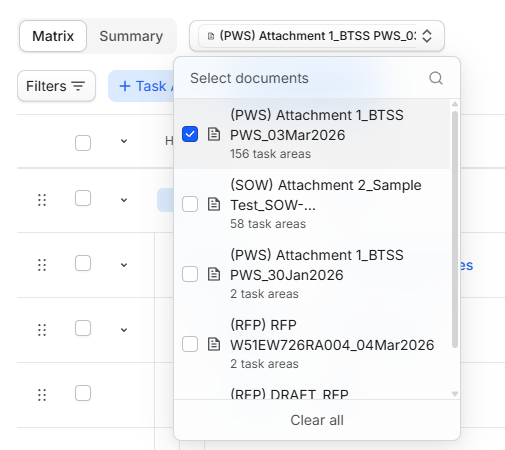
Adding Task Areas
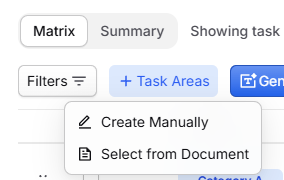
On the Matrix tab, you can create new task areas, reorder task areas, and delete task areas as needed. To add new task areas, click the + Task Areas button, then choose Select from Document to add them from any document or Create Manually to enter them yourself.
Summary View
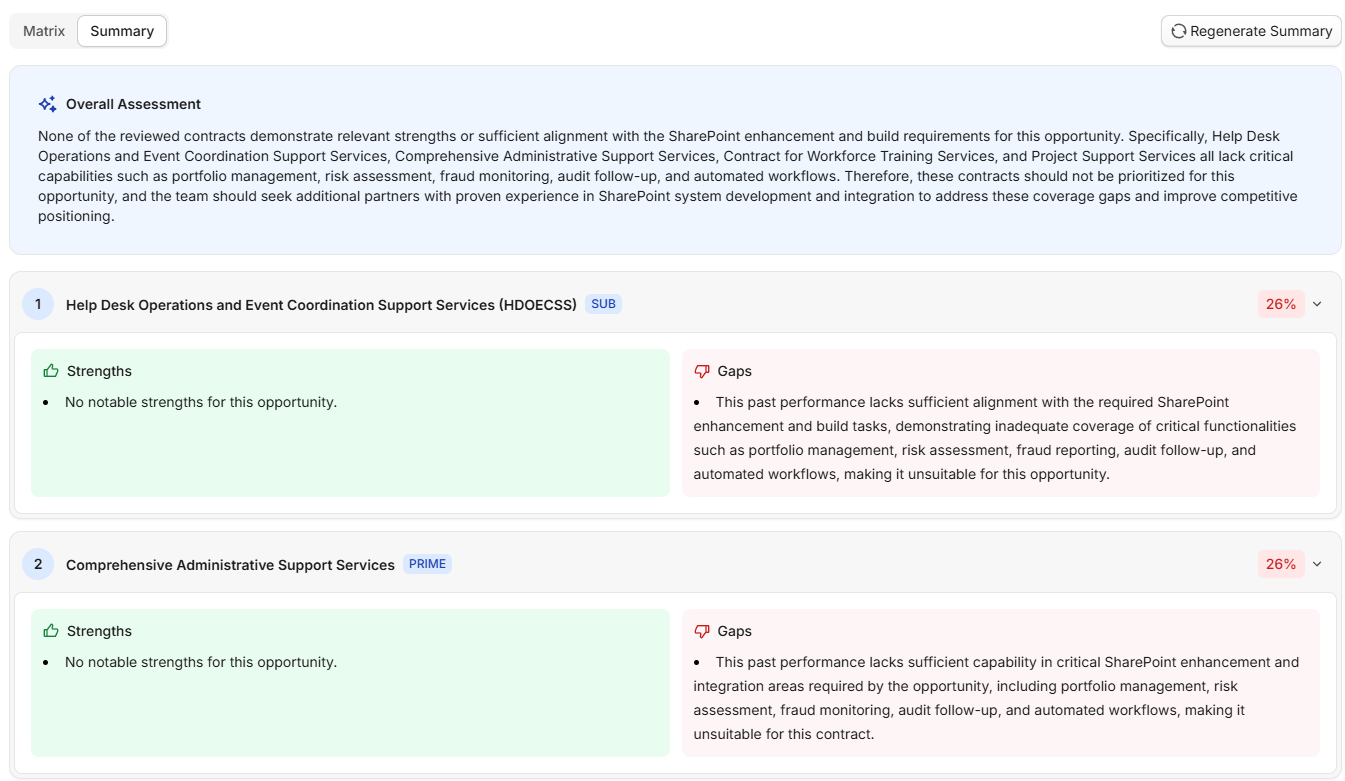
The Summary view provides you with an overall assessment of your capabilities for the opportunity’s task areas, as well as overall strengths and gaps per contract added to the matrix.
Customization and Export Options
Using the Customize button in the top right of the Matrix tab will allow you to edit column order, change your score display options, and formatting preferences.
You may also export the matrix at any time by selecting Export.
FAQ
What documents are required to generate a capability matrix in GovDash?
You need a PWS or SOW document that contains task areas uploaded to the Documents tab, or provided by SAM.gov if added from Discover.
How can I update my past performances in GovDash?
You can update your past performances in your Contract inventory. Please see our guide here to learn more.
What is the process to generate a capability matrix?
Select the opportunity in your Pipeline, click the Capabilities tab, and then click the Generate Capability Matrix button.
What information does the generated capability matrix provide?
It provides a list of task areas, a match score based on your capabilities, and relevant contracts with excerpts and assigned match scores.
Can I manually add or edit task areas in the capability matrix?
Yes, you can manually add task areas by clicking + Task Areas and choosing Create Manually, or edit existing ones using the three-dot Action menu.
Is it possible to export the capability matrix?
Yes, you can export your capability matrix and task areas to Excel or spreadsheet format using the Export button in the top right of the Matrix tab.
What should I do if I don't see a specific task area in the document?
You can manually add the task area by clicking +Task Areas at the top of the matrix view or add additional task areas from other documents using the Showing task areas from drop down.